How to Change Router Password: Step-by-Step Guide (2026)
Learning how to change router password settings is the single most effective five-minute security upgrade you can make at home — and one of the most searched questions for a reason: the password on the router’s sticker has usually been shared with half the neighborhood, and the admin password often still says «admin». This guide fixes both.
Below you’ll find how to change router password credentials step by step on any brand — TP-Link, Netgear, Asus, Linksys or your provider’s router — plus what to do right after so the change actually improves your security.
Table of Contents
The two passwords your router has
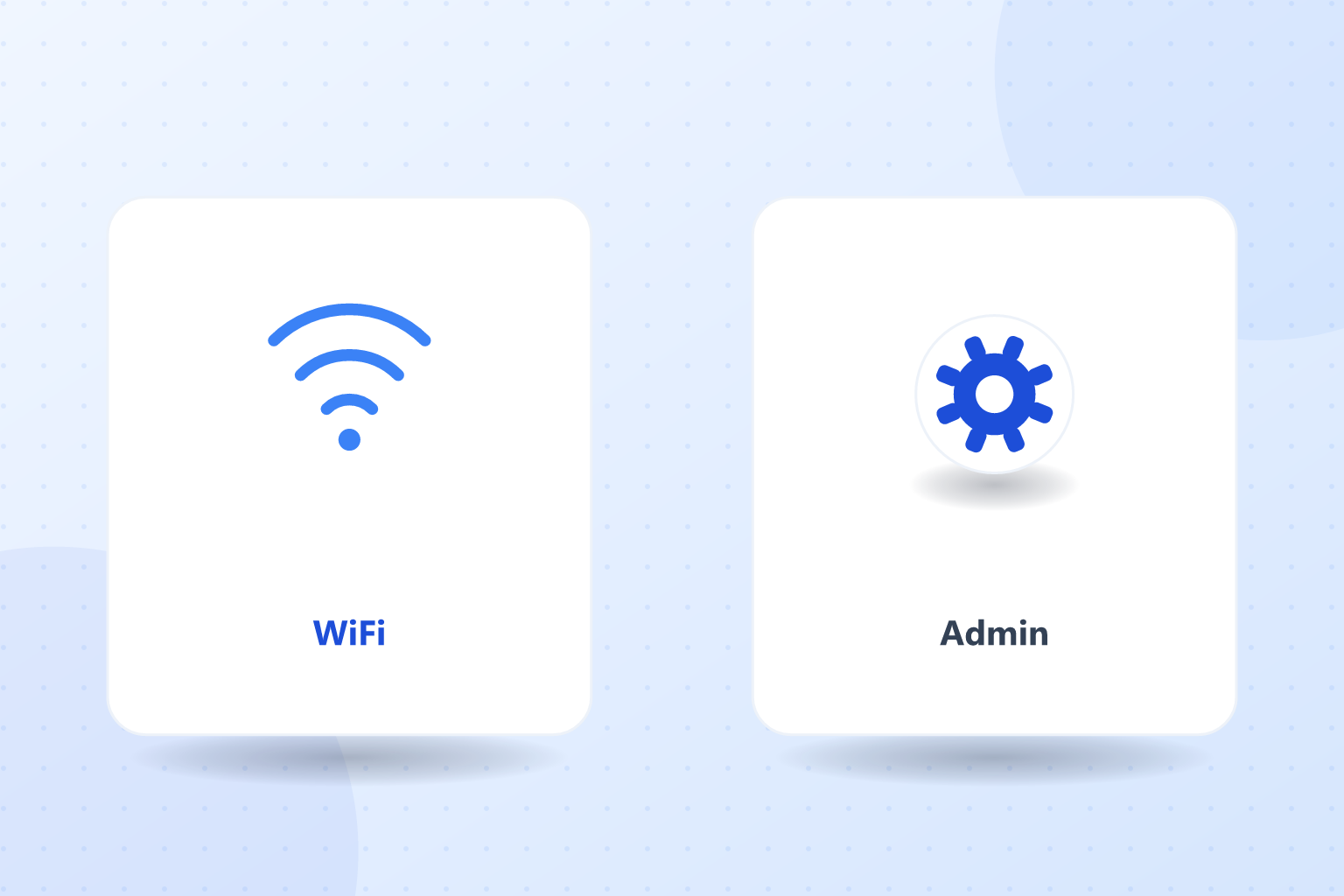
Before touching anything, know what you’re changing — mixing these up is the most common source of confusion:
- WiFi password (network key): what phones, laptops and gadgets use to join your wireless network. Change it and every device must reconnect.
- Admin password: what protects the router’s settings panel. Change it and nothing disconnects — but nobody can alter your router’s configuration without it.
Both matter: the WiFi password keeps strangers off your network, the admin password keeps whoever is on the network from controlling it.
Step 1: Open your router’s admin panel
- Connect to your network (WiFi or cable — cable is safer while changing settings).
- In your browser’s address bar type 192.168.1.1. If nothing loads, try 192.168.0.1, 192.168.1.254 or 10.0.0.1.
- Log in with the admin credentials. If you never changed them, they’re on the sticker under the router (or classic defaults like admin/admin).
- Can’t find the address? On Windows, open CMD and type
ipconfig— the «Default Gateway» is your router.
Step 2: Change the WiFi password
- Go to the Wireless section (also called WiFi, Wireless Settings or WLAN).
- Find the field named Password, Wireless Key, Passphrase or Pre-Shared Key.
- Enter your new password (rules below) — if your router shows 2.4 GHz and 5 GHz as separate networks, change both.
- While you’re here, check the security mode is WPA2/WPA3 (never WEP).
- Save. The WiFi restarts and every device gets disconnected — that’s normal and exactly the point.
Step 3: Change the admin password
- Go to System Tools, Administration, Management or Maintenance (naming varies).
- Find Change Password / Set Password.
- Enter the old admin password and the new one — different from your WiFi password.
- Save and log back in with the new credentials to confirm it took.
This is the change most people skip, and the one attackers count on: default admin credentials for every router model are published openly online.
What makes a good router password
- 12+ characters — length beats complexity tricks.
- A phrase works best: three or four random words with a number and symbol («Coffee-Lamp-River-42!») is strong and typeable on a TV remote.
- Nothing personal: no address, phone number, birthdays or pet names.
- Unique: not the same password you use anywhere else.
- Store it in a password manager rather than a sticky note — tools like NordPass keep every password long, unique and synced across your devices, so «I’ll never remember it» stops being a reason for weak WiFi keys.
After the change: reconnect and harden
Reconnect your devices with the new password (phones and laptops first; smart plugs and cameras usually reconnect from their app). Then, while you’re still in the panel, three quick wins:
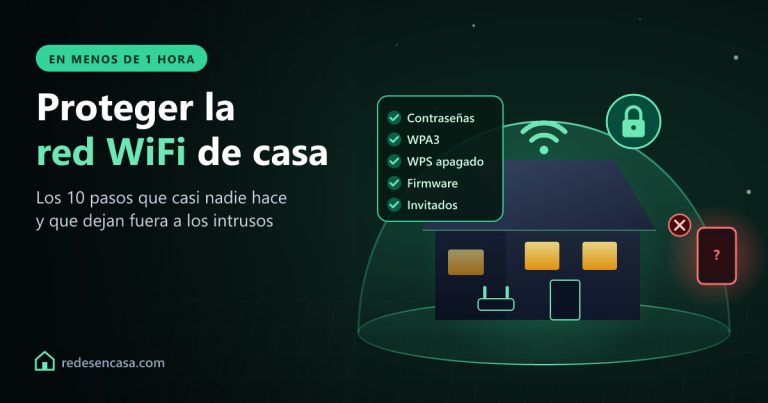
- Disable WPS — otherwise its crackable PIN bypasses your shiny new password.
- Update the firmware if there’s a pending version.
- Set up the guest network for visitors, so your main password never gets shared again.
And the privacy layer beyond your router: a VPN like NordVPN encrypts your traffic on any network — home or public — so your online activity stays yours even outside these walls. 30-day money-back guarantee if you want to test it.
Summary table: panel addresses by brand
| Brand | Panel address | Default user |
|---|---|---|
| TP-Link | 192.168.0.1 / tplinkwifi.net | admin |
| Netgear | 192.168.1.1 / routerlogin.net | admin |
| Asus | 192.168.1.1 / router.asus.com | admin |
| Linksys | 192.168.1.1 | admin |
| ISP routers (most) | 192.168.1.1 | see sticker |
FAQ: how to change router password
How do I change my router password without the app?
Any browser works: type 192.168.1.1 (or 192.168.0.1) in the address bar, log in with the credentials from the router’s sticker, then change the WiFi password under Wireless settings and the admin password under System Tools or Administration. No app required on any brand.
What if I forgot my router’s admin password?
If the sticker credentials don’t work and nobody remembers the change, hold the router’s reset button for about 10 seconds until the lights blink. The router returns to factory settings — sticker credentials work again, but you’ll need to reconfigure your WiFi name and password afterward.
How often should I change my WiFi password?
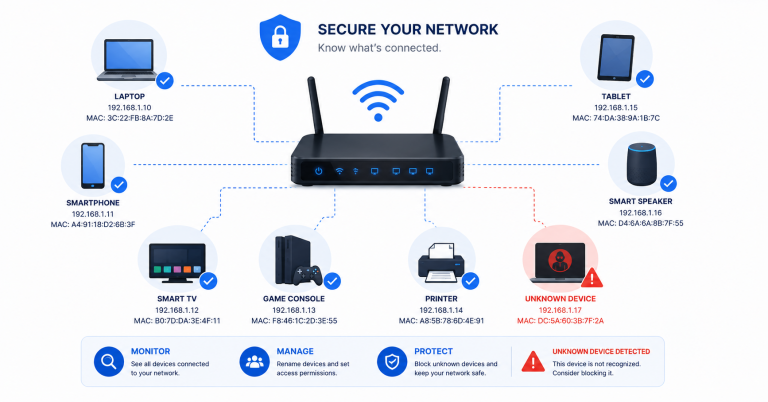
With a strong, unique password there’s no need for scheduled changes — change it when it matters: after sharing it widely, after a breakup or roommate moving out, if you spot an unknown device on the network, or if it’s still the sticker default. Those events, not the calendar, are the trigger.
Will changing the router password disconnect my devices?
Changing the WiFi password disconnects everything wireless — that’s the point, it evicts any freeloader too. Reconnect your devices with the new key. Changing only the admin password disconnects nothing, since it protects the settings panel, not the network.
What’s the default password of my router?
It’s printed on the sticker under or behind the router — both the WiFi key and the admin credentials. That’s also why changing both matters: those defaults follow known patterns per brand, and default admin combinations are public knowledge.
Is it safe to save my WiFi password in a password manager?
Safer than any alternative: managers like NordPass encrypt your passwords end-to-end, sync them across devices and let you use a long random WiFi key you never have to memorize. The risky options are the sticky note and reusing a password you use elsewhere.
Conclusion
Now you know how to change router password credentials properly: panel at 192.168.1.1, new WiFi key under Wireless, new admin password under Administration — and WPS off on your way out. Five minutes, any brand, and your network stops being an open door.
Store the new passwords in a manager, hand visitors the guest network from now on, and this is a job you won’t repeat until the day you spot a stranger in your device list.
More guides that can help you
- .BIN Firmware File: Complete Guide to Update Your Router
- TP-Link Repeater Connected But No Internet: Fix Guide
- iPhone Not Connecting to WiFi: Complete Fix Guide
- Alexa Not Connecting to WiFi: Causes and Quick Fix
- Best WiFi Extenders 2026: Definitive Guide
- Best WiFi Mesh 2026: Which to Buy