Alexa Not Connecting to WiFi: Causes and Quick Fix (2026)
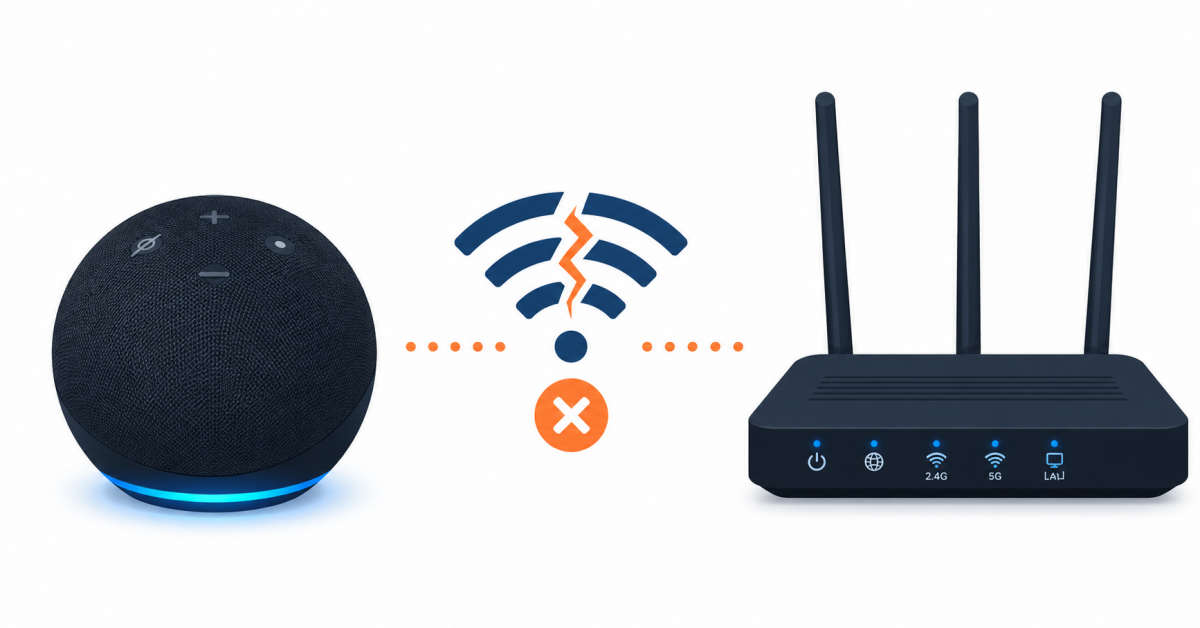
If your Alexa is not connecting to WiFi, the Echo device is usually trying to connect to the wrong band, has a corrupted network profile, or simply needs a restart. This guide covers every reason your Alexa is not connecting to WiFi in 2026 and the exact fix for each, from a quick restart to a factory reset — so you can get your Echo back online in minutes.
Works for all Echo devices: Echo Dot, Echo (4th/5th gen), Echo Show, Echo Pop, and Echo Studio.
Table of Contents
Why is Alexa not connecting to WiFi?
When Alexa is not connecting to WiFi, these are the most common causes:
- 📡 Wrong WiFi band — most Echo devices only support 2.4 GHz, not 5 GHz.
- 🔁 Stale connection — the Echo has a cached network error that needs a restart.
- 🔑 Password changed — the router WiFi password was updated but the Echo still has the old one.
- 📶 Weak signal — the Echo is too far from the router.
- 🔧 Router issue — the router needs a restart or has a configuration problem.
1) Restart the Echo device
The quickest fix when Alexa not connecting to WiFi is a simple restart — it clears temporary errors without erasing any settings.
- Unplug the Echo from the power outlet.
- Wait 30 seconds.
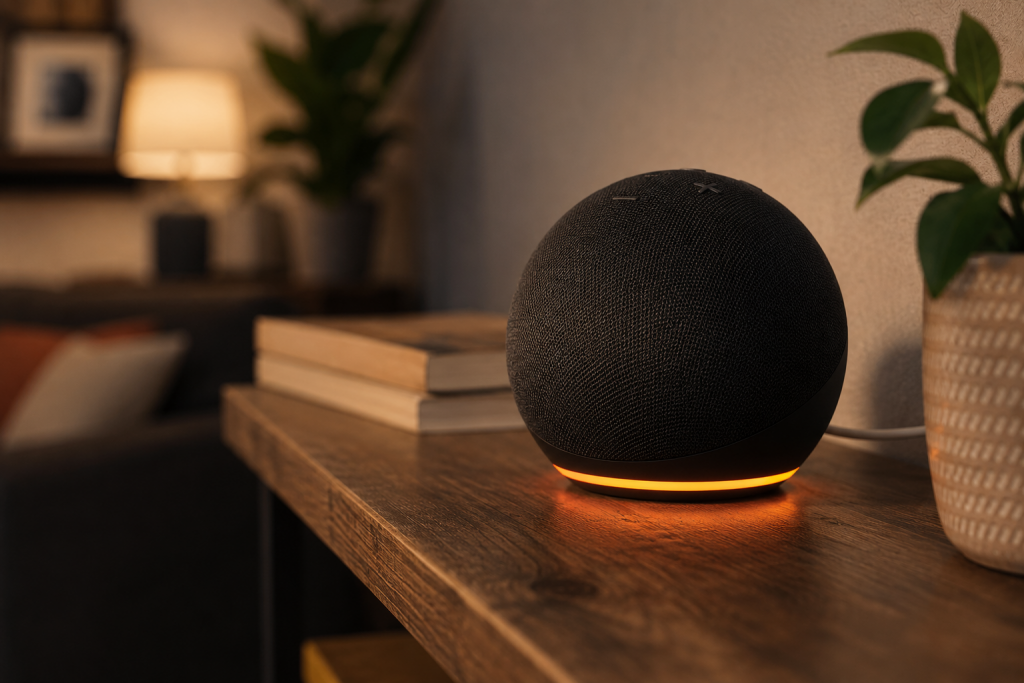
- Plug it back in and wait for the orange ring to turn off and the device to finish booting.
If Alexa says «I’m having trouble connecting to the internet» after restart, continue with the steps below.
2) Check the WiFi band — Echo needs 2.4 GHz
This is the most overlooked reason Alexa not connecting to WiFi. Most Echo devices (except Echo 4th gen and newer with dual-band support) only support 2.4 GHz. If your router broadcasts only 5 GHz, or if you have a combined network name but the device tries to connect to 5 GHz, the Echo won’t connect.
Fix: make sure your router broadcasts a separate 2.4 GHz network (it can have the same name or a different one). When setting up the Echo in the Alexa app, select the 2.4 GHz network specifically. Check your router’s admin panel if you’re not sure which SSID is 2.4 GHz.
3) Reconnect through the Alexa app
If the Echo shows an orange ring (WiFi setup mode) or keeps flashing, use the Alexa app to reconnect it to your network.
- Open the Alexa app on your phone.
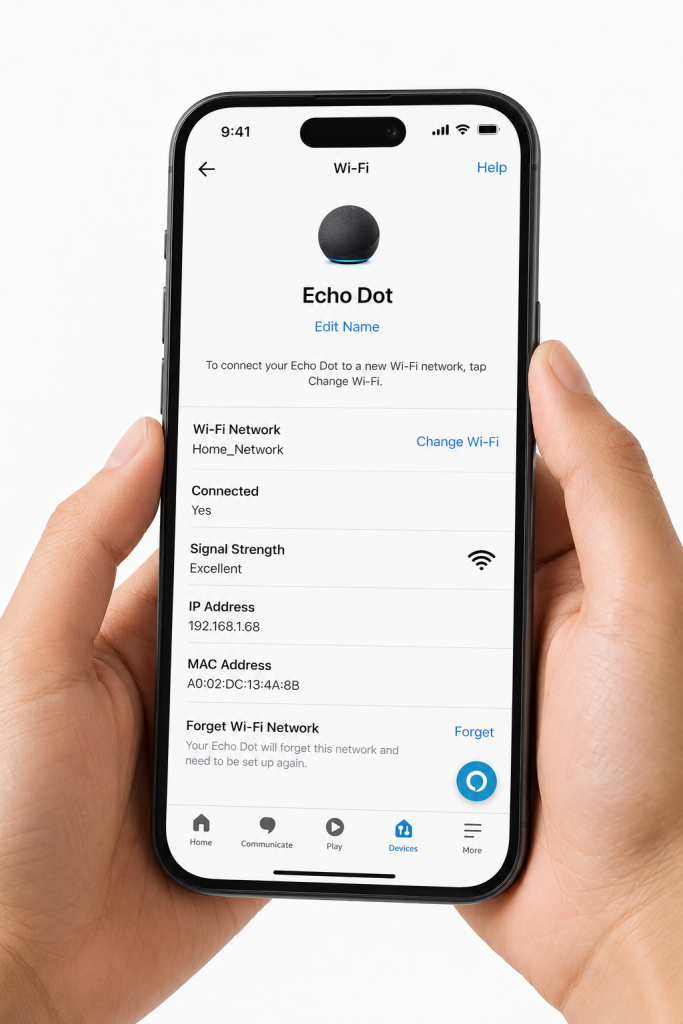
- Go to Devices → Echo & Alexa → select your device.
- Tap Change → WiFi Network.
- Follow the on-screen steps to connect to your WiFi network.
4) Restart the router
If restarting the Echo didn’t help and Alexa is still not connecting to WiFi, restart the router to clear its DHCP table and refresh all connections.
- Unplug the router from the power outlet.
- Wait 30 seconds.
- Plug it back in and wait 60 seconds for a full reconnect.
- Restart the Echo again after the router is back online.
5) WiFi password changed? Update it in the app
If you recently changed your WiFi password and Alexa stopped connecting to WiFi, the Echo still has the old credentials. Update them through the Alexa app:
- Open the Alexa app → Devices → Echo & Alexa → your device.
- Tap Change → WiFi Network and follow the prompts.
- When asked, enter the new WiFi password.
6) Factory reset the Echo device
If nothing else works and Alexa not connecting to WiFi after all the steps above, a factory reset clears all settings and starts fresh. You’ll need to set up the Echo again in the Alexa app.
How to factory reset:
- Echo Dot (3rd/4th/5th gen): hold the Action button (dot icon) for 25 seconds until the ring turns orange, then blue, then turns off. Setup mode starts automatically.
- Echo (4th/5th gen): hold the Action button for 25 seconds.
- Echo Show: swipe down from the top → Settings → Device Options → Reset to Factory Defaults.
7) Coverage issue: when the Echo is too far from the router
If your Echo connects fine when placed near the router but Alexa stops connecting to WiFi in its usual location, signal coverage is the problem. The Echo’s 2.4 GHz radio doesn’t handle weak signals well — it either connects slowly or drops.
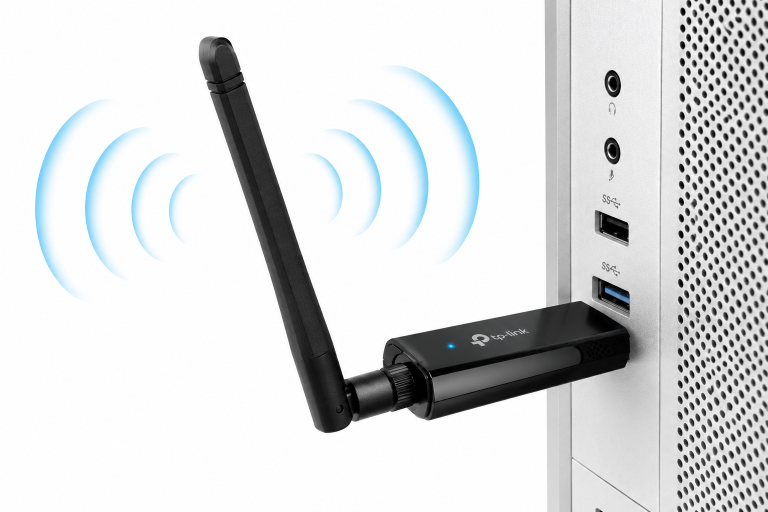
Solution: move the Echo closer to the router, or extend coverage with a WiFi extender or Mesh node in the room where the Echo is. A cheap WiFi extender is often enough to solve persistent coverage issues.
📌 Related guides:
- WiFi Keeps Cutting Out at Home: Causes and Fixes (2026)
- Best WiFi Mesh System 2026: Top Picks Compared
- WiFi Mesh: Complete Guide to Choose the Right System
Keep Alexa online: placement and network tips
Once your Alexa not connecting to WiFi issue is solved, good placement prevents 90% of future dropouts:
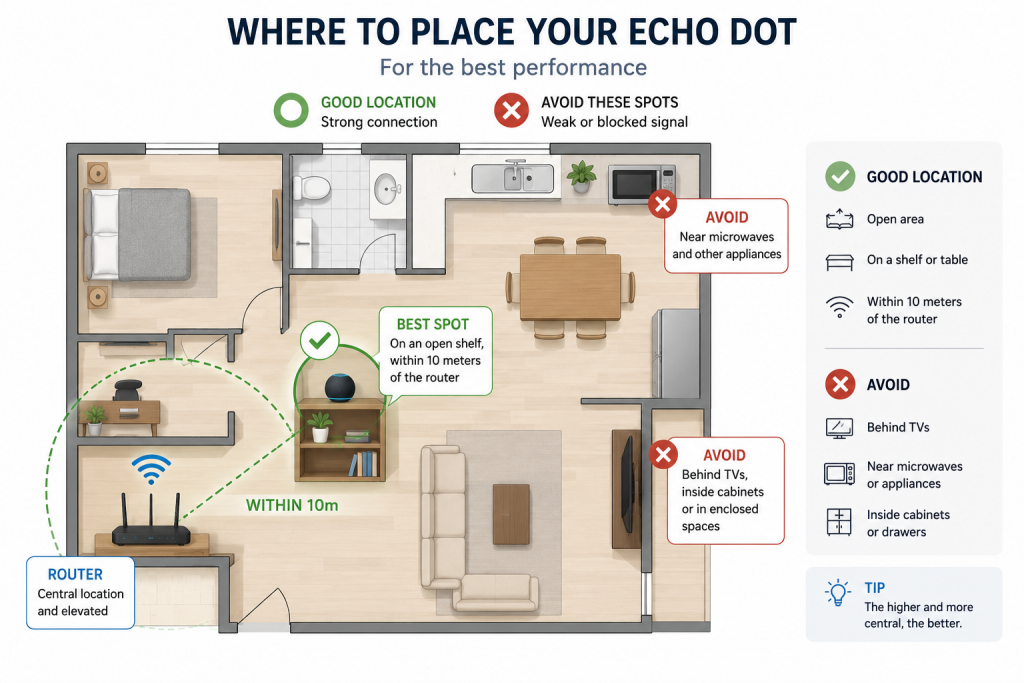
- Keep the Echo within 10 meters of the router — through one or two walls at most. Beyond that, the small internal antenna struggles.
- Away from the microwave and baby monitors — they emit in 2.4 GHz, exactly where most Echo devices connect, and cause momentary dropouts.
- Not inside furniture or behind the TV — metal and dense wood block the signal. An open shelf is ideal.
- Reserve an IP for the Echo — a fixed DHCP address in the router panel avoids reconnection conflicts after power cuts.
Why does my Alexa keep saying it can’t connect to WiFi?
The most common reasons Alexa is not connecting to WiFi are: the Echo is trying to connect to 5 GHz (most Echos only support 2.4 GHz), the WiFi password was changed, the router needs a restart, or the device has a corrupted network profile. Start by restarting the Echo and router, then reconnect via the Alexa app.
Does Alexa work on 5 GHz WiFi?
Only newer Echo models (Echo 4th gen 2020 and later) support 5 GHz. Older models only work on 2.4 GHz. If Alexa is not connecting to WiFi and you have a 5 GHz-only network, you need to enable the 2.4 GHz band on your router.
Alexa shows an orange ring — what does it mean?
An orange spinning ring means the Echo is in setup mode and not connected to WiFi. If Alexa is not connecting to WiFi and shows orange, open the Alexa app → Devices → Echo & Alexa → your device → Change → WiFi Network to reconnect it.
Will factory resetting Alexa fix WiFi connection problems?
Yes, a factory reset is the last resort fix when Alexa is not connecting to WiFi after all other steps. It clears all settings and cached network data. You’ll need to set up the device again in the Alexa app, but it resolves most persistent connection issues.
Can a WiFi extender improve Alexa’s connection?
Yes — if Alexa is not connecting to WiFi reliably because the Echo is far from the router, a WiFi extender placed between the router and the Echo device improves signal strength and stability. Make sure the extender broadcasts on 2.4 GHz so the Echo can connect to it.
How far can the Echo be from the WiFi router?
As a rule of thumb, up to 10-15 meters indoors with one or two walls in between. Beyond that, the Echo connects but suffers dropouts, slow responses and streaming cuts. If Alexa responds slowly or says the WiFi is unstable, move it closer to the router or extend coverage to that room with an extender or Mesh node.
Can I connect Alexa to a mobile hotspot?
Yes. In the Alexa app, set up the Echo and select your phone hotspot as the WiFi network. It works as a temporary solution — during a move or an internet outage — but be careful with mobile data usage: music streaming through the Echo consumes data quickly, and the setup breaks every time the hotspot name or password changes.
Conclusion
When Alexa is not connecting to WiFi, start with the basics: restart the Echo and the router, make sure you’re using the 2.4 GHz band, and reconnect through the Alexa app. If the password changed recently, update it in the app. If nothing works, a factory reset solves most persistent issues. For coverage problems, a WiFi extender near the Echo is the cleanest long-term solution.