.BIN Firmware File: Complete Guide to Update Your Router Without Errors (2026)
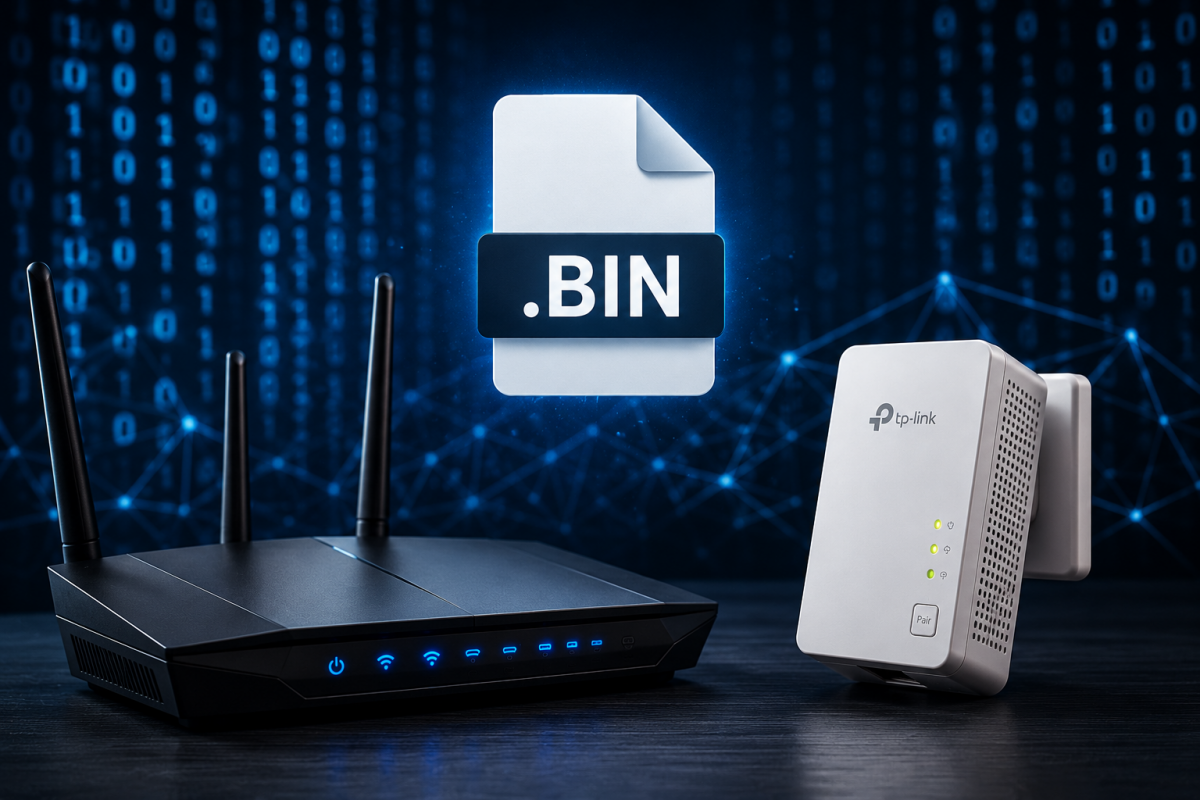
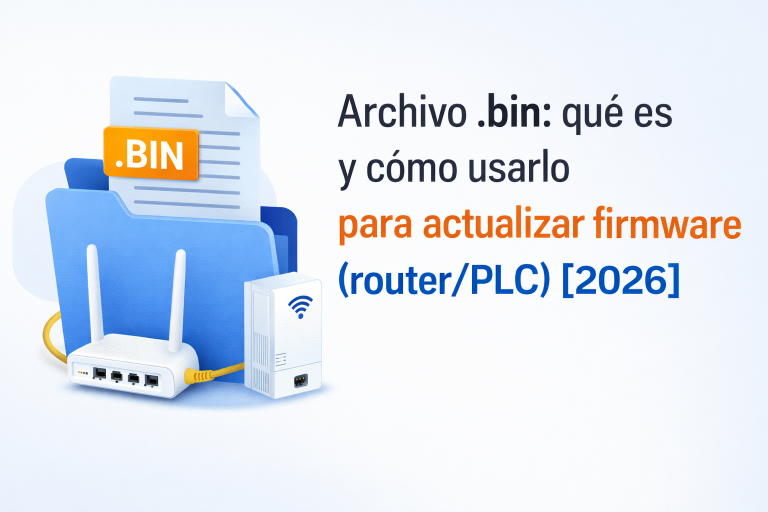
If you’ve downloaded a .bin firmware file and don’t know how to open it, don’t worry: in home networking, a .bin file is almost always firmware (a system update) for a router, PLC adapter, or WiFi repeater. You don’t open it like a document — you upload it from the device’s admin panel.
In this complete guide I’ll explain what a .bin firmware file is, when you need it, how to use it step by step to update your device, and how to fix the most common errors. By the end you’ll know exactly what to do with any .bin firmware file without risking bricking your equipment.
Table of Contents
1) What is a .BIN Firmware File (and why does it appear)?
A .bin is a binary file. In the networking world it almost always means:
- ✅ Firmware: the «operating system» of your router/PLC/repeater, ready to install as an update.
- ✅ Backup/image (on some models): configuration exports or system snapshots.
- ❌ It is NOT a Windows installer, a PDF, or something you should open with random apps.
Key hint: if you downloaded it from the manufacturer’s website (TP-Link, ASUS, Netgear, etc.) and you see «Firmware Upgrade» in the admin panel, that .bin firmware file goes right there.
2) When do you need to use a .BIN Firmware File? (typical cases)
You’ll come across a .bin firmware file when:
- Your device has random disconnections, micro-cuts, buffering, or WiFi that keeps dropping.
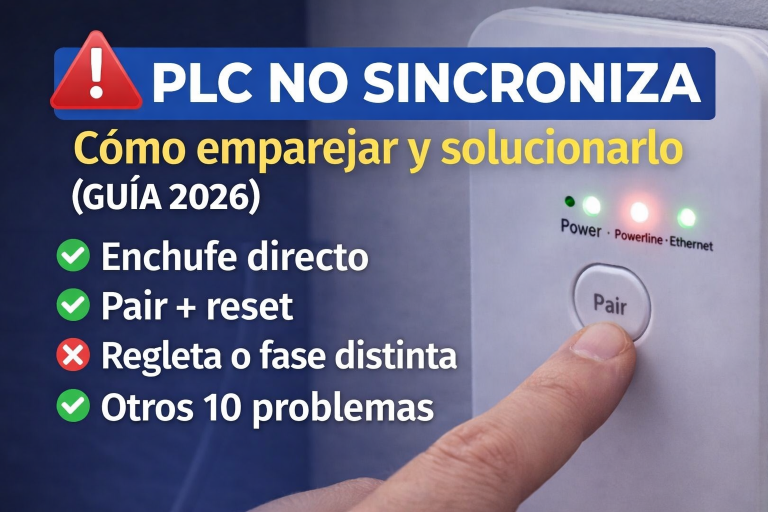
- Your PLC adapter won’t pair or keeps losing sync.
- You need security patches or compatibility fixes.
- There are problems with Mesh / roaming / stability.
- The manufacturer recommends an update to fix known bugs.
📌 Related guides:
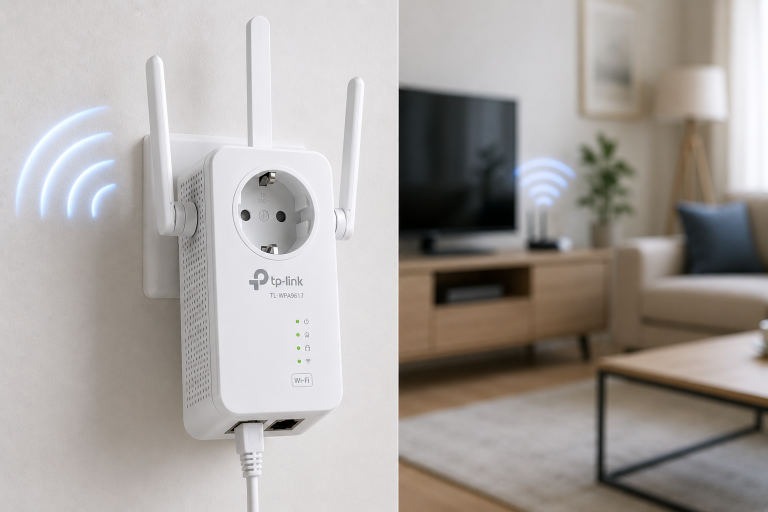
- TL-WPA7617 firmware: how to update it and fix disconnections (2026 guide)
- PLC won’t sync: how to pair it and fix the issue (2026 guide)
- WiFi keeps cutting out at home: causes and solutions (2026 guide)
- Slow WiFi at home: 12 tips to improve your signal (2026)
3) Before updating: safety checklist (very important)
Before touching anything:
- Check the exact model (label on the device).
- Check the hardware version (V1 / V2 / V3…).
- Download the .bin firmware file only from the manufacturer’s official website.
- If possible, connect via Ethernet cable to the router before uploading the file.
- Do not cut the power during the update.
- If the device has a Backup / Save configuration option, use it first.
✅ Following this checklist avoids 90% of «invalid file» errors and surprises.
4) How to use a .BIN Firmware File to update (step by step)
The process for using a .bin firmware file is the same across almost all routers, PLC adapters, and repeaters — only the menu names differ. Follow these steps and you’ll avoid 90% of common errors.
The exact menu path varies by brand, but the overall process is nearly identical.
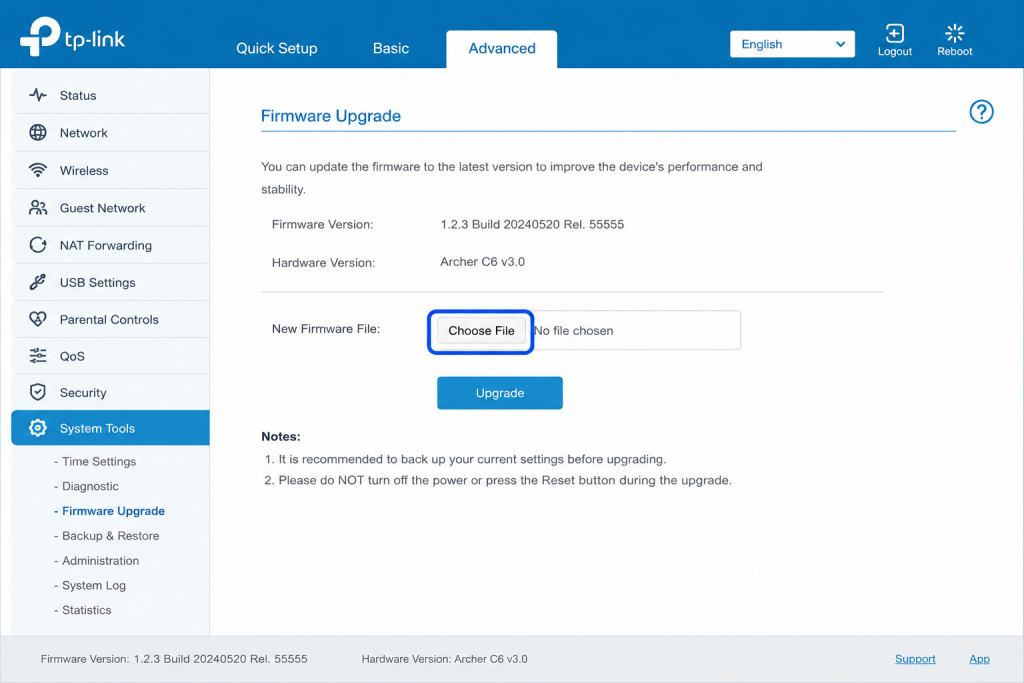
Step 1: Log in to the device admin panel
- Router: usually
192.168.1.1or192.168.0.1 - PLC/repeater: may have its own IP or be managed via app (TP-Link Tether/Deco, etc.)
Step 2: Find the firmware section
It is usually found under:
- System Tools / Administration / Maintenance
- Firmware Upgrade / Firmware Update
- Advanced / System
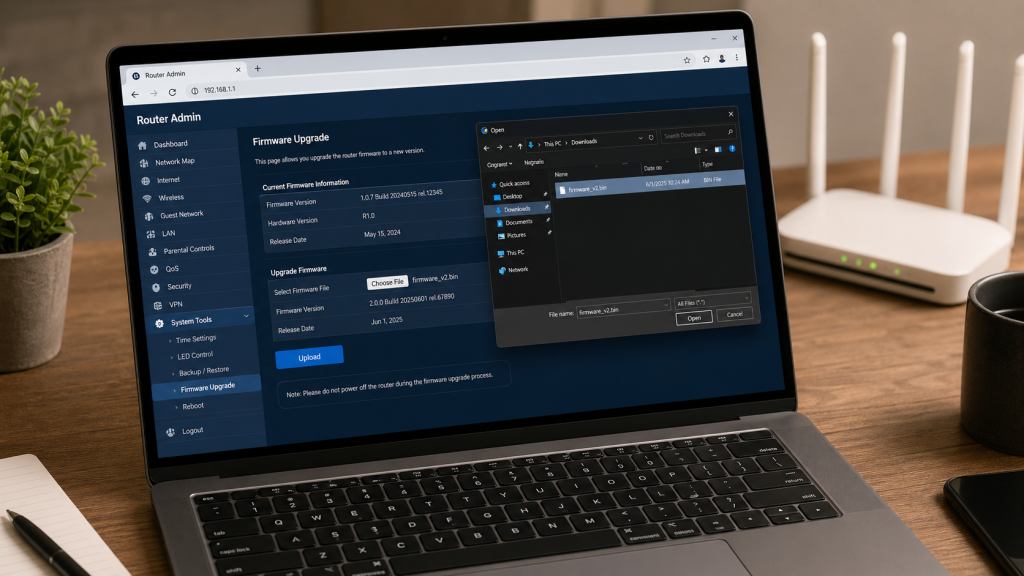
Step 3: Upload the .bin firmware file
- Click the Browse / Choose File button
- Select the .bin firmware file
- Click Upgrade / Update
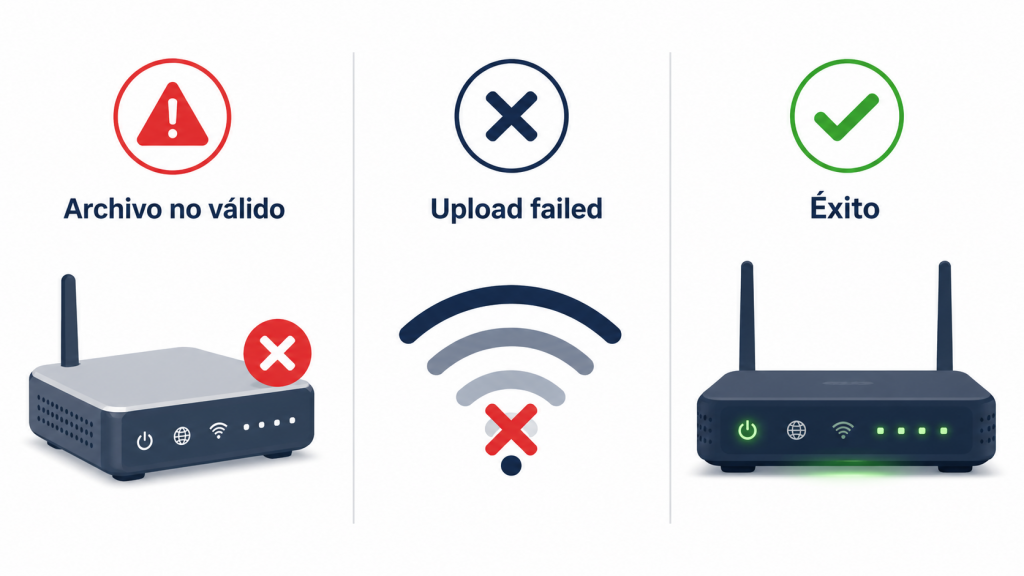
Step 4: Wait and let it reboot
- Do not touch anything.
- The device may reboot 1–2 times.
- Once it’s back, verify that the firmware version number has changed.
Step 5: Test stability (5 minutes)
- Run a speed test near the router
- Test in the area that previously had problems
- If it was a PLC: check sync / LEDs / disconnections
5) Common errors with .BIN firmware files (and how to fix them)
✅ «Invalid file» / «File not valid»
Almost always caused by:
- .bin firmware file for a different model
- Wrong hardware version (V1 vs V2)
- Corrupted download (ZIP not extracted, partial download, etc.)
Fix:
- Check model + «Hardware Version» on the device label.
- If the download came as a .zip, extract it first — upload only the
.binfile inside.
✅ «Upload failed» / the .bin won’t upload
Usually caused by:
- Browser cache or a browser bug
- Unstable WiFi connection during upload
- Browser extensions interfering
Quick fix:
- Try a different browser (Chrome / Edge / Firefox).
- Use an Ethernet cable instead of WiFi.
- Disable extensions or try in incognito/private mode.
✅ After updating, performance is worse / disconnections continue
Old configuration parameters sometimes survive the update.
Fix:
- Reboot the router/PLC.
- If it’s still bad: do a factory reset (and reconfigure from scratch).
- For PLC adapters: re-pair (Pair button) from scratch.
✅ I downloaded a .bin but I wanted to «open» it
If it’s firmware, you don’t open it.
What NOT to do:
- Don’t open it with «apps to open BIN files».
- Don’t convert it to ZIP «just to see».
- Don’t run it on your PC.
What to do:
- Upload it via the firmware menu in the device’s admin panel.
6) How to tell if your .BIN firmware file is safe
Quick checklist:
- ✅ Downloaded from the manufacturer’s official website
- ✅ Exact model matches
- ✅ Hardware version matches
- ✅ The admin panel shows a «Firmware Upgrade» option
- ✅ File size is reasonable (not 2 KB — that would be corrupted)
7) Quick diagnostic: is it a firmware problem or something else?
If WiFi is still bad after updating, firmware is probably not the only culprit:
- If Ethernet is fine but WiFi is bad → channel / band / router placement / interference
- If Ethernet also drops → issue with the line, ISP, or router hardware
- If the PLC syncs but is slow → electrical outlets, same circuit phase, power strips, electrical interference
📌 Recommended internal links:
- WiFi keeps cutting out at home: causes and solutions (2026 guide)
- WiFi Mesh vs repeater vs PLC: which one should you buy to improve your WiFi
8) Related products
Option 1: Ethernet cable (to update via cable and avoid failures)
Option 2: Reliable PLC adapter to stop depending on WiFi
Option 3: WiFi Mesh system (if your problem is coverage)
Frequently asked questions about .BIN firmware files
What exactly is a .bin firmware file?
A .bin firmware file is a binary file containing the operating system of your router, PLC adapter, or WiFi repeater. You don’t open it on your PC — you upload it via the device’s admin panel to update its software and fix errors.
How do I use a .bin firmware file on a router?
Log in to the admin panel (usually 192.168.1.1), find the ‘Firmware Upgrade’ or ‘Firmware Update’ section, select the downloaded .bin firmware file, and click Upgrade. The router will reboot on its own.
Why does it say ‘invalid file’ when I upload the .bin?
Almost always it’s because the .bin firmware file doesn’t match your exact model or hardware version (V1, V2, V3…). Check the label on your device and re-download the correct firmware from the manufacturer’s official website.
Can I open a .bin firmware file on my PC?
You shouldn’t try. A .bin firmware file is not an installer or a document — opening it with PC apps makes no sense. It is only meant to be uploaded via the network device’s admin panel.
Is it dangerous to update firmware with a .bin file?
If you use the correct .bin firmware file (right model, right hardware version, downloaded from the official website) the process is safe. Risks arise only if you use the wrong .bin or if you cut the power during the update.
Does updating with a .bin file erase my WiFi settings?
It depends on the manufacturer. Some keep the configuration, others reset to factory defaults. Before uploading any .bin firmware file, save your current configuration from the admin panel using the ‘Backup’ or ‘Save configuration’ option.
What is the upgrade.bin file?
It is the name TP-Link gives to its firmware files. An upgrade.bin is a regular .BIN firmware file: you download it from the manufacturer’s official website for your exact model and hardware version, and install it from the device admin panel in the firmware update section.
What is the difference between update.bin, upgrade.bin and firmware.bin?
Technically none: they are the same type of file with the name each manufacturer chooses. TP-Link uses upgrade.bin, other brands use update.bin, and many use firmware.bin or the model name. The only thing that matters is downloading it from the official website and matching your model and hardware version.
Conclusion
A .bin firmware file in home networking almost always means firmware: you don’t open it, you upload it to your router/PLC/repeater to fix disconnections, bugs, or stability issues. If you get an error, 90% of the time the cause is a wrong model or hardware version, or the upload was done over WiFi instead of cable.
If you want, leave a comment with your exact device (brand + model + hardware version) and I’ll tell you exactly where to upload the .bin firmware file and which firmware to download.
Other guides that can help
upgrade.bin, update.bin and firmware.bin: what each file is
Depending on the manufacturer, the firmware file may come under three different names — and all three are the same thing: a .BIN firmware file ready to install. TP-Link usually calls it upgrade.bin, other brands use update.bin, and many simply deliver it as firmware.bin or named after the model (for example, RE505X_v1_1.0.3.bin). There is no technical difference in the format: only the naming convention changes.
What matters is not the name but that the file matches your exact model and hardware version (check the sticker on the device, e.g. “Ver. 1.0” or “V2”). Flashing the upgrade.bin of a different hardware version is the number one cause of bricked devices. One more tip: never rename the file — if the admin panel rejects it, the real problem is elsewhere (corrupted download, wrong model or a different regional firmware), and renaming only hides it.