iPhone Not Connecting to WiFi: Complete Fix Guide (2026)
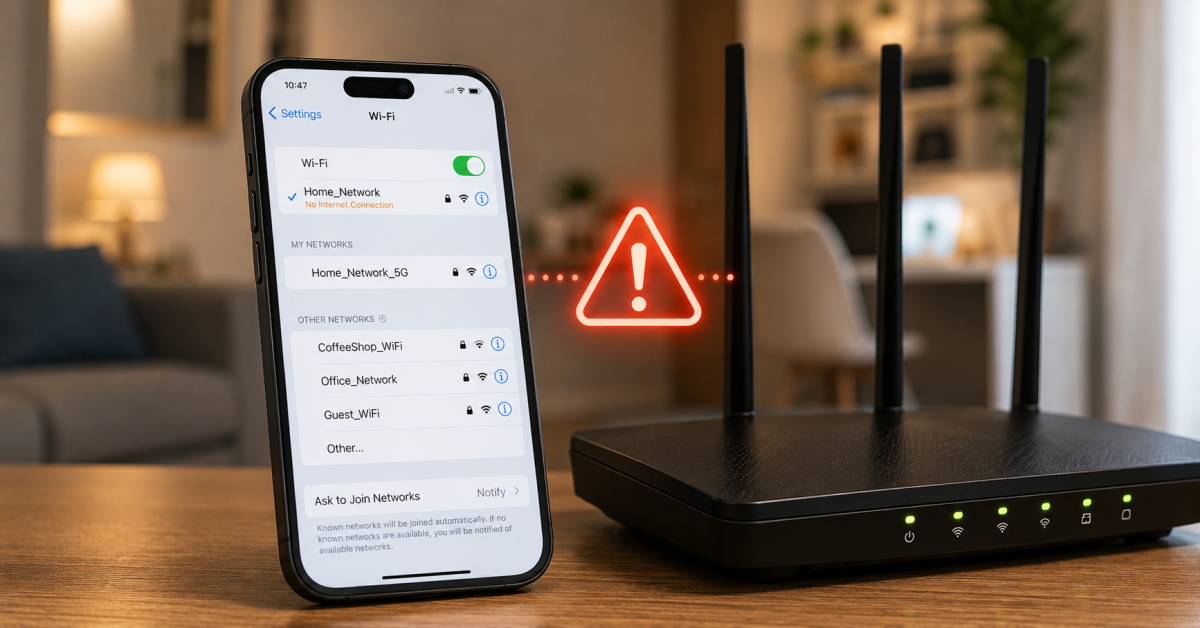
If your iPhone not connecting to WiFi, you’re not alone — it’s one of the most common iPhone issues reported every year, affecting every iOS version. Most cases are solved with a simple network reset and don’t require a trip to the Apple Store. This guide covers every reason your iPhone is not connecting to WiFi and the exact fix for each one, step by step.
Works for iPhone 12, 13, 14, 15, 16 and all models running iOS 16, 17, and 18.
Table of Contents
Why is my iPhone not connecting to WiFi? Common causes
When your iPhone is not connecting to WiFi, the problem can be on the iPhone side or the router side. The most common causes are:
- 🔑 Saved password is wrong — especially after a router password change.
- 🌐 Corrupted network profile — the iPhone remembers a broken connection.
- 📡 Router on 5 GHz only — older iPhones only support 2.4 GHz.
- 🔢 IP address conflict — DHCP ran out of addresses or assigned a duplicate.
- 🌐 Slow DNS — iPhone connects but can’t load pages.
- 🐛 iOS bug — a specific iOS version introduced a WiFi regression.
1) Forget the network and reconnect
The first fix to try when your iPhone is not connecting to WiFi is to forget the network and reconnect fresh. This clears any corrupted saved credentials.
- Go to Settings → WiFi.
- Tap the ⓘ icon next to your network name.
- Tap Forget This Network → confirm.
- Tap your network name again and enter the password.
2) Restart the iPhone and the router
A soft restart clears temporary errors on the iPhone, while a router restart refreshes the DHCP table and clears stuck connections. Together they fix many cases of iPhone not connecting to WiFi.
- iPhone restart: hold Side button + Volume Down → slide to power off → wait 10 seconds → turn back on.
- Router restart: unplug from power for 30 seconds, then plug back in. Wait 60 seconds before trying to connect.
3) Toggle Airplane Mode
A quick toggle of Airplane Mode forces the iPhone to drop and re-establish all wireless connections. It’s a 10-second fix that resolves many cases of iPhone not connecting to WiFi after a signal drop.
- Open Control Center (swipe down from top-right corner).
- Tap the Airplane Mode icon to turn it ON — wait 5 seconds.
- Tap it again to turn it OFF. The iPhone will reconnect to WiFi automatically.
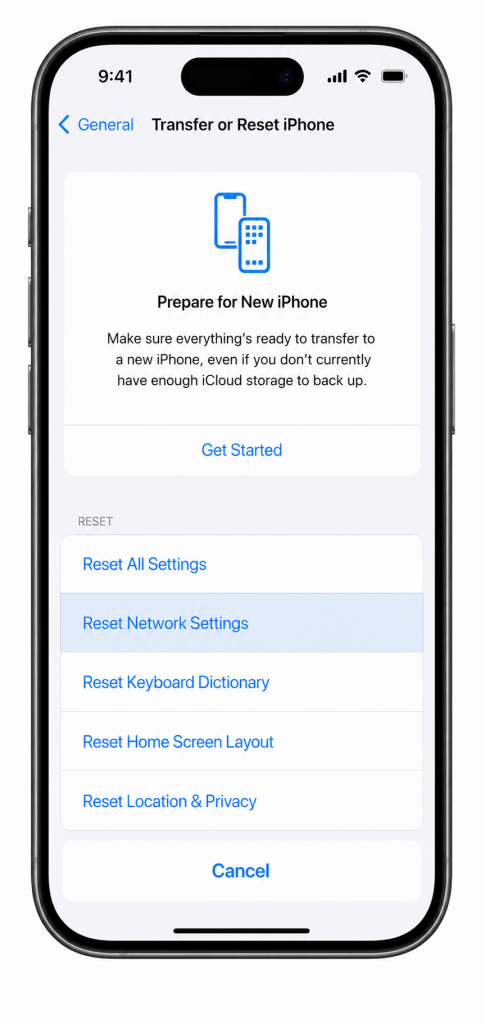
4) Reset Network Settings
If your iPhone is not connecting to WiFi and the above steps haven’t worked, Reset Network Settings clears all stored WiFi passwords, VPN settings, and network configurations — a clean slate that fixes most persistent WiFi issues.
⚠️ Note: this erases all saved WiFi passwords on the iPhone. You’ll need to re-enter them.
- Go to Settings → General → Transfer or Reset iPhone → Reset.
- Tap Reset Network Settings.
- Enter your passcode and confirm.
- The iPhone restarts — reconnect to your WiFi network.
5) Change DNS on iPhone
If your iPhone connects to WiFi but can’t load pages or apps are slow, the issue may be your ISP’s DNS servers. Switching to Google DNS or Cloudflare DNS resolves most of these cases.
- Go to Settings → WiFi → tap ⓘ next to your network.
- Scroll to Configure DNS → Manual.
- Delete existing entries and add 8.8.8.8 and 8.8.4.4 (Google) or 1.1.1.1 (Cloudflare).
- Tap Save and test browsing.
6) Update iOS
Some iOS versions introduce WiFi bugs that cause the iPhone to stop connecting to WiFi on certain router configurations. Apple usually releases a fix within a few weeks. Check for updates at Settings → General → Software Update and install the latest version if one is available.
7) When the problem is the router, not the iPhone
If multiple iPhones or other devices also have trouble connecting, the issue is the router. Check:
- DHCP lease pool: the router may have run out of IP addresses to assign. Log in to the router admin panel and increase the DHCP range.
- MAC address filtering: the router may be blocking new devices. Check the access control list in the router’s admin panel.
- Band compatibility: very old iPhones (iPhone 4 or earlier) only support 2.4 GHz. Make sure the router broadcasts a 2.4 GHz network.
- Router firmware: log into the admin panel and check for firmware updates.
📌 Related guides:
- WiFi Keeps Cutting Out at Home: Causes and Fixes (2026)
- Slow WiFi at Home: Real Causes and Fixes (2026)
- Best WiFi Mesh System 2026: Top Picks Compared
Prevent future WiFi problems on your iPhone
With the iPhone not connecting to WiFi fix applied, these three settings keep the connection stable long-term:
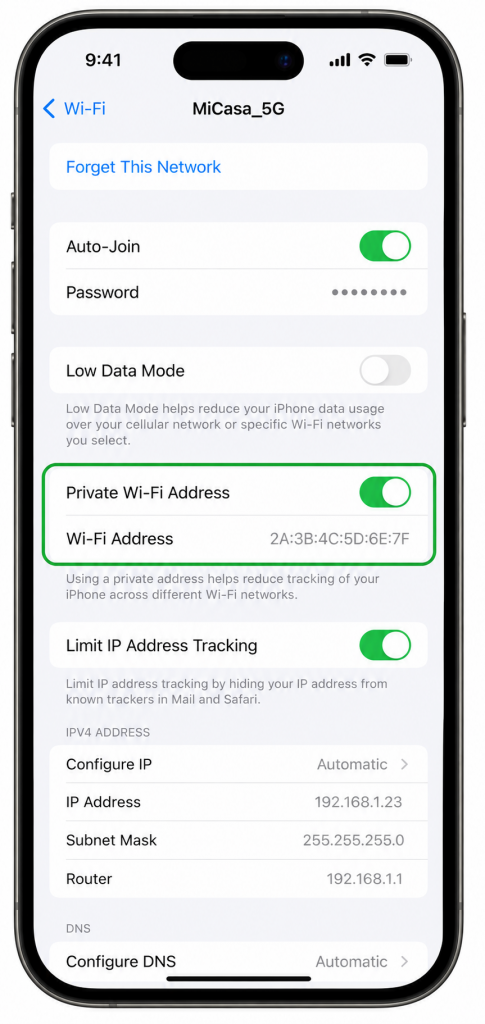
- Review Private WiFi Address per network — MAC randomization improves privacy on public networks, but at home it can conflict with router MAC filtering or parental controls. For your home network you can safely set it to Fixed.
- Keep Auto-Join enabled only for trusted networks — tap the ⓘ icon next to each saved network and disable Auto-Join for shops and cafés. Your iPhone will stop jumping to weak known networks when you walk past them.
- Install iOS updates promptly — WiFi bugs introduced in a major iOS release are usually patched within weeks in a minor update.
Why is my iPhone not connecting to WiFi after a password change?
When you change the router password, the iPhone still tries to connect with the old one. Fix: go to Settings → WiFi → tap ⓘ next to the network → Forget This Network, then reconnect with the new password. This is the most common reason an iPhone is not connecting to WiFi.
My iPhone connects to WiFi but has no internet — what’s wrong?
If your iPhone is not connecting to WiFi properly (connects but no internet), the issue is usually DNS or the router’s DHCP. Try changing DNS to 8.8.8.8 manually in Settings → WiFi → ⓘ → Configure DNS. Also restart the router to refresh DHCP assignments.
Does Reset Network Settings delete everything on the iPhone?
No — Reset Network Settings only erases WiFi passwords, VPN settings, and Bluetooth pairings. It does not delete apps, photos, or personal data. It’s a safe step when your iPhone is not connecting to WiFi and other fixes haven’t worked.
Why does my iPhone keep forgetting the WiFi password?
If your iPhone keeps forgetting WiFi credentials, check if Private Wi-Fi Address is on (Settings → WiFi → ⓘ → Private Wi-Fi Address). Some routers don’t handle MAC address randomization well. Try turning it off for that network. Also check if Low Power Mode is disconnecting WiFi to save battery.
iPhone not connecting to WiFi after iOS update — how to fix?
iOS updates sometimes introduce WiFi bugs. After an update, if your iPhone is not connecting to WiFi, try: Forget the network and reconnect, then Reset Network Settings. If the problem persists, check online forums — Apple usually releases a patch quickly for widespread WiFi bugs.
Does Private WiFi Address cause iPhone connection problems?
It can. Private WiFi Address gives the iPhone a random MAC address per network. If your router uses MAC filtering, parental controls or reserved IPs tied to the real MAC, the iPhone may fail to connect or lose its assigned settings. For your home network, open the network details and set Private WiFi Address to Fixed or off — keep it on for public networks.
Why does my iPhone not auto-join my home WiFi?
Check three things: Auto-Join is enabled for that network (tap the info icon next to the network name), the network is not marked as Low Data Mode with restrictions, and WiFi Assist is not switching you to mobile data because of weak signal. If it still fails, forget the network and reconnect entering the password again.
Conclusion
When your iPhone is not connecting to WiFi, work through the steps in order: forget and rejoin the network, restart both devices, toggle Airplane Mode, and if needed reset Network Settings. These four steps solve the vast majority of cases. If the iPhone connects but has no internet, changing DNS to 8.8.8.8 usually fixes it. If multiple devices have trouble, the problem is the router — check DHCP, MAC filtering, and firmware updates.