TP-Link Repeater Connected But No Internet: The Complete Fix Guide (2026)
Having a TP-Link repeater connected but no internet is more common than you’d think. You can see the WiFi network, connect to it, and everything seems fine — but if pages won’t load and browsing doesn’t work, the problem is usually in the router, the repeater’s link, the configuration, or a specific device.
If your TP-Link repeater connected but no internet situation has it giving signal but not browsing, the best approach is to follow a simple diagnostic order before resetting or reconfiguring anything.
Table of Contents
1) What to check first if your TP-Link repeater is connected but won’t browse
Before touching settings, doing resets, or reconfiguring anything, run these quick checks. In many cases the problem is solved right here.
Check whether the problem is the repeater or the router
Connect directly to the main router’s WiFi and check whether you have internet there. If you can’t browse from the router either, the problem isn’t the TP-Link repeater — it’s the main connection.
If everything works fine from the router, you know the fault lies in the link between router and repeater, the extender’s configuration, or the device you’re using.
Restart the router, repeater, and device before doing anything else
It sounds obvious, but in many cases it’s enough. Turn off and back on the router first, then the repeater, then the phone or laptop you’re testing with.
Do it in that order and wait a moment between each one. If the problem was a one-off link failure or a badly established session, this often fixes it.
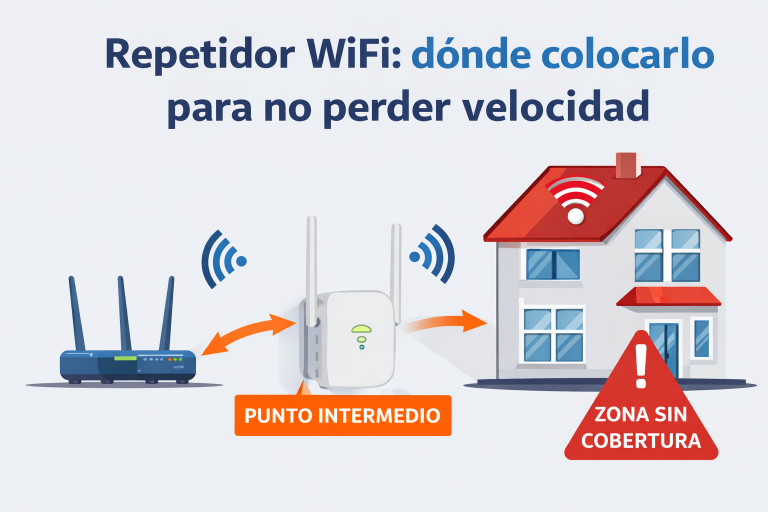
Move the repeater closer to the router to rule out poor signal
If the TP-Link repeater connected but no internet issue happens while it’s far from the router, it may be emitting WiFi but not passing internet correctly — it gives signal, but won’t browse.
Run a quick test: move it temporarily closer to the router and see if it improves. If it works nearby but not further away, the issue is placement or link instability, not configuration.
Forget the WiFi network and reconnect from scratch
Sometimes the fault is in the saved connection on your phone or laptop. Delete the repeater’s WiFi network, search for it again, and reconnect from scratch.
This is especially useful if only one device is failing, or if the repeater seems connected but that specific device won’t browse.
2) Follow this order to find the fault without overcomplicating it
If the quick fixes didn’t work, diagnosing a TP-Link repeater connected but no internet problem follows a logical order. This avoids trying things at random and touching settings that may not need changing.
Step 1: confirm the router actually has internet
This is always the first filter. If the main router isn’t browsing either, don’t waste time on the repeater.
If the router is working, then you can focus on the TP-Link or on the connected device.
Step 2: check whether the repeater is actually linked
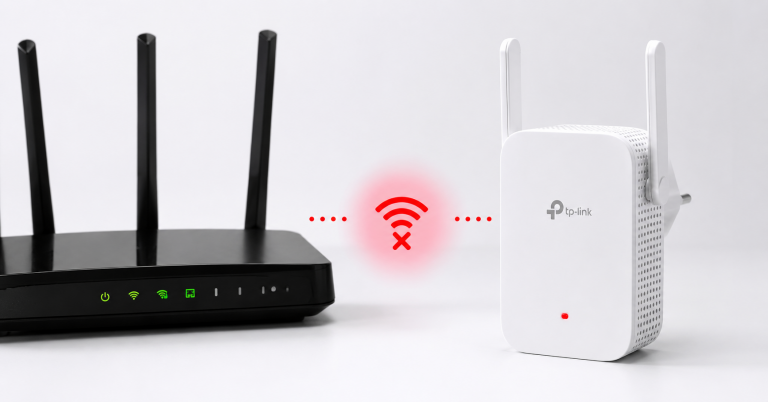
One of the most common misconceptions is thinking that because the repeater is emitting WiFi, it’s properly connected to the router. That’s not always true.
It can broadcast an extended network without correctly passing internet. So it’s important to check not just whether «the network appears», but whether you can actually browse when connected to it.
Step 3: test with another phone or laptop
If you have another device handy, use it. This quickly tells you whether the failure is general or only affects one phone, laptop, or tablet.
If no device can browse when connected to the repeater, the problem points to the link or the TP-Link’s configuration. If only one device fails, the extender is probably not the main cause.
Step 4: decide whether restarting is enough or a reset is needed
If it’s still the same after restarting, decide whether the fault seems one-off or persistent.
If the repeater has been giving signal but no internet for a while, or the problem keeps coming back, a reset may be worthwhile.
Step 5: reconfigure only if everything above fails
Don’t make this your first step. Reconfiguring from scratch only makes sense once you’ve confirmed:
- the router does have internet
- the fault isn’t limited to one device
- restarting hasn’t fixed it
- and the repeater still isn’t linking properly or passing internet
Guide: how to connect a WiFi repeater step by step.
3) If no device has internet when connected to the repeater
This is the clearest case of a TP-Link repeater connected but no internet: the extender is broadcasting, you connect to it, but no phone or laptop can browse.
The repeater gives signal but isn’t passing internet
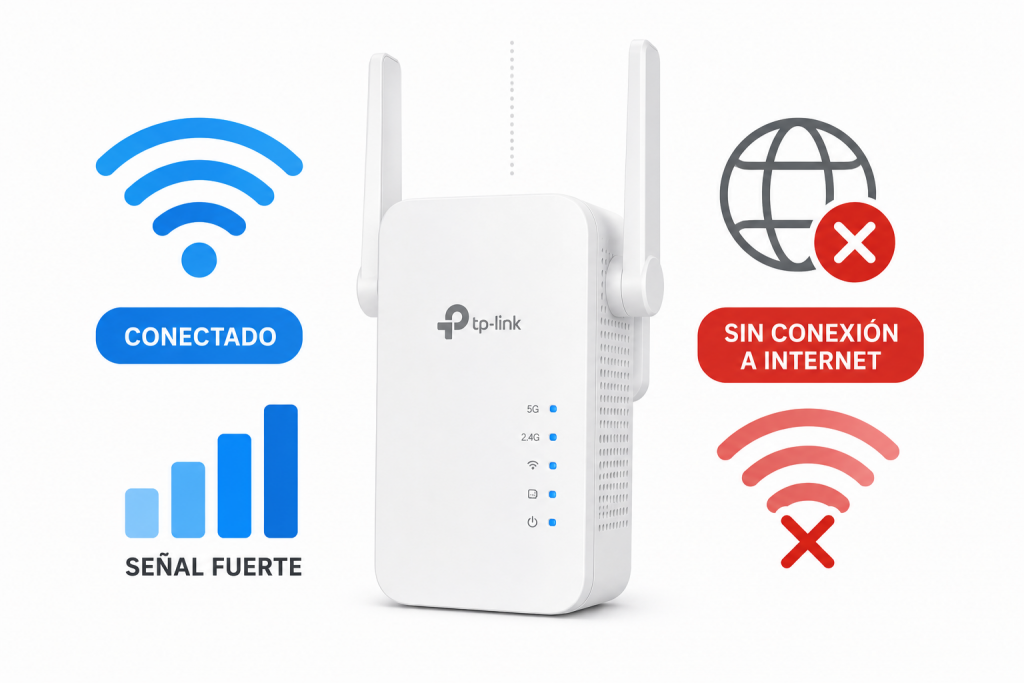
This happens more often than you’d expect. You can see coverage, connect to the repeater’s WiFi, and still have no actual internet access.
The key point: having signal is not the same as having internet. The TP-Link can be visible but poorly linked to the router, or not receiving the main connection properly.
What to check before resetting it
Before doing a full reset, check:
- whether the router has internet
- whether the repeater is too far away
- whether restarting everything still leaves it the same
- whether the problem affects all devices
If all of that points to the repeater, then moving to the next level makes sense.
When to do a full reset
Reset the TP-Link when:
- it’s still connected but no internet after several restarts
- the behaviour is strange or has been persistent for a while
- it seems linked but never quite gives real internet access
- or you suspect the configuration was set up incorrectly
When to reconfigure it from scratch
After a reset, you’ll need to set it up again. Only do this if the problem truly persists and you’ve already ruled out the router, placement, and client device.
Guide: how to connect a WiFi repeater.
4) If only one phone or laptop is failing
If other devices can browse when connected to the repeater and only one fails, the repeater is probably not the main culprit.
How to tell whether the problem is the device and not the repeater
The test is simple: connect another phone, laptop, or tablet to the same extended network.
If that second device has internet, the problem is in the saved configuration or connection of the first device.
Forget the saved network and reconnect
Delete the repeater’s WiFi network on that phone or laptop and reconnect from scratch.
This often clears a broken saved configuration and restores a normal connection.
Simple settings that can block internet access
Sometimes the device has a problematic local setting, such as a manually assigned IP address or a badly saved connection.
You don’t need to go deep into OS-level support: in most cases it’s enough to forget the network, reconnect, and leave the network settings on automatic.
5) If it sometimes works but the connection keeps dropping
Here the pattern of the TP-Link repeater connected but no internet problem is different: it’s not that you can never browse, but that it connects, seems to work… and then fails again.
Unstable signal between router and repeater
If the connection between the two devices is weak or irregular, the repeater may work intermittently. This usually happens when it’s too far away or there are too many walls in between.
In that case, it’s not unusual for pages to load sometimes and then have no internet a while later.
Wrong placement: too far away or in an area with interference
If the repeater is in a bad spot — behind furniture, in a corner, or in a heavily obstructed area — it may appear connected but fail to stay stable.
If you notice the repeater’s WiFi drops at times, it’s also worth checking the guide on slow WiFi at home, because often the problem isn’t just internet access but an unstable network overall.
When the drops point to an underpowered or ageing repeater
If the problem returns every few days, the device is very basic, or it’s been giving similar faults for a long time, the bottleneck may no longer be just placement or configuration.
In those cases, restarting and resetting may fix it temporarily, but the problem ends up coming back.
6) Restart, reset, or reconfigure: what to do in each case
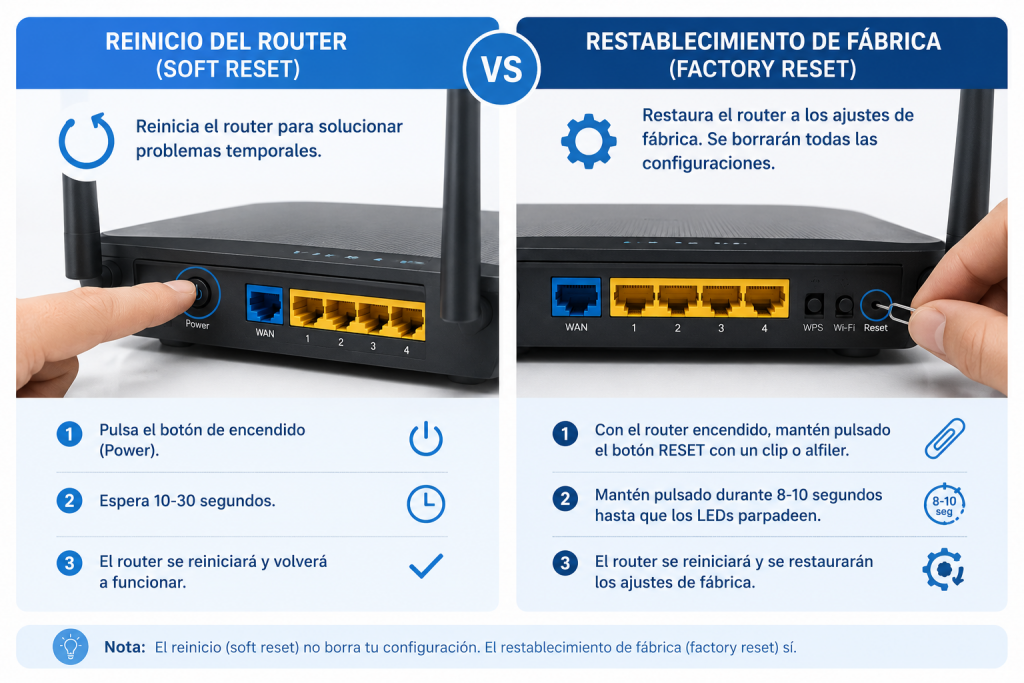
When you have a TP-Link repeater connected but no internet, many people confuse restarting, resetting, and reconfiguring — and they’re not the same thing.
When restarting is enough
Restarting makes sense when:
- the fault appeared suddenly
- there was a one-off outage
- the repeater was working fine before
- or you want to try the simplest solution before touching anything else
When it’s better to reset
A reset is a more serious step. Do it when:
- the repeater is still connected but no internet after several restarts
- the behaviour is strange or persistent
- it seems linked but never properly works
- or the previous configuration is in doubt
When it’s worth reconfiguring from scratch
Full reconfiguration makes sense after a reset, or when it’s clear the device was never properly linked in the first place.
Don’t make it your first resort — use it when the basics have already failed.
7) Less obvious causes that can also leave you without internet
If you’ve done everything above and the TP-Link is still connected but not browsing, there may be less obvious causes behind it.
IP conflicts or failure to get a connection from the router
Sometimes the repeater or client device isn’t properly receiving the connection from the router, even though everything looks linked.
The takeaway without going into technical detail: there can be an «apparent» connection but no actual internet access.
WiFi band issues or compatibility problems
In some cases, the extender links unstably to a specific band or performs worse with certain devices.
It’s not the first thing to check, but it can explain why a TP-Link repeater connected but no internet situation is inconsistent.
Configuration errors that look like a connection but aren’t
It can also happen that the setup was half-completed or saved incorrectly. The result is the same: you see a network, connect to it, but nothing loads.
Once the basics are ruled out, this is where reconfiguring from scratch makes sense.
8) What to do if your TP-Link repeater is still connected but no internet
If after restarting, moving it, testing other devices, resetting, and reconfiguring, the problem persists, it’s time to ask a clear question.
The final check to decide whether it’s worth persisting
Run this final check:
- the router does have internet
- the repeater keeps failing
- the problem returns even after a reset
- and it doesn’t only affect one phone or laptop
If all these conditions are met, continuing to adjust settings probably won’t save you much time.
When the problem is no longer configuration but the device itself
If the repeater is old, very basic, or has been giving similar faults for a while, the bottleneck may no longer be the configuration.
At that point, persisting much further doesn’t always pay off.
9) TP-Link repeater connected but no internet: when the problem is the device itself
If after restarting, resetting, and reconfiguring the TP-Link repeater connected but no internet problem persists, the fault may not be just configuration. When the device is old or very basic, the connection becomes unstable: it gives signal but doesn’t browse properly, or the fault keeps coming back.
In that case, switching to a newer model can save you a lot of time. These two are the most recommended replacements for a TP-Link repeater connected but no internet:
TP-Link RE330 — balanced option for normal home use
The TP-Link RE330 is a straightforward and reliable option for replacing an old repeater without overspending. Dual band, easy setup with the Tether app, and genuinely reliable performance for medium-sized homes.
TP-Link RE550 — more power for demanding homes
The TP-Link RE550 makes more sense if your home is more demanding, you have more devices connected, or you want to plug a TV or console in via cable — it includes a Gigabit Ethernet port. If you also want to compare more models with a cable port: best WiFi repeaters with Ethernet port.
10) Frequently asked questions
Why does my TP-Link repeater show as connected but I have no internet?
Because it may be broadcasting a WiFi signal without correctly passing internet from the router. Having coverage is not the same as having a working internet connection through the TP-Link repeater connected but no internet issue.
Should I restart or reset the repeater if it won’t browse?
Restart first. If the problem persists, keeps coming back, or the behaviour is strange, then a full reset is the right next step for a TP-Link repeater connected but no internet situation.
What if only one phone or laptop has no internet when connected to the repeater?
Test another device. If the rest can browse, delete the saved network on the failing device and reconnect from scratch. The TP-Link repeater connected but no internet problem may only exist on that one device.
What does it mean when the TP-Link repeater gives signal but has no internet?
It means you can connect to the extended network, but the repeater isn’t receiving or passing the main router’s connection properly — a typical TP-Link repeater connected but no internet symptom.
When should I reconfigure the repeater from scratch?
When restarting and resetting haven’t worked, the router does have internet, and everything points to a faulty or incomplete setup behind the TP-Link repeater connected but no internet issue.
Can an old repeater give signal but fail to browse?
Yes. It can keep broadcasting a network but deliver an unstable connection or fail regularly. In that case, the problem may come from the device itself — not just configuration. Replacing it often resolves the TP-Link repeater connected but no internet problem permanently.
11) Conclusion
The TP-Link repeater connected but no internet problem is solved by following a simple diagnostic order: check whether the main router has internet, verify whether the repeater is genuinely linked, test with another device, and then decide whether restarting is enough, whether a reset is needed, or whether a full reconfiguration makes sense.
When a TP-Link repeater connected but no internet keeps failing after all the basic checks, the most likely cause is no longer just configuration. At that point, if the device is old or giving recurring errors, switching to a newer model like the TP-Link RE330 or RE550 is often a far more practical solution than continuing to troubleshoot the same fault.