Someone Is Using My WiFi: How to Find Out and Stop Them
That nagging feeling that someone is using my WiFi — the internet slowing down at odd hours, a device name you don’t recognize, the router lights blinking at 3 AM — is one of the most common home network worries. Sometimes it’s a forgotten gadget; sometimes it really is the neighbor. Either way, finding out takes five minutes, and kicking them out for good takes ten more.
This guide shows you how to confirm whether someone is using my WiFi is actually true in your case, how to identify every device on your network, how to block intruders, and how to make sure they can never get back in.
Table of Contents
Warning signs someone is on your WiFi
- Internet slows down at consistent times — especially evenings, when a freeloader would be streaming.
- Unknown device names in your router’s device list or WiFi app.
- Router activity lights blinking hard when all your devices are off or asleep.
- Your WiFi password was never changed from the sticker default, or you’ve shared it widely over the years.
- WPS has always been on — its PIN system is a classic way in without knowing the password.
One caveat before panicking: the average home has 15-25 connected devices, and most «intruders» turn out to be your own smart plug with a cryptic name. The steps below tell you for sure.
Step 1: See every device connected to your network
Two easy ways, pick either:
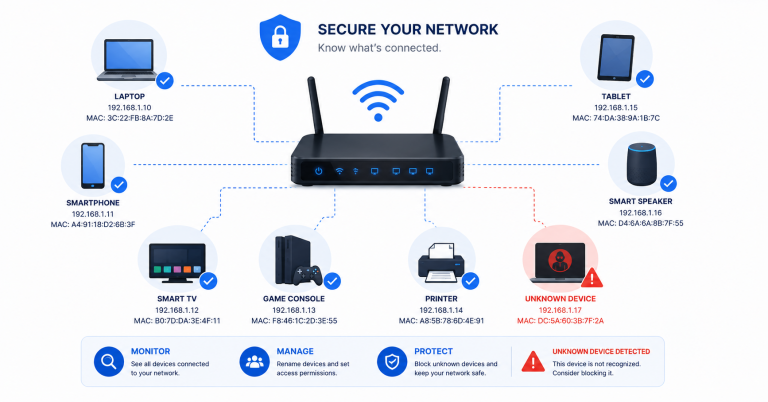
- From the router panel: type 192.168.1.1 (or 192.168.0.1) in a browser, log in, and open the section called Connected Devices, Device List or DHCP Clients. You’ll see every device with its name, IP and MAC address.
- From an app: Fing (free, iOS/Android) scans your network and lists everything connected, with friendly names and manufacturer info — often easier to read than the router’s list.
Step 2: Identify which devices are yours
Now the detective work — count your gadgets and match them against the list:
- Phones, laptops, tablets, TV, console, printer, smart speakers, plugs, cameras, robot vacuum, doorbell, e-reader, watch…
- The manufacturer shown for each MAC address is your best clue: «Espressif» is usually a smart plug or bulb, «Amazon Technologies» an Echo or Fire TV, «Apple» self-explanatory.
- Turn devices off one by one if in doubt — the entry that disappears was that device.
- Rename everything you identify in the router panel or Fing. Ten minutes of naming now means any future stranger stands out instantly.
If everything matches: relax, nobody’s there. If there’s a device you can’t explain — a phone or laptop brand you don’t own, connected at hours that fit no gadget — move to Step 3.
Step 3: Kick the intruder out (the right way)
Forget MAC blocking as your main weapon — an intruder can change their MAC address in seconds. The clean kill is simpler:
- Change the WiFi password in the router’s wireless settings. Long, unique, nothing personal. Every connected device — including the intruder — gets disconnected instantly.
- Change the router’s admin password too — if the intruder ever accessed the panel with default credentials, a new WiFi password alone doesn’t lock them out.
- Reconnect your own devices with the new password. Yes, it’s a chore. It’s also the only method that actually works.
Step 4: Make sure they can’t come back
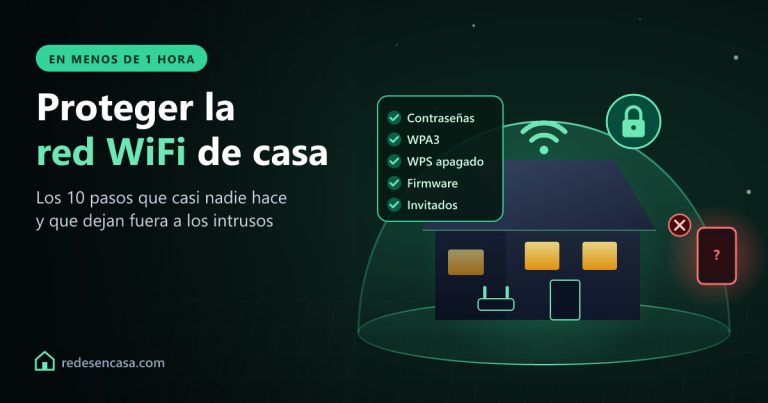
- Disable WPS — the button-pairing system’s PIN can be brute-forced and is the most common way intruders got in without your password.
- Switch encryption to WPA2/WPA3 mixed mode — WPA3 blocks the offline password-cracking attacks that work against WPA2.
- Update the router firmware — old firmware carries published vulnerabilities.
- Use the guest network for visitors from now on — guests get internet, never your main password.
- Check the device list monthly — with everything renamed, it takes 30 seconds.
What an intruder could have seen (and the VPN answer)
Here’s the part nobody likes to think about: someone on your network wasn’t just stealing bandwidth. Positioned inside, they could observe which sites and services your household connects to, and on badly protected connections, potentially more. If the thought that someone is using my WiFi made you uneasy, this is the part worth fixing permanently.
A VPN like NordVPN encrypts all your traffic at the device level — so even someone sitting inside your network sees only unreadable encrypted streams. It also protects you the same way on public WiFi, where you’re the «stranger on the network». One subscription covers all your devices, with a 30-day money-back guarantee.
Summary table
| Goal | Action | Where |
|---|---|---|
| See who’s connected | Device list or Fing app | 192.168.1.1 / Fing |
| Identify devices | Match MACs, turn off one by one, rename | Router panel |
| Remove intruder | Change WiFi + admin passwords | Wireless + admin settings |
| Stay protected | WPS off, WPA2/WPA3, firmware update | Router panel |
| Privacy even if breached | VPN on your devices | NordVPN app |
FAQ: someone is using my WiFi
How can I tell if someone is using my WiFi?
Open your router panel (192.168.1.1) and check the connected devices list, or scan the network with the free Fing app. Match every entry against gadgets you own — turning devices off one by one resolves any doubt. An entry you can’t explain after that is an intruder.
Can I see what someone does on my WiFi?
Home routers don’t log browsing in a readable way, so in practice no — you can only see that a device is connected and how much data it moves. The priority isn’t spying on them anyway: it’s removing them with a password change and closing the door they used.
How do I kick someone off my WiFi?
Change the WiFi password in the router panel — everyone reconnecting needs the new one, and the intruder is out instantly. Change the admin password too, then disable WPS and enable WPA2/WPA3 so they can’t return the same way. Blocking their MAC address alone doesn’t work: MACs can be changed in seconds.
How did someone get my WiFi password?
The usual doors: the default password from the router sticker was never changed, WPS was enabled (its PIN can be brute-forced), the password was shared and re-shared over years, or it was weak enough to crack against WPA2. Each of those has a fix in this guide.
Is someone using my WiFi dangerous, or just annoying?
Both. Beyond slower internet, anything illegal they do online traces back to your connection, and from inside the network they can observe your household’s traffic patterns. Treat any confirmed intruder as a security incident: full password change, WPS off, firmware updated.
Does hiding my SSID stop WiFi intruders?
No — hidden networks are trivially visible to the free scanning tools any intruder uses, and hiding the SSID makes your own devices connect less reliably. Strong password, WPA3 and WPS off are what actually keep people out.
Conclusion
If you suspected someone is using my WiFi, now you know the drill: check the device list, identify and rename everything, and if a stranger shows up — new WiFi password, new admin password, WPS off, WPA2/WPA3 on. That combination removes any intruder and locks the doors they use.
And for the peace-of-mind layer: a VPN keeps your traffic unreadable even in the worst case — inside your home or on any network you’ll ever join.
More guides that can help you
- .BIN Firmware File: Complete Guide to Update Your Router
- TP-Link Repeater Connected But No Internet: Fix Guide
- Laptop WiFi Slow: Why It Happens and How to Fix It
- Best WiFi Extenders 2026: Definitive Guide
- Nintendo Switch Keeps Disconnecting from WiFi: Fix Guide
- Best WiFi Mesh 2026: Which to Buy