Xbox Won’t Connect to WiFi? 10 Fixes That Work (Series X|S and One) (2026)
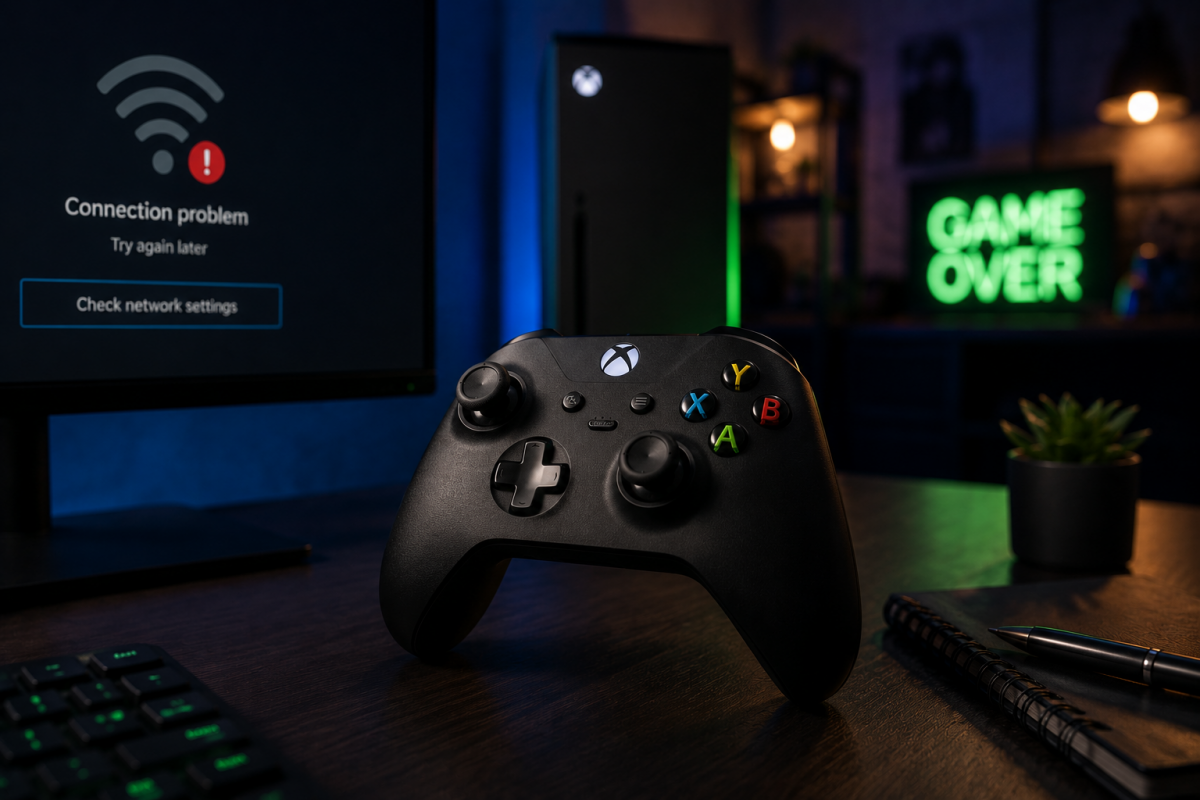
If your Xbox won’t connect to WiFi, you’re dealing with one of the most frustrating gaming problems — especially when everything else on your network works fine. The good news is that most cases have a clear cause and a simple fix. This step-by-step guide covers every reason your Xbox won’t connect to WiFi in 2026 and walks you through the solutions in order.
Works for Xbox Series X, Xbox Series S, Xbox One, and older models.
Table of Contents
Why won’t Xbox connect to WiFi? Most common reasons
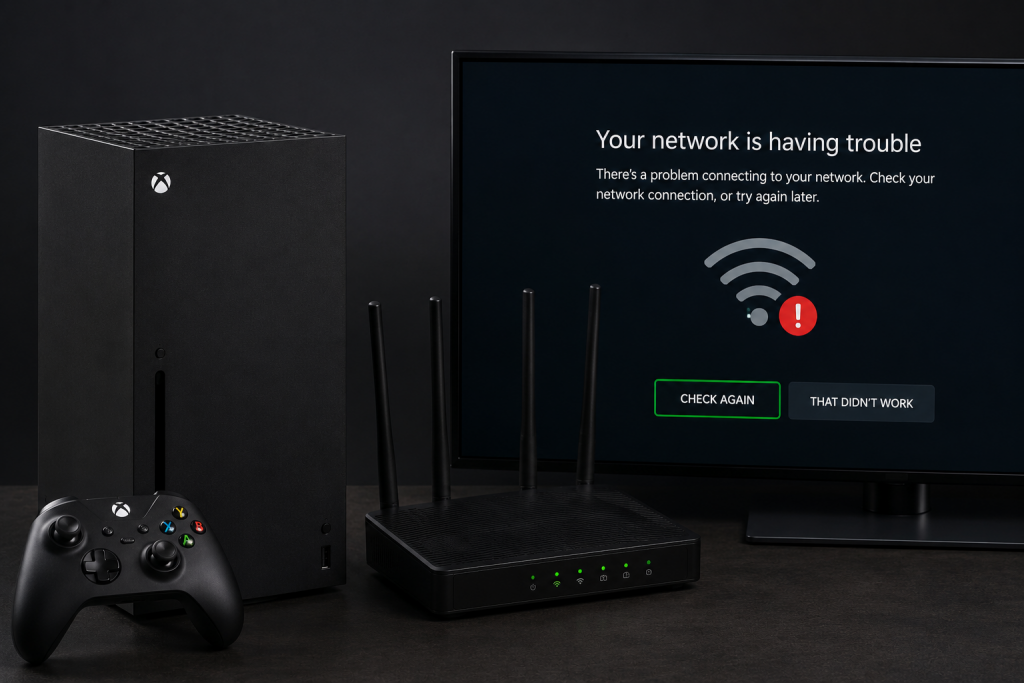
When your Xbox won’t connect to WiFi, the problem can be on the console side, the router side, or Microsoft’s servers. The most common causes are:
- 📶 Weak WiFi signal — the Xbox is too far from the router.
- 🌐 Xbox Live outage — Microsoft’s servers are down, not your network.
- 🔁 Stale router cache — router needs a restart to clear the issue.
- 🔒 MAC address filtering — router is blocking the Xbox’s MAC address.
- 🌐 Slow DNS — ISP DNS servers timing out on Xbox servers.
- ⚠️ Strict NAT Type — preventing connection to Xbox Live.
1) Basic checks before anything else
Before diving into advanced fixes, run through these quick checks when your Xbox won’t connect to WiFi:
- Make sure the WiFi password is correct — especially if you recently changed it.
- Confirm other devices (phone, laptop) can connect to the same network.
- Check if your router broadcasts both 2.4 GHz and 5 GHz and try both on the Xbox.
- Go to Settings → General → Network Settings → Test network connection on the Xbox to see the exact error code.
2) Check Xbox Live service status
Before blaming your router when your Xbox won’t connect to WiFi, check if Xbox Live itself is down. Go to status.xbox.com on a phone or computer — if any services show an outage, wait for Microsoft to fix it. There’s nothing you can do on your end.
If Xbox Live is fully operational, the problem is on your local network — continue with the steps below.
3) Restart the Xbox and the router
A full power cycle clears temporary errors on both devices and fixes the majority of cases where the Xbox won’t connect to WiFi.
For the Xbox:
- Hold the Xbox button on the console for 10 seconds until it shuts down completely.
- Unplug the power cable from the back of the console.
- Wait 30 seconds, then plug it back in and turn it on.
For the router:
- Unplug the router from the power outlet.
- Wait 30 seconds (this clears the DHCP table and connection cache).
- Plug it back in and wait for it to fully reconnect (about 60 seconds).
- Try connecting the Xbox to WiFi again.
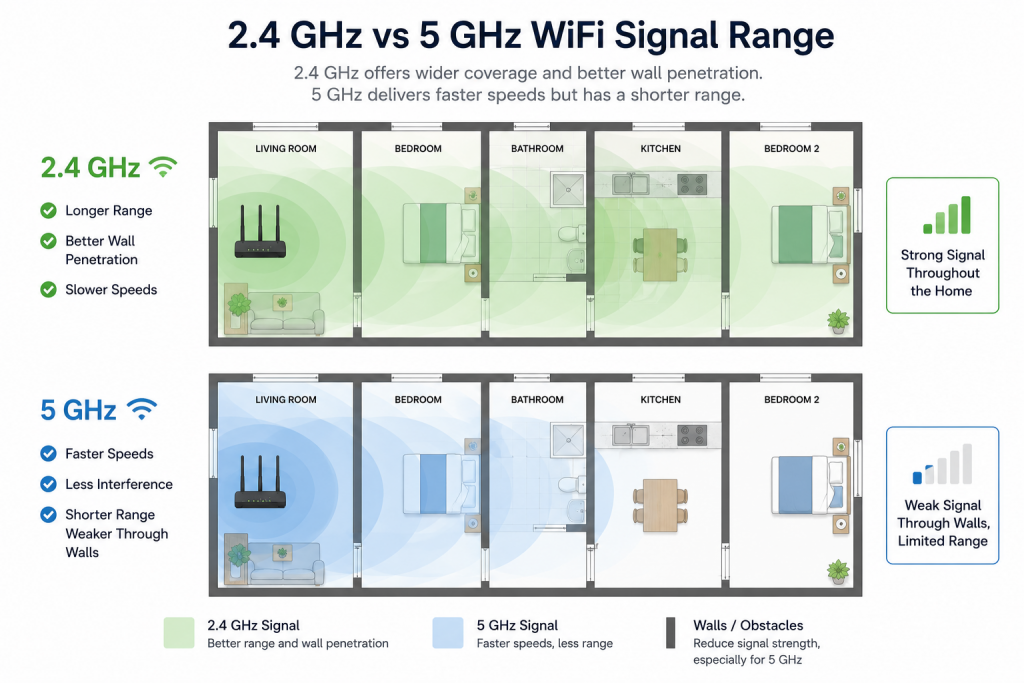
4) Switch to 2.4 GHz if the router is far away
If your Xbox won’t connect to WiFi but other devices do, the issue might be the WiFi band. The Xbox may be connecting to 5 GHz, which has shorter range and struggles through walls. Try connecting to the 2.4 GHz network instead — it has better range even if slightly lower speed.
| Band | Range | Speed | Best for Xbox |
|---|---|---|---|
| 2.4 GHz | ✅ Better through walls | Lower | Router in another room or floor |
| 5 GHz | ❌ Shorter range | Higher | Router in the same room |
5) MAC address filtering on the router
Some routers have MAC address filtering enabled, which blocks any device not on an approved list. If your Xbox won’t connect to WiFi but phones and laptops can, check your router’s admin panel (usually 192.168.1.1 or 192.168.0.1) under Wireless Security or Access Control.
Fix: either disable MAC address filtering, or add the Xbox’s MAC address to the allowed list. Find the Xbox’s MAC address at Settings → General → Network Settings → Advanced Settings → Wired MAC / Wireless MAC.
6) Change DNS to fix connection errors
Slow or unresponsive ISP DNS servers are a common hidden cause when the Xbox won’t connect to WiFi — the console connects to the network but can’t reach Xbox servers. Switching to Google DNS usually resolves this.
- Go to Settings → General → Network Settings → Advanced Settings → DNS Settings.
- Select Manual.
- Primary DNS: 8.8.8.8 — Secondary DNS: 8.8.4.4.
- Save and run a network test.
7) NAT Type Open: how to get it on Xbox
NAT Type affects your Xbox’s ability to connect to Xbox Live and other players. If your Xbox won’t connect to WiFi or keeps dropping from multiplayer, check your NAT Type at Settings → General → Network Settings → Current Network Status.
- ✅ Open: best — connects to all players and services.
- ⚠️ Moderate: some connection issues in multiplayer lobbies.
- ❌ Strict: frequent disconnections, can’t join most lobbies.
Fix for Strict/Moderate NAT: enable UPnP in your router’s admin panel (most modern routers support this). Alternatively, put the Xbox in the router’s DMZ or forward ports 3074 UDP/TCP and 53 UDP/TCP manually.
Still not connecting? Fixes for specific situations
Other devices connect, but the Xbox won’t
When your phone and laptop are fine, the console itself is usually the problem. Try these, in order:
- Clear the alternate MAC address: Settings › General › Network settings › Advanced settings › Alternate MAC address › Clear, then restart the console. It’s one of the most effective fixes when the Xbox stops connecting for no obvious reason.
- Forget the network and join it again, typing the password by hand.
- Check the router’s security mode: some consoles struggle with WPA3-only networks. Set the router to WPA2-AES, or WPA2/WPA3 mixed mode; we explain the options in WPA2 vs WPA3.
- Check for blocks in the router or the provider’s app: parental controls, schedules or a «paused» device keep the Xbox offline until they’re removed.
After a power outage or a new router
After an outage, the modem and router sometimes come back in the wrong order or with a stuck connection. Restart them properly: modem first, wait until it’s online, then the router, and finally the Xbox (hold the power button for 10 seconds and unplug it for a minute). With a new router, the console is still looking for the old network: set it up again, or give the new router the same network name and password as the old one.
How to switch the Xbox from 2.4 GHz to 5 GHz
The Xbox has no band setting: it joins whichever network name you pick. If your router broadcasts 2.4 GHz and 5 GHz under the same name, it chooses for you. To use 5 GHz, give the 5 GHz band its own name in the router settings (look for Band Steering or Smart Connect) and select that network on the console. 5 GHz is faster near the router; 2.4 GHz reaches further.
Connected to WiFi, but not to the Xbox network
If the network test says you’re online but can’t reach the Xbox network (what Microsoft used to call Xbox Live), check the Xbox status page first. If everything is up there, the usual causes are DNS and NAT: go back to steps 6 and 7.
8) The best fix: connect your Xbox via Ethernet
If your Xbox won’t connect to WiFi reliably and you’ve tried everything, the permanent solution is to use a wired Ethernet connection. All Xbox models have a built-in Gigabit Ethernet port — no adapter needed.
With Ethernet, the Xbox:
- ✅ Connects instantly and stays connected.
- ✅ Gets lower latency and more stable speeds.
- ✅ Eliminates all WiFi-related issues permanently.
If the router is in a different room, use a powerline adapter (sends the network through your home’s electrical wiring) or a WiFi extender with an Ethernet port (boost signal to the Xbox’s location and connect it wired).
Recommended products to fix Xbox WiFi problems
Option 1: Ethernet cable (direct connection)
The simplest fix when your Xbox won’t connect to WiFi and the router is nearby. Cat6 cable gives you full gigabit speeds with zero signal loss.
Option 2: Powerline adapter kit (no cables through walls)
If the router is in another room, a powerline kit sends your network through the electrical wiring. One adapter plugs near the router, the other near the Xbox — then connect the Xbox with a short Ethernet cable.
Option 3: WiFi extender with Ethernet port
If running cable is difficult, a WiFi extender with a LAN port boosts the signal near the Xbox and lets you connect wired — combining the convenience of WiFi placement with the stability of Ethernet.
📌 Related guides:
- WPA2 vs WPA3: Which Should You Use on Your Router?
- Best WiFi Extenders 2026
- How to Change Router Password
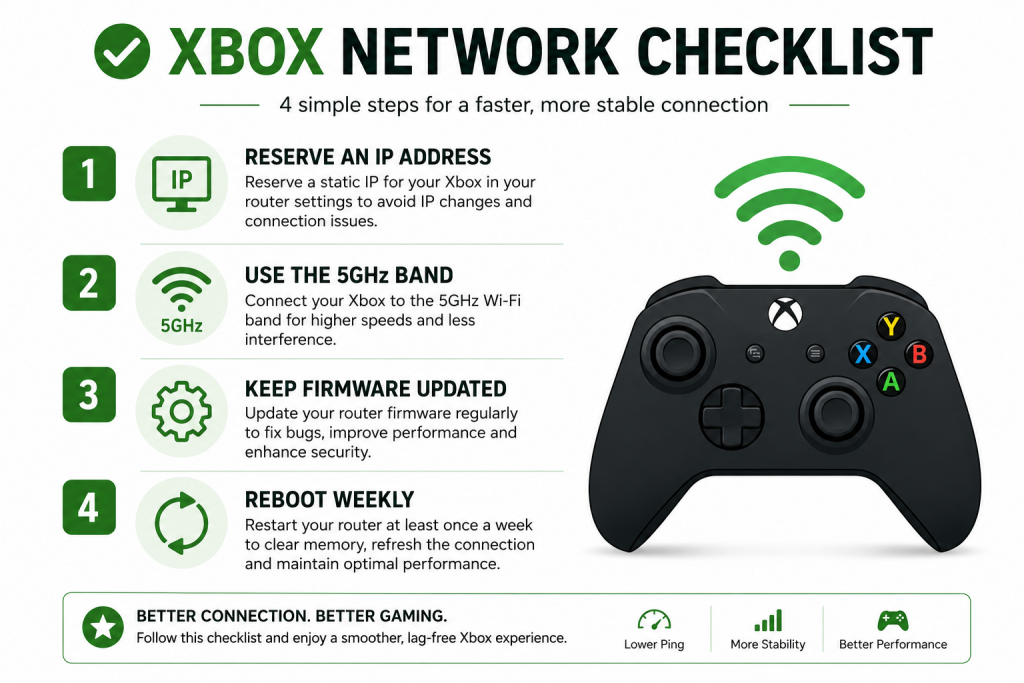
Prevent it from happening again: 4 habits that keep your Xbox online
Once your Xbox won’t connect to WiFi problem is solved, these settings prevent most future disconnections:
- Reserve an IP for the console — in the router panel, assign a fixed DHCP address to the Xbox MAC. This avoids IP conflicts and keeps your NAT settings stable.
- Keep the console on 5 GHz — if the Xbox is in the same room as the router, the 5 GHz band gives lower latency and suffers far less interference.
- Update router firmware twice a year — many «random» console disconnections are old router firmware bugs.
- Restart the router weekly — a scheduled reboot at night clears stale connections before they cause problems.
Why won’t my Xbox connect to WiFi when other devices can?
If other devices work but your Xbox won’t connect to WiFi, check MAC address filtering on your router (it may be blocking the Xbox), try the 2.4 GHz band instead of 5 GHz, and change DNS to 8.8.8.8. Also check if Xbox Live is down at status.xbox.com.
How do I fix Xbox won’t connect to WiFi after a password change?
Go to Settings → General → Network Settings, find your WiFi network and select ‘Forget this network’, then reconnect entering the new password. If your Xbox still won’t connect to WiFi, restart both the console and the router.
Does Xbox have a built-in Ethernet port?
Yes, all Xbox models (Series X, Series S, Xbox One) have a built-in Gigabit Ethernet port on the back. If your Xbox won’t connect to WiFi reliably, plugging in an Ethernet cable is the most stable and permanent solution.
What is NAT Type on Xbox and how do I change it to Open?
NAT Type controls how the Xbox connects to Xbox Live and other players. Open NAT is the best. To get Open NAT when your Xbox won’t connect to WiFi or keeps dropping: enable UPnP in your router’s admin panel, or forward ports 3074 UDP/TCP and 53 UDP/TCP to the Xbox’s IP address.
Xbox says ‘Can’t connect to your network’ — what does it mean?
This error means the Xbox can see the WiFi network but can’t join it. When your Xbox won’t connect to WiFi with this error: check the WiFi password, restart the router, check MAC filtering, and try a different WiFi band. If nothing works, connect via Ethernet cable.
Does the Xbox support 5 GHz WiFi?
Yes. Xbox Series X, Series S and Xbox One all support dual-band WiFi (2.4 GHz and 5 GHz). If the console is near the router, connect it to the 5 GHz network for lower latency and fewer interference problems. You can select the band by connecting to the 5 GHz SSID in Network Settings.
Can a WiFi extender fix Xbox connection problems?
Yes, if the root cause is weak signal — for example, the console is two rooms away from the router. An extender with a gigabit Ethernet port is the best option for consoles: you extend the WiFi to the gaming room and connect the Xbox by cable to the extender, which is more stable than repeated WiFi.
Conclusion
When your Xbox won’t connect to WiFi, work through the steps in order: check Xbox Live status, restart both devices, switch to 2.4 GHz, verify MAC filtering, change DNS to 8.8.8.8, and fix NAT Type. If WiFi keeps causing issues, the best long-term solution is an Ethernet cable — either directly or through a powerline adapter. Wired connections eliminate all WiFi-related drops permanently.