PS4 WiFi Lag: How to Reduce Ping at Home (2026)
If you’re dealing with PS4 WiFi lag, high ping, or connection drops during online games, the fix is almost always the same: get the PS4 off WiFi and onto a wired connection. This guide explains why PS4 WiFi lag happens, how to reduce ping step by step, and which products give you the most reliable connection in 2026 — with or without running a cable.
Works for PS4, PS4 Slim, and PS4 Pro.
Table of Contents
Why does PS4 WiFi lag happen?
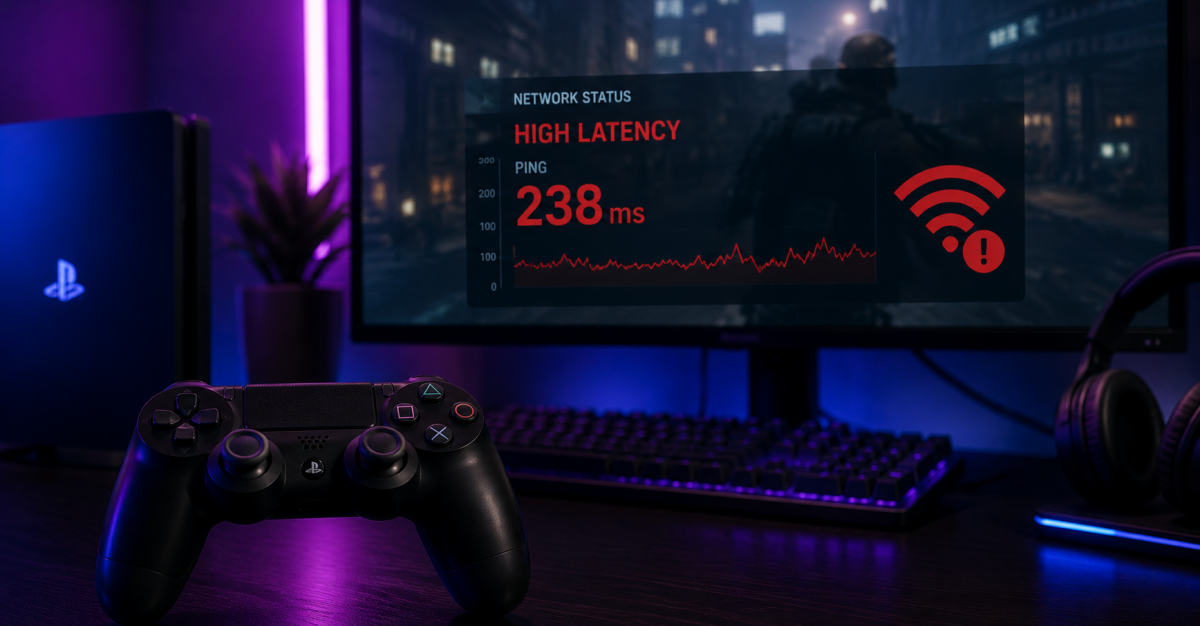
PS4 WiFi lag is caused by the fundamental limitations of wireless connections for gaming:
- 📡 WiFi latency — wireless adds 5–20ms of extra latency that Ethernet eliminates.
- 📶 Signal interference — neighboring networks, walls, and appliances disrupt the signal.
- 🔁 Packet loss — wireless connections drop packets under load, causing rubber-banding and disconnections.
- 👥 Network congestion — other devices on the same network competing for bandwidth.
- 📍 Distance to router — weak signal from being too far away.
1) Ethernet cable: the definitive PS4 WiFi lag fix
The single most effective fix for PS4 WiFi lag is connecting the console via Ethernet. The PS4, PS4 Slim, and PS4 Pro all have a built-in Gigabit Ethernet port — no adapter needed. Plug a Cat6 cable from the PS4 to the router and lag drops immediately.
Real-world difference with Ethernet vs WiFi on PS4:
| Connection | Typical ping | Packet loss | Stability |
|---|---|---|---|
| WiFi 2.4 GHz | 30–80ms | 1–5% | Variable |
| WiFi 5 GHz | 15–40ms | 0.5–2% | Good if close |
| Ethernet Cat6 | 2–10ms | ~0% | Consistent |
If the router is in the same room as the PS4, run a cable directly. If it’s in another room, see sections 2 and 3 below.
2) Powerline adapter: wired connection without running cable
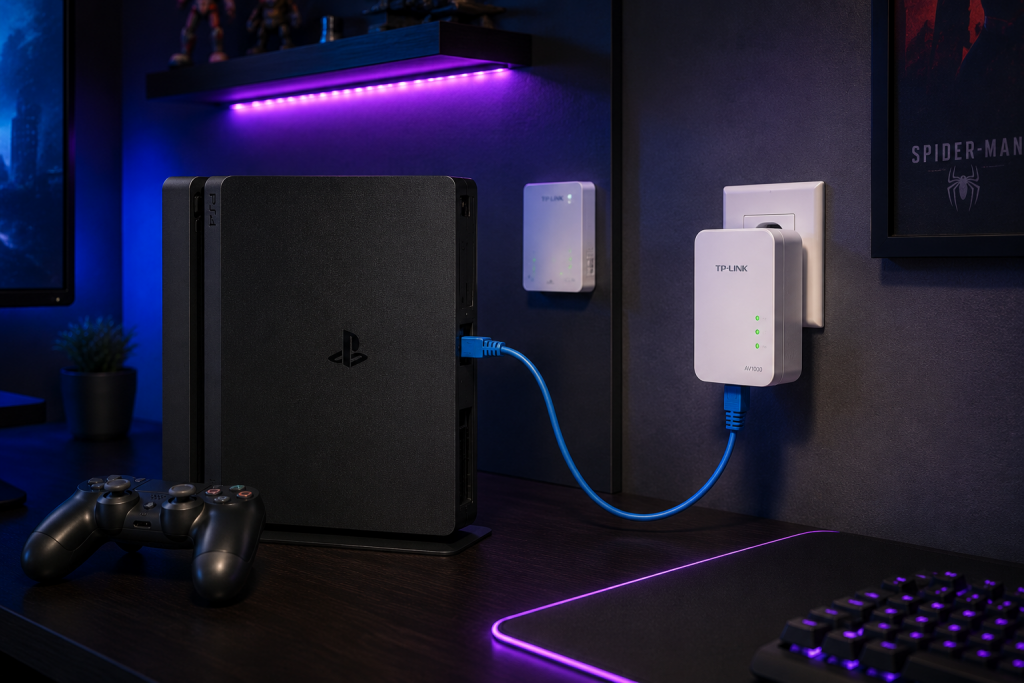
If the router is in a different room and running a long cable isn’t practical, a powerline adapter (PLC) is the best alternative to fix PS4 WiFi lag. It sends your network signal through your home’s existing electrical wiring — no drilling, no long cables.
- Plug one powerline adapter into a wall outlet near the router and connect it with a short Ethernet cable.
- Plug the second adapter into a wall outlet near the PS4 and connect it to the console with another short Ethernet cable.
- Done — the PS4 gets a wired connection with much lower PS4 WiFi lag than wireless.
Best results: plug directly into the wall socket, not into a power strip. AV1000 powerline kits such as the TP-Link TL-PA7027P deliver 200–400 Mbps in real conditions — more than enough for gaming.
3) WiFi extender with Ethernet port
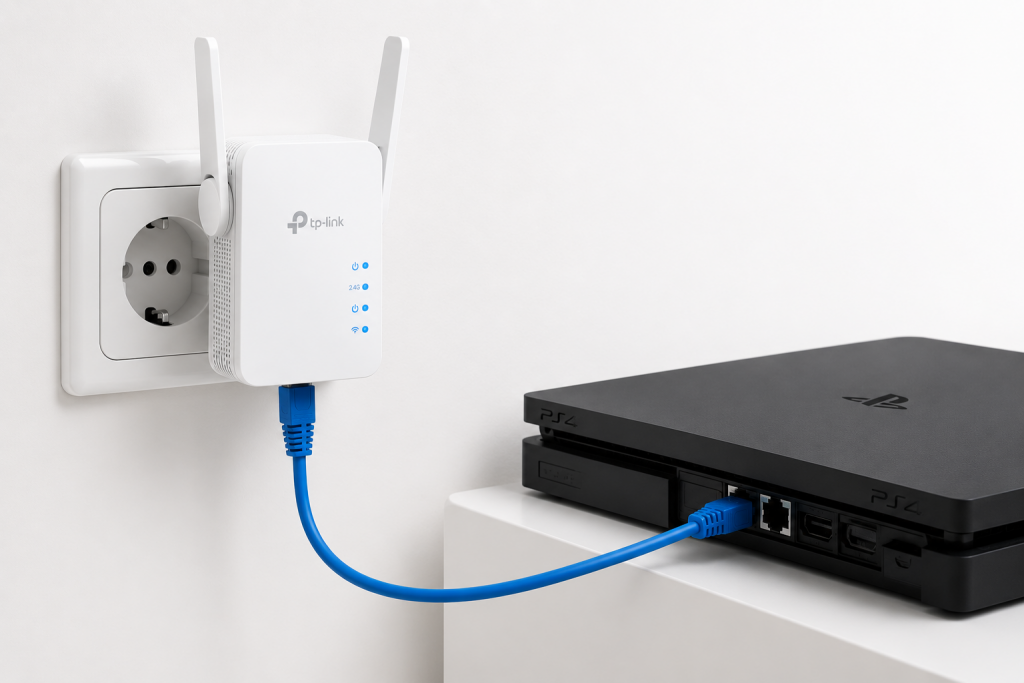
A WiFi extender with a LAN port lets you place the extender within good range of the router (wirelessly) and then connect the PS4 via a short Ethernet cable to the extender’s LAN port. This gives the PS4 a stable wired connection without reaching all the way back to the router — a great middle ground to reduce PS4 WiFi lag.
4) Use 5 GHz WiFi if you must stay wireless
If wired isn’t an option at all, at least make sure the PS4 is on 5 GHz WiFi rather than 2.4 GHz. The PS4 Slim and PS4 Pro both support 5 GHz. 5 GHz has lower latency and less interference from neighbors — it won’t eliminate PS4 WiFi lag entirely, but it improves it significantly compared to 2.4 GHz.
Go to PS4 Settings → Network → Set Up Internet Connection → Use WiFi → Easy and select your 5 GHz network (usually the same name with «_5G» or «_5GHz» suffix).
5) Change PS4 DNS settings
Slow DNS servers can increase the time it takes to connect to PSN servers, adding to PS4 WiFi lag. Switching to Google or Cloudflare DNS can shave a few milliseconds off connection time.
- Go to Settings → Network → Set Up Internet Connection.
- Select WiFi or LAN → Custom.
- Keep IP settings on Automatic, DHCP on Do Not Specify.
- Set DNS to Manual: Primary 1.1.1.1 (Cloudflare) — Secondary 1.0.0.1.
- Keep MTU on Automatic and Proxy Server on Do Not Use.
6) Enable QoS on your router
QoS (Quality of Service) lets the router prioritize gaming traffic over other devices — streaming, downloads, and browsing get deprioritized so the PS4 gets the bandwidth it needs. This is especially useful if other household members are using the internet heavily while you’re gaming, which amplifies PS4 WiFi lag.
Check your router’s admin panel (192.168.1.1 or 192.168.0.1) under Advanced Settings or Traffic Management. Look for «QoS» or «Gaming Mode» and add the PS4’s IP or MAC address to the priority list.
Recommended products to fix PS4 WiFi lag
TP-Link TL-PA7027P — AV1000 Powerline Kit
Best value kit to fix PS4 WiFi lag without running cables. AV1000 standard, two Gigabit ports, passthrough socket included, plug-and-play setup. Real-world speeds of 200–400 Mbps — ideal for gaming.
TP-Link RE700X — WiFi 6 Extender with Ethernet Port
If the electrical wiring in your home isn’t ideal for powerline, a WiFi 6 extender with a LAN port placed mid-way between the router and the PS4 gives you a strong wireless backhaul + wired final connection to the console.
Cat6 Ethernet Cable — direct connection
If the router and PS4 are in the same room or you can run a cable, a Cat6 flat cable (easier to hide under skirting boards) is the cheapest and most effective PS4 WiFi lag fix.
📌 Related guides:
- High Ping in Online Games: How to Reduce Lag (2026)
- WiFi vs Ethernet at Home: When to Use a Cable (2026)
- Best WiFi Extender with Ethernet Port: Top 5 (2026)
Keep your ping low: habits that prevent PS4 lag
The PS4 WiFi lag fix that lasts is the one you maintain. Before every long gaming session:
- Check PSN server status first — server-side problems look identical to WiFi lag. Check the official PlayStation status page before touching your network.
- Pause downloads on all devices — a single phone backing up photos to the cloud can double your ping mid-match.
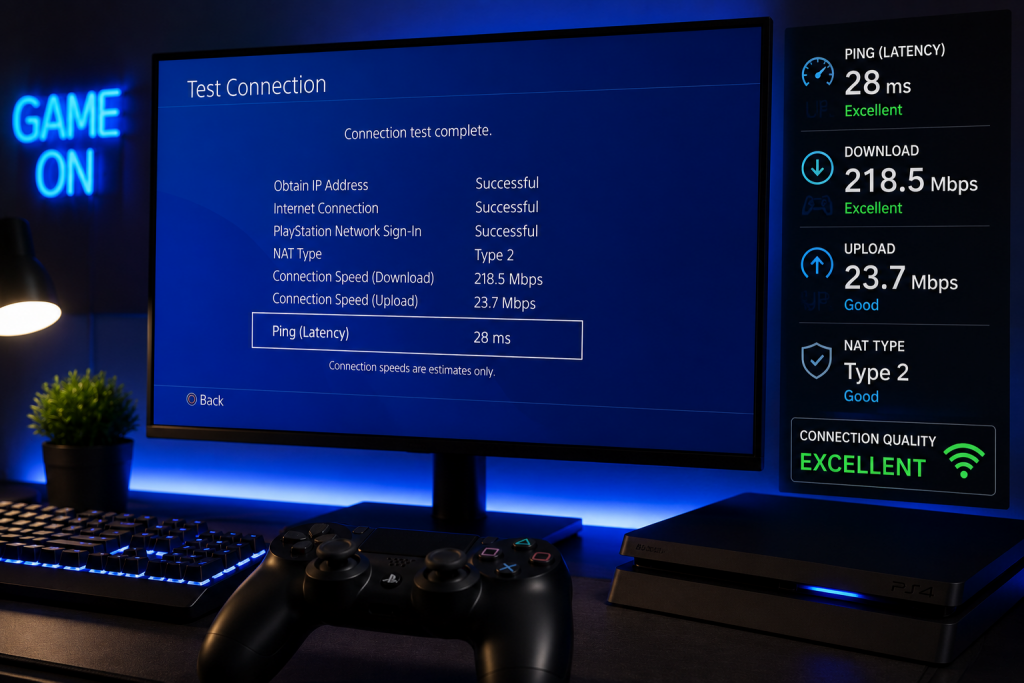
- Test your connection from the console — Settings → Network → Test Internet Connection. Below 20 Mbps download or above 60 ms ping, fix the connection before queuing.
- Close background apps on the PS4 — Netflix or Spotify suspended in the background keep network activity alive while you play.
Why is my PS4 lagging on WiFi but not on Ethernet?
PS4 WiFi lag happens because wireless connections add latency (5–20ms extra), have variable signal quality through walls, and suffer from interference from other networks. Ethernet eliminates all of this — it provides consistent 2–10ms ping with near-zero packet loss. The PS4 has a built-in Ethernet port for this reason.
How do I reduce PS4 ping without Ethernet?
To reduce PS4 WiFi lag without a cable: switch to 5 GHz WiFi (PS4 Slim and Pro support it), change DNS to 1.1.1.1 / 1.0.0.1, enable QoS on your router to prioritize the PS4, and reduce interference by placing the console closer to the router. A powerline adapter is the best option if you want wired performance without running a long cable.
Does the PS4 have an Ethernet port?
Yes — all PS4 models (original, Slim, and Pro) have a built-in Gigabit Ethernet port. Connecting via Ethernet is the most effective PS4 WiFi lag fix: it reduces ping by 20–60ms and eliminates packet loss compared to wireless.
Does a powerline adapter reduce PS4 lag?
Yes, significantly. A powerline adapter gives the PS4 a wired connection through the home’s electrical wiring — typical ping on powerline is 5–15ms versus 30–80ms on WiFi. It’s the recommended fix for PS4 WiFi lag when running an Ethernet cable directly isn’t possible.
What DNS settings reduce PS4 ping the most?
Cloudflare DNS (1.1.1.1 / 1.0.0.1) or Google DNS (8.8.8.8 / 8.8.4.4) both outperform most ISP DNS servers. Changing DNS is a minor improvement for PS4 WiFi lag — it helps with connection time but doesn’t change in-game ping significantly. The biggest gains come from switching to Ethernet or powerline.
Is the PS4 WiFi worse than the PS5 WiFi?
Yes, noticeably. The original PS4 only supports WiFi 4 (2.4 GHz), the PS4 Slim and Pro add WiFi 5 with 5 GHz support, while the PS5 has WiFi 6. If you have an original PS4, its WiFi radio is the biggest bottleneck — a wired connection via Ethernet or powerline makes a much bigger difference on this console than on any newer one.
What ping is good for online gaming on PS4?
Below 30 ms is excellent, 30-60 ms is perfectly playable, 60-100 ms causes noticeable delay in fast-paced shooters and fighting games, and above 100 ms produces visible lag in any online game. You can check it in Settings → Network → Test Internet Connection, or more precisely with the ping shown in each game’s own connection stats.
Conclusion
The definitive fix for PS4 WiFi lag is getting off WiFi — either with a direct Ethernet cable, a powerline adapter, or a WiFi extender with a LAN port. If you must stay wireless, switch to 5 GHz, change DNS to Cloudflare (1.1.1.1), and enable QoS on your router. For most players, a powerline adapter is the sweet spot: wired performance without the hassle of running a long cable through the house.