TP-Link Extender Not Working: Complete Fix Guide (2026)
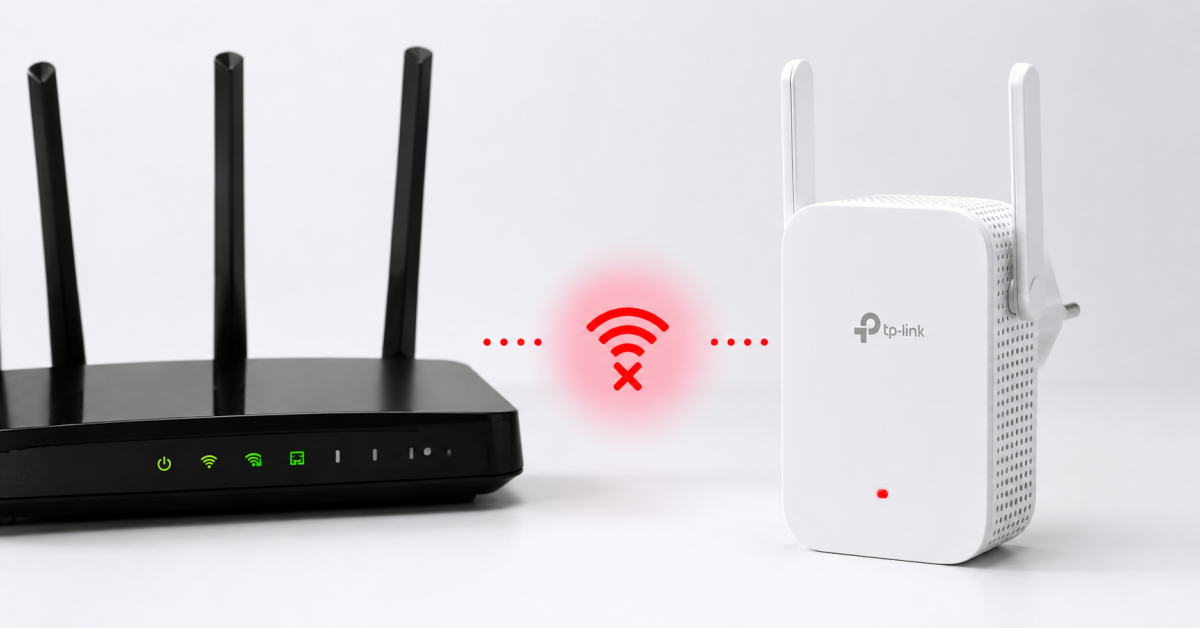
If your TP-Link extender is not working — showing a red light, losing internet, not connecting, or refusing to set up — this guide covers every fix. A TP-Link extender not working usually comes down to four scenarios: no internet after setup, wrong password, red LED, or firmware issues. Each one has a clear solution that takes under 10 minutes.
Works for TP-Link RE200, RE300, RE450, RE550, RE650, RE700X, and all RE-series extenders.
Table of Contents
TP-Link extender not working: identify your symptom
Before fixing a TP-Link extender not working, identify which problem you have:
- 🔴 Red LED — extender is too far from the router or lost the connection to it.
- 🌐 Connected but no internet — extender joined the router but has no upstream internet.
- 🔑 Wrong password during setup — setup fails because the router password was changed or entered incorrectly.
- 📶 Slow speed through extender — bad placement or interference causing poor performance.
- ❌ Can’t access tplinkrepeater.net — browser can’t reach the setup page.
1) Connected to extender but no internet
This is the most common scenario when a TP-Link extender is not working: devices connect to the extender’s network but have no internet access. The extender is connected to the router network but the router itself has no internet, or the extender lost the upstream link.
Step-by-step fix:
- Check if the router itself has internet — connect a device directly to the router (via cable or WiFi) and test. If no internet there either, the problem is with your ISP, not the extender.
- Restart the extender: unplug from the wall for 30 seconds, plug back in, wait 2 minutes.
- Restart the router as well (unplug 30 seconds).
- Check the extender’s LED — it should be solid blue/green. If it’s red, move it closer to the router (see section 2).
2) Red light on the TP-Link extender
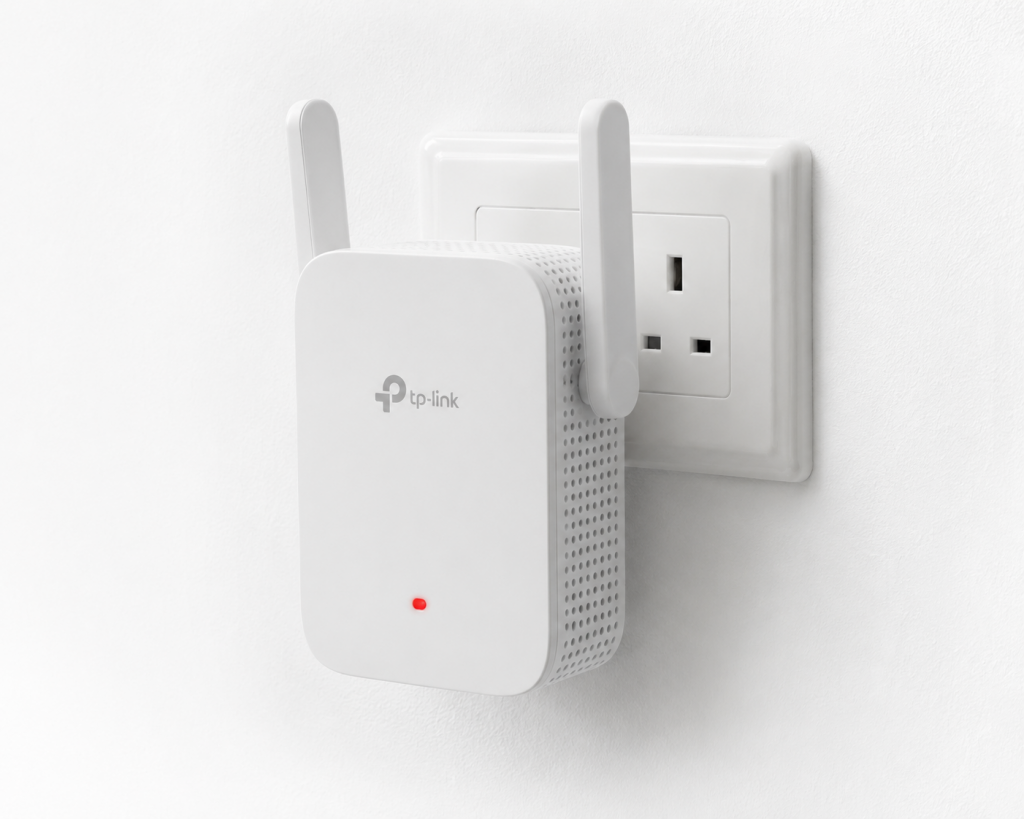
A red LED on a TP-Link extender not working means the signal from the router is too weak — the extender is placed too far away to maintain a good connection.
Fix: move the extender closer to the router
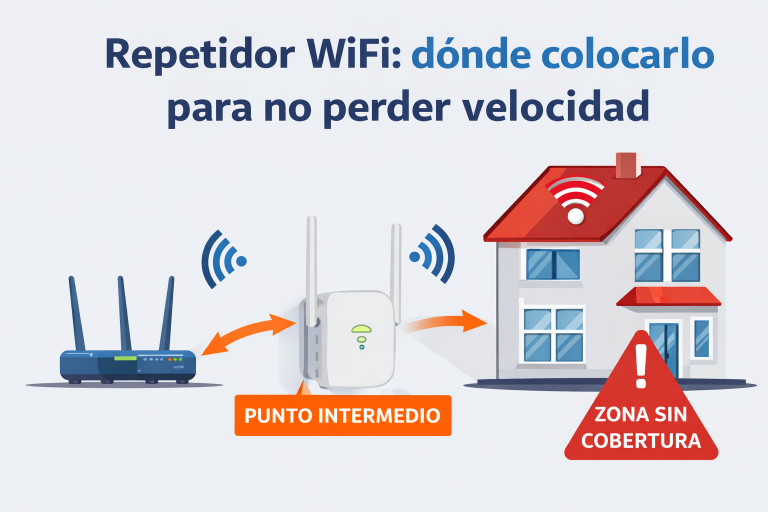
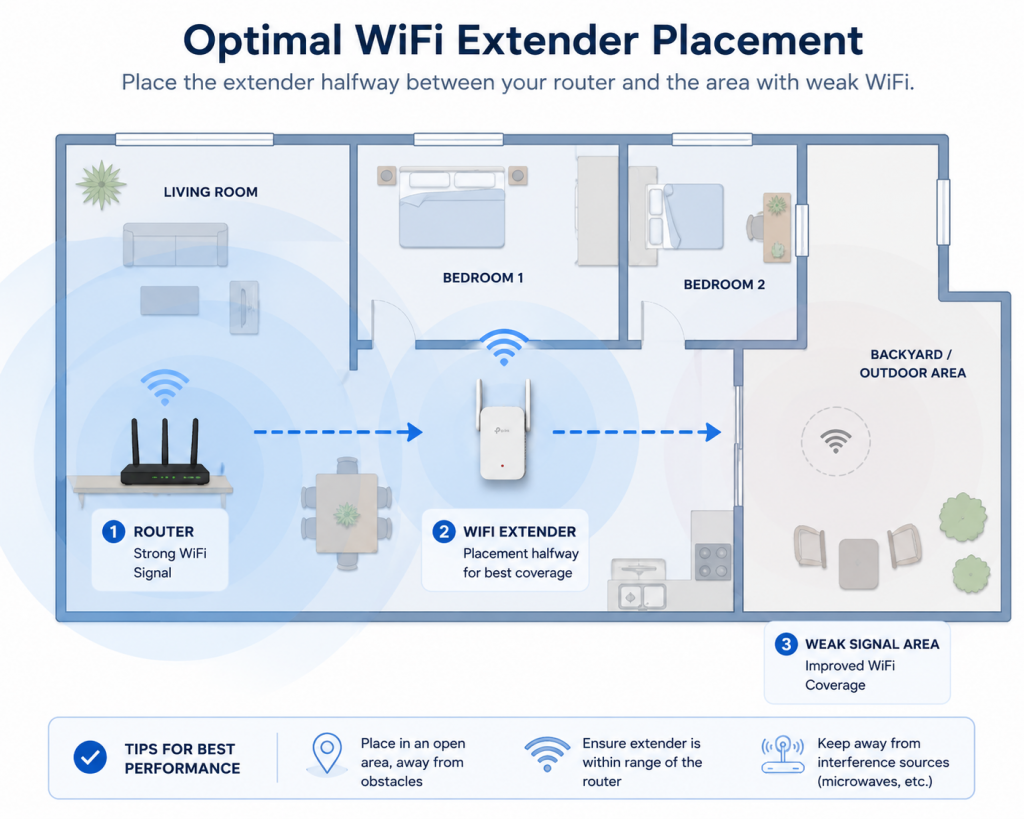
- The ideal position is halfway between the router and the area you want to cover — but still within solid signal range of the router (LED should be blue/green after moving).
- Avoid placing it behind thick walls, inside cabinets, or in corners.
- LED color guide: 🟢 Green/Blue = good signal | 🟡 Amber/Yellow = weak signal | 🔴 Red = too far, move closer.
3) Wrong password error during setup
If setup fails with a wrong password error when the TP-Link extender is not working during configuration:
- Double-check the router’s WiFi password — not the extender’s admin password. They’re different.
- If the router password has special characters (@, #, &, spaces), try simplifying it temporarily — some extender firmware versions have issues with certain characters.
- Make sure you’re connecting to the correct router network in the extender setup, not a neighbor’s network with a similar name.
- Try accessing the setup page via the Tether app (TP-Link’s mobile app) instead of tplinkrepeater.net — it’s often more reliable.
4) Poor placement: the most overlooked cause
Even a TP-Link extender that is working technically can deliver very slow speeds if placed incorrectly. A common mistake is putting the extender at the edge of the router’s range — it connects to the router with a weak signal, then tries to extend it further, resulting in poor performance for all connected devices.
Optimal placement rule: the extender should receive at least 50% signal strength from the router. Test by placing it where you want to extend, and check the LED. Move it 2–3 meters toward the router until you get a green LED, then find the furthest spot that still shows green.
5) Update the firmware
Outdated firmware is a common hidden cause of a TP-Link extender not working properly — especially after router firmware updates that change the WiFi handshake.
- Connect to the extender’s network.
- Go to tplinkrepeater.net in a browser (or use the Tether app).
- Log in (default credentials: admin/admin).
- Go to Settings → Firmware Upgrade → Check for Upgrade (online) or download from tp-link.com and upload manually.
6) Factory reset and set up again
When nothing else fixes a TP-Link extender not working, a factory reset clears all configuration and starts fresh.
- With the extender plugged in and powered on, find the Reset button (usually a small pinhole on the side or bottom).
- Hold it for 10 seconds with a pin until the LED flashes.
- Wait for the extender to reboot (about 2 minutes).
- Set it up again via tplinkrepeater.net or the Tether app.
7) When to upgrade to a new extender or Mesh system
If your TP-Link extender keeps not working despite all fixes, it may be time to replace it — especially if it’s more than 4–5 years old. Older extenders only support WiFi 5 or WiFi 4, which limits speeds on modern networks.
Upgrade options:
- TP-Link RE550 or RE700X — WiFi 6 extenders with Ethernet port, much better performance than older models.
- TP-Link Deco Mesh system — if coverage is the main issue, a 2-node Mesh eliminates the half-speed problem that extenders have (Mesh uses a dedicated backhaul).
📌 Related guides:
- TP-Link Extender Connected But No Internet: Fix Guide
- Best WiFi Extender with Ethernet Port: Top 5 (2026)
- WiFi Mesh vs Extender: Which One Do You Need?
Same WiFi name or different? How to configure the extender SSID
A decision many users get wrong when their TP-Link extender not working problem is actually a roaming problem:
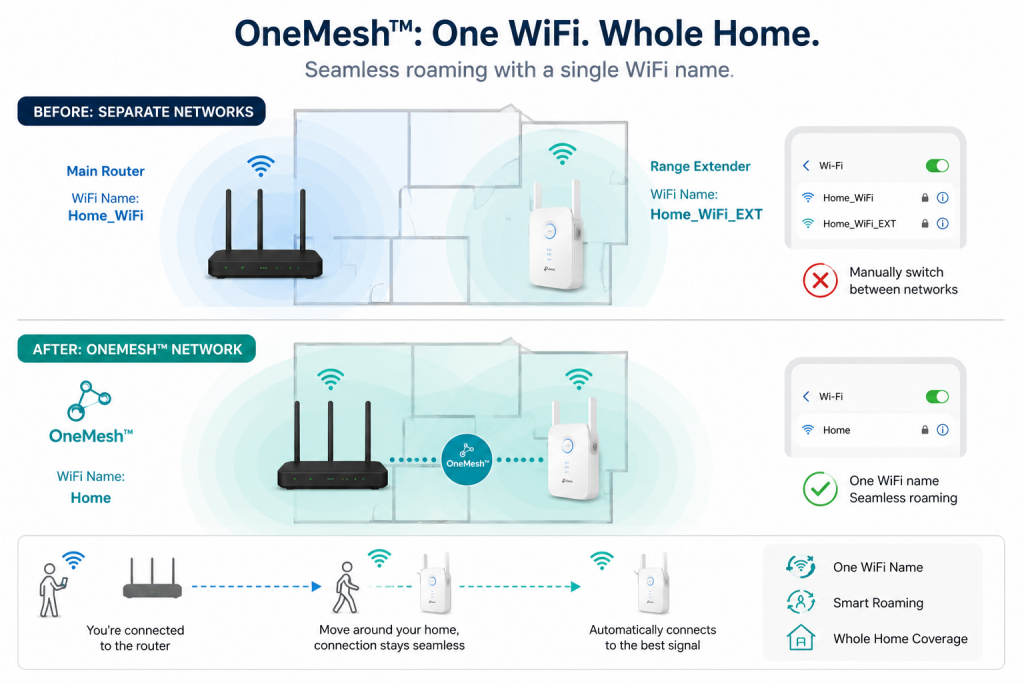
- Same SSID as the router — devices switch between router and extender automatically. Cleaner, but some devices «stick» to the weak signal instead of switching, which feels like the extender is not working.
- Different SSID (e.g. «Home_EXT») — you choose manually which one to use in each room. More control, ideal for diagnosing whether the extender is actually the problem.
- Best of both: OneMesh/EasyMesh — if your router is also TP-Link and compatible, enabling OneMesh turns router and extender into a real Mesh network with smart roaming and a single SSID that actually works.
Why is my TP-Link extender not working after setup?
If your TP-Link extender is not working after setup, the most common causes are: the extender is placed too far from the router (red LED), the router password was entered incorrectly, or the router itself has no internet. Check the LED color, confirm the router has internet, and restart both devices.
What does a red light on a TP-Link extender mean?
A red LED on a TP-Link extender not working means the signal from the router is too weak — the extender is placed too far away. Move it closer to the router until the LED turns green or blue, then find the furthest spot that still gives a green light.
How do I access tplinkrepeater.net if the page doesn’t load?
If tplinkrepeater.net doesn’t load when fixing a TP-Link extender not working: make sure you’re connected to the extender’s network (not your main router), try using the IP address 192.168.0.254 directly, clear browser cache, or use the TP-Link Tether mobile app instead. The page only works when connected to the extender’s WiFi.
How do I reset a TP-Link extender to factory settings?
To factory reset a TP-Link extender not working: with it plugged in, hold the Reset pinhole button for 10 seconds until the LED flashes. Wait 2 minutes for it to reboot, then set it up again via tplinkrepeater.net or the Tether app. This clears all settings and fixes most persistent issues.
TP-Link extender connected to router but devices get slow speeds — why?
Slow speeds through a TP-Link extender are usually caused by bad placement (too far from the router or too close to interference sources) or the extender splitting bandwidth between the router connection and client devices on the same band. Fix: move the extender to a better position with a green LED. For consistently fast speeds, consider a Mesh system instead.
Does the TP-Link extender work with any router brand?
Yes. TP-Link extenders are universal and work with any standard WiFi router — Movistar, Vodafone, Orange, ASUS, Netgear or any other brand. The advanced OneMesh/EasyMesh features (smart roaming, unified network) only work when paired with compatible TP-Link routers, but basic signal extension works with everything.
Why do my devices stay connected to the extender with weak signal instead of the router?
This is called sticky client behavior: devices hold on to the network they are connected to until the signal drops almost completely, even if a stronger one is available. Solutions: turn WiFi off and on when changing rooms, use different SSIDs for router and extender to choose manually, or use OneMesh/EasyMesh with a compatible TP-Link router for automatic smart roaming.
Conclusion
When your TP-Link extender is not working, start by identifying the symptom: red light means move it closer, no internet means restart both devices and check the router, wrong password means verify credentials and try the Tether app. A factory reset solves most persistent issues. If the extender is old or keeps failing, upgrading to a WiFi 6 model (RE700X) or a Mesh system gives you a permanent, reliable solution.