How to Secure Home Network: Complete Guide (2026)
If you’re wondering how to secure home network equipment properly, here’s the uncomfortable truth: most home routers still run with the settings they shipped with — default passwords, WPS enabled, outdated firmware and every device on the same network. The comfort is that fixing all of it takes under an hour, and you only have to do it once.
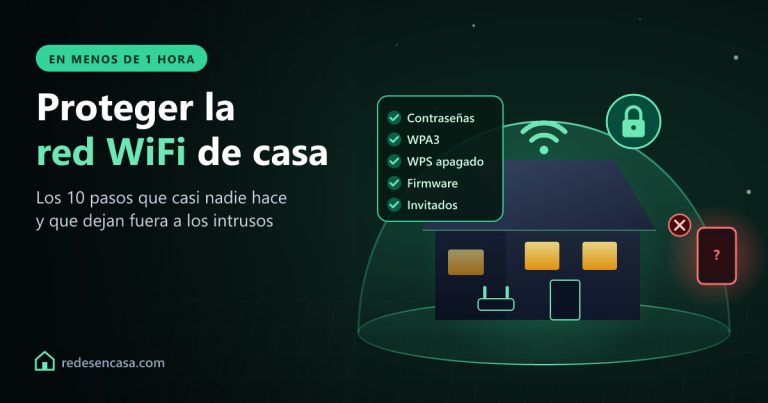
This is the complete checklist of how to secure home network setups in 2026, ordered from the most critical step to the finishing touches, with instructions that work on any router brand.
Table of Contents
Step 1: Change both router passwords (yes, there are two)
Every router has two passwords, and most people only ever change one:
- The WiFi password — what devices use to join the network.
- The admin password — what protects the router’s control panel. This is the one attackers love, because default combinations like admin/admin are public knowledge.
- Open the router panel: type 192.168.1.1 (or 192.168.0.1) in your browser.
- Log in with the credentials on the router’s sticker.
- Find the administration section and set a new admin password — long and unique.
- In the wireless section, set a strong WiFi password: 12+ characters, not your phone number or address.
Step 2: Use WPA3 (or WPA2/WPA3 mixed mode)
The encryption standard decides how hard it is to crack your WiFi. In the wireless security settings you’ll see options like WPA2-PSK, WPA3 or mixed modes:
- Best choice for most homes: WPA2/WPA3 mixed mode — new devices use WPA3, older ones still connect with WPA2.
- Avoid: anything that says WEP or WPA (without the 2 or 3) — both crackable in minutes with free tools.
- Pure WPA3 is the strongest, but many smart plugs, cameras and printers only speak WPA2 — mixed mode saves you those headaches.
Step 3: Disable WPS
WPS is the button that pairs devices without typing the password. Convenient — and the weakest point of many routers, because the 8-digit PIN behind it can be brute-forced. If you’re serious about how to secure home network access, WPS goes off: find «WPS» in the wireless settings and disable it. You can still connect any device the normal way, with the password.
Step 4: Update the router firmware
Router manufacturers patch security holes constantly, but routers rarely update themselves. In the panel, look for Firmware Upgrade (usually under System Tools or Administration) and apply any pending update. If your router is from your internet provider, updates usually arrive automatically — but a router that hasn’t seen an update in years is a reason to consider replacing it. Our guide on .BIN firmware files explains the manual process step by step.
Step 5: Create a guest network for visitors and smart devices
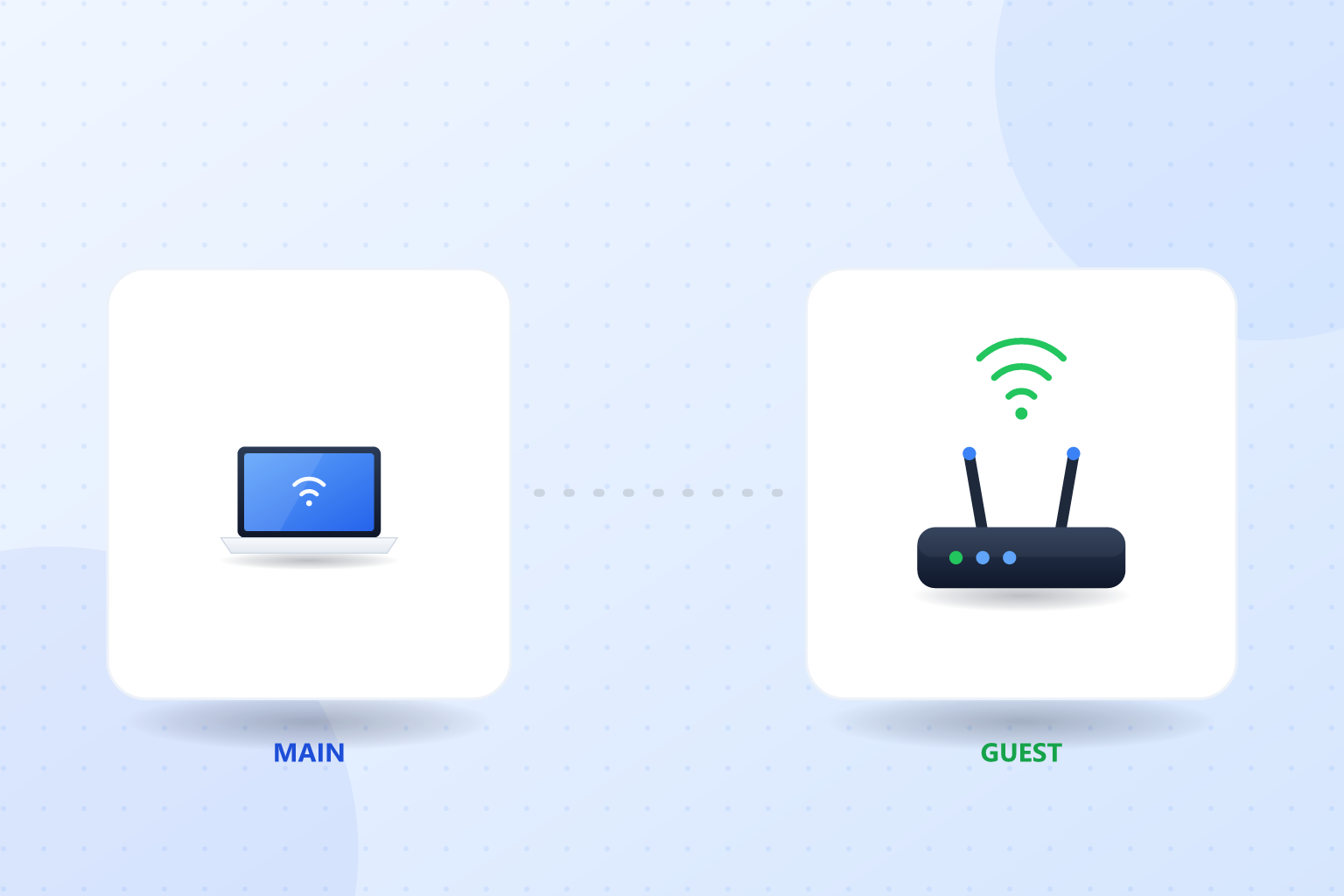
A guest network is a separate WiFi that reaches the internet but can’t see your main devices. It solves two problems at once:
- Visitors: they get internet without ever touching the network where your laptop and personal files live.
- Smart home devices: cheap plugs, bulbs and cameras are the most hackable things in your house. Put them on the guest network and even a compromised gadget can’t reach your computer.
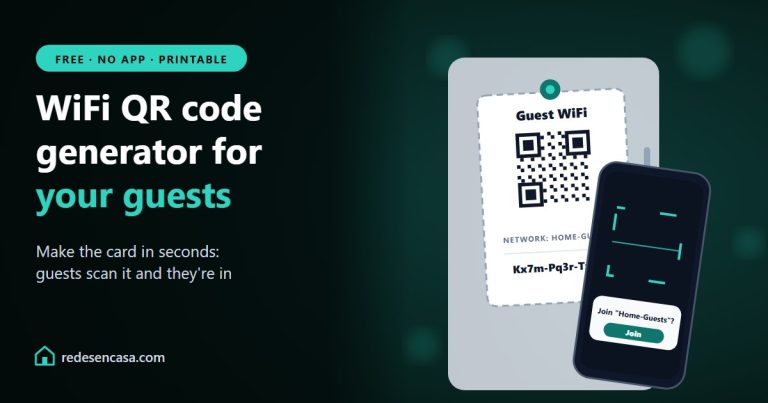
You’ll find it as «Guest Network» in the wireless settings of virtually every modern router. Give it its own name and password, and enable «isolation» if the option exists.
Step 6: Check what’s connected to your network
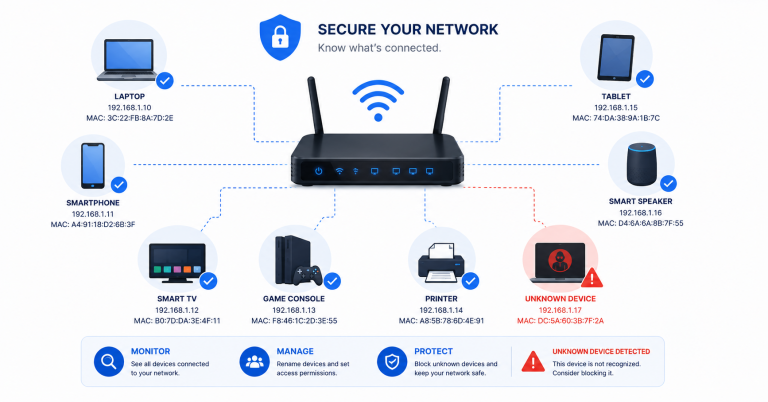
Once a month, open the router panel and look at the connected devices list (sometimes called DHCP clients or Device List). Count your gadgets: phones, laptops, TV, console, smart devices. Anything you can’t identify deserves investigation — rename your known devices in the panel so intruders stand out instantly. If you find something that shouldn’t be there, change the WiFi password and it’s out.
Step 7: Add a VPN for full privacy
Everything above protects your network from outsiders. A VPN adds the opposite layer: it protects your traffic after it leaves your home — encrypting it so your internet provider, advertisers and anyone between you and the websites you visit can’t build a profile of what you do online.
NordVPN is the one we recommend: one subscription covers all your devices (and can even run on the router itself, protecting everything at home automatically), it includes Threat Protection that blocks malware and trackers, and it comes with a 30-day money-back guarantee to try it without risk.
Summary table: the complete checklist
| Step | Where | Time |
|---|---|---|
| Change admin + WiFi passwords | Router panel (192.168.1.1) | 10 min |
| Enable WPA2/WPA3 mixed | Wireless security settings | 2 min |
| Disable WPS | Wireless settings | 1 min |
| Update firmware | System Tools / Administration | 10 min |
| Create guest network | Guest Network settings | 5 min |
| Review connected devices | Device list (monthly) | 5 min |
| Add a VPN | App on each device or router | 10 min |
FAQ: how to secure home network
How do I secure my home network for free?
Six of the seven steps cost nothing: change both router passwords, switch to WPA2/WPA3 encryption, disable WPS, update the firmware, create a guest network and review connected devices monthly. Only the VPN layer involves a subscription, and it’s optional for network security itself.
What is the most important step to secure a home network?
Changing the router’s admin password. Default credentials for every router brand are published online, and an attacker with panel access controls your entire network: DNS, port forwarding, everything. It takes two minutes and closes the biggest door.
Should smart home devices be on a separate network?
Yes. Cheap smart plugs, bulbs and cameras receive few security updates and are the most commonly compromised devices in a home. On the guest network, a hacked gadget can reach the internet but not your laptop, phone or files.
Is WPA2 still safe in 2026?
WPA2 with a strong password remains reasonably safe for home use, but WPA3 fixes its known weaknesses and protects you even with simpler passwords. The practical choice is WPA2/WPA3 mixed mode: full compatibility with modern security where possible.
How do I know if someone is on my WiFi?
Open your router panel and check the connected devices list against the gadgets you own. Unknown entries mean an intruder or a forgotten device. Rename your devices in the panel once, and any stranger will stand out immediately at your monthly check.
Does a VPN protect my home network?
A VPN doesn’t replace router hardening — it complements it. The router steps stop outsiders getting in; the VPN encrypts your traffic after it leaves home, hiding your activity from your internet provider and anyone monitoring the connection. Together they cover both directions.
Conclusion
That’s the full answer to how to secure home network equipment in 2026: two new passwords, modern encryption, WPS off, updated firmware, a guest network for gadgets and guests, a monthly look at the device list — and a VPN if you also want privacy beyond your walls.
One hour of setup, five minutes a month of maintenance. That’s genuinely all it takes to be better protected than 90% of homes.