PS5 Lag on WiFi: Why It Happens and How to Fix It (Before GTA 6)
PS5 lag on WiFi is one of the most frustrating problems in gaming: your internet plan is fast, speed tests look great, and yet your character rubber-bands, shots don’t register and the game freezes for a split second at the worst moment. The reason is that online games don’t care much about download speed. They care about a stable connection, and WiFi is where that stability usually breaks.
Below you’ll find what to check first, why it happens even on a fast plan, the five usual causes, the settings that help, the fixes that get rid of it for good, and a checklist to get your PS5 ready before GTA 6 launches on November 19.
Tabla de Contenidos
Quick check: what to look at first if you have PS5 lag on WiFi
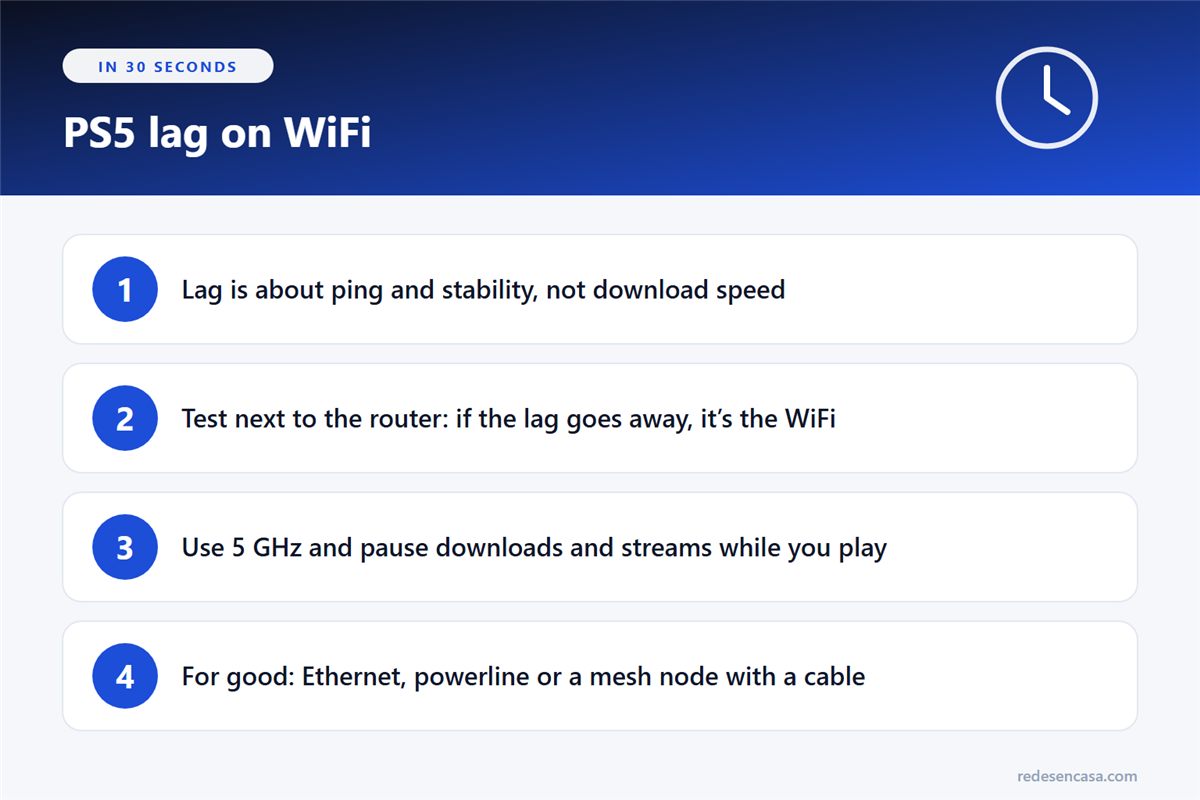
Move the console closer to the router and test again
If you can, carry the PS5 (or the router) to the same room for one session. If the lag disappears, the problem is the WiFi signal reaching the console, not your plan or the game servers.
Try one session on a cable
Even a long cable across the floor for a quick test tells you a lot. If the game runs smooth on Ethernet, every fix below that brings a wired connection closer to the console will work.
Check if it gets worse when others are online
If the lag shows up in the evening, or when someone starts streaming or downloading, your network is getting congested. That’s a different fix from weak signal, and it’s covered below.
Why your PS5 lags on WiFi even when your internet is fast
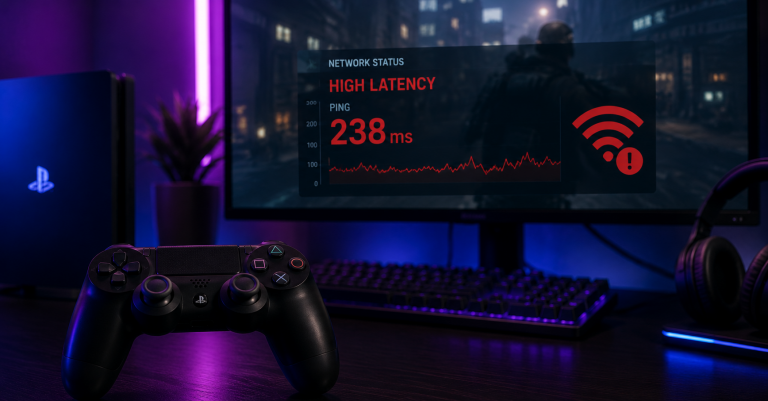
Download speed is how much data arrives per second. Online games send small packets constantly, and what matters is how fast and how steadily each one travels. Three numbers explain almost every case of PS5 lag on WiFi:
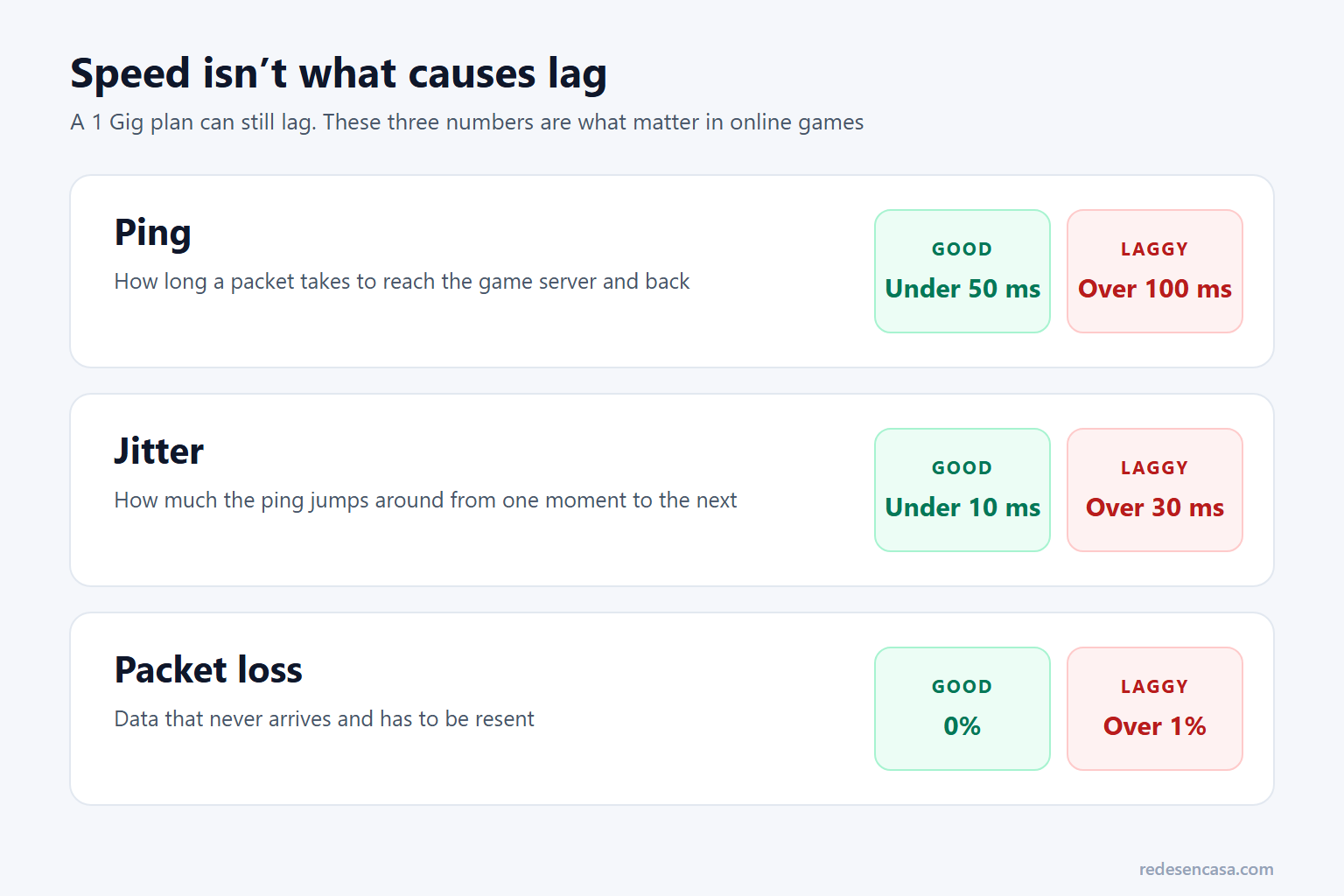
- Ping (latency): the round trip to the game server. Under 50 ms feels responsive; over 100 ms you notice it.
- Jitter: how much the ping jumps around. A steady 60 ms plays better than a ping that swings between 20 and 150 ms.
- Packet loss: data that never arrives. Even 1 to 2% causes rubber-banding and missed hits.
WiFi adds all three: walls and distance make the signal weaker, other devices compete for airtime, and neighboring networks interfere. A 1 Gig plan can’t fix any of that, because the problem is the last few yards between your router and the console.
Find where the lag comes from, in the right order
- First, confirm it’s the WiFi. Run Settings → Network → Connection Status → Test Internet Connection on the PS5, once in its usual spot and once next to the router. A big difference means the signal is the problem.
- Then check distance, signal and interference. Walls, floors, a closed TV cabinet and the 2.4 GHz band all hurt.
- Finally, check whether the network is overloaded or badly set up. Streams and downloads during your sessions, or an extender in the middle, add lag.
The 5 usual causes of PS5 lag on WiFi
1. Playing too far from the router
Every wall and floor weakens the signal, and a weaker signal means more retransmissions, which feel like lag. If the PS5 is two rooms away or on another floor, that alone can explain it. Moving the router to a higher, more central spot, or the console out of a closed cabinet, often makes a visible difference.
2. Interference or an unstable WiFi signal
The 2.4 GHz band is crowded with neighbors’ networks, Bluetooth, microwaves and baby monitors. If the PS5 shows a decent signal but the game still stutters, interference is a likely cause. The 5 GHz band is faster and much less crowded, which is what a console near the router wants.
3. Network congestion at home
A 4K stream on the TV, a video call, a phone backing up photos or a big game download on another device can all make your ping spike while you play. Routers without good traffic management let those big transfers crowd out your game packets, a problem known as bufferbloat.
4. A WiFi extender in the middle
A basic extender receives and resends on the same radio, which adds latency and halves the speed of that link. If your PS5 connects through one and the lag started when you added it, the extender is the weak spot. More on fixing that below.
5. The limits of WiFi itself
Even with good signal, WiFi is a shared, half-duplex medium: devices take turns talking. That’s fine for browsing and streaming, but in fast-paced games those tiny waits add up. Past a certain point, more settings won’t help and the real fix is a wired link.
How to reduce PS5 lag on WiFi with settings
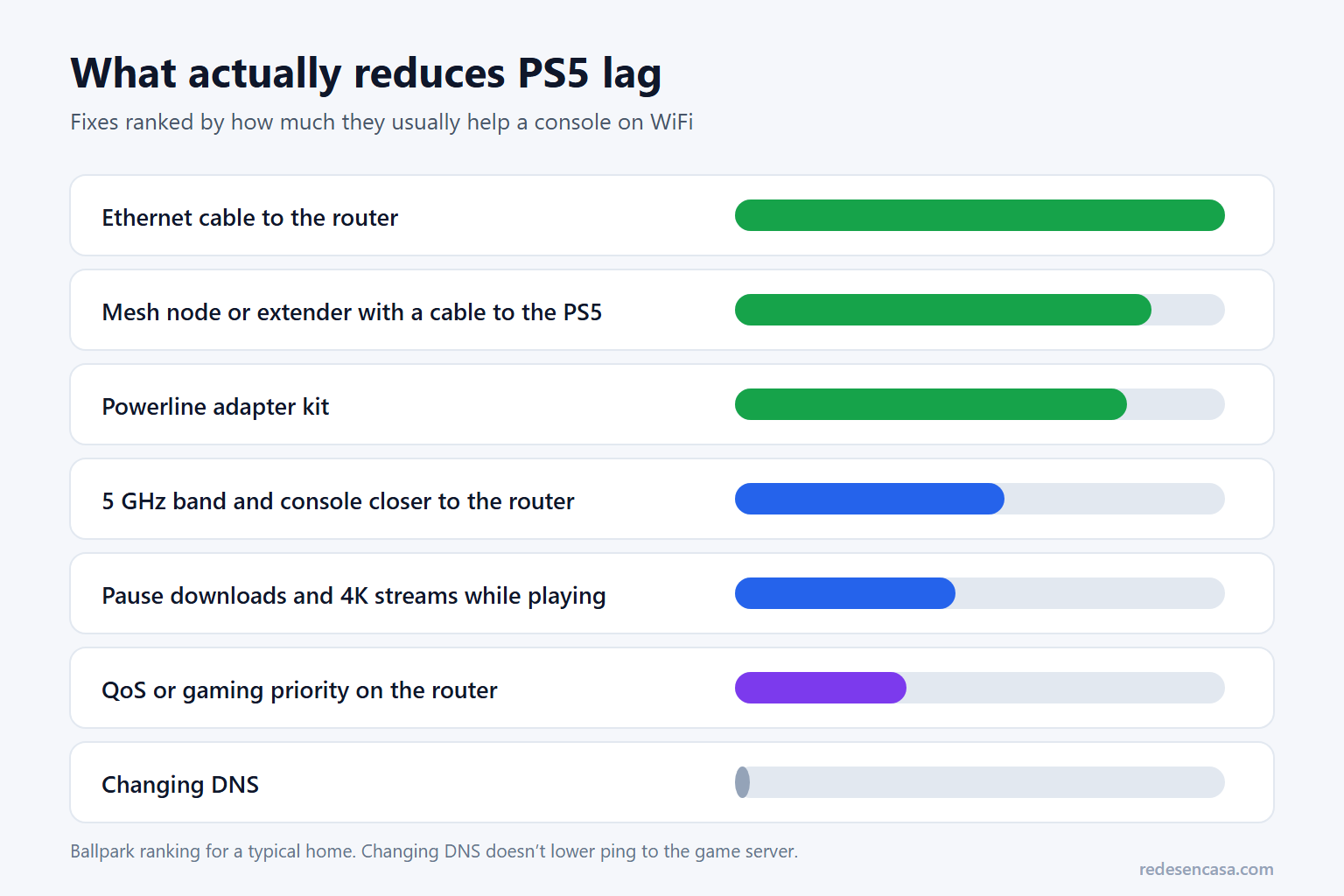
- Use the 5 GHz band. If your router uses one network name for both bands, give 5 GHz its own name and connect the PS5 to it.
- Put the console and the router in the open. Out of cabinets, away from the TV’s metal wall mount, and ideally with no more than one wall between them.
- Pause big transfers while you play: game downloads on other consoles or PCs, cloud backups and 4K streams.
- Turn on QoS or gaming priority on your router if it has it, and give the PS5 priority.
- Check your NAT type in the connection test. Type 2 is fine; if you get type 3, see how to fix a strict NAT type and how to open ports on your router.
- Don’t bother changing DNS for lag. DNS only translates names to addresses; it doesn’t change your ping to the game server.
If you want to get rid of PS5 lag on WiFi for good
Settings help, but the fix that really ends PS5 lag on WiFi is giving the console a wired connection. You don’t need to run a cable across the house; there are three ways:
Ethernet straight to the router
If the PS5 is within 30 to 50 feet of the router, a flat Cat 6 cable slides under a door or along the baseboard. It’s the cheapest fix and the best one: lowest ping, no jitter, no packet loss.
A powerline kit
A powerline kit carries the connection through your electrical wiring: one adapter next to the router and another next to the console. Latency is a bit higher than a real cable, but far more stable than WiFi through walls.
A mesh node next to the console, with a cable to the PS5
If you play far from the router and can’t run a cable, put a mesh node close to the console and connect the PS5 to the node’s Ethernet port. The nodes talk to each other on their own, and the console no longer depends on its own WiFi. The TP-Link Deco X55 (the US version of the Deco X50) has Gigabit Ethernet ports on every unit, which is exactly what this setup needs. We compare more options in our guide to the best WiFi mesh systems.
If you already have an extender, check whether it has an Ethernet port: connecting the PS5 to it with a short cable is much better than using it as a WiFi repeater. Our list of the best WiFi extenders marks which ones have one.
GTA 6 special: get your PS5 ready before November 19
GTA 6 launches on November 19 on PS5, with the preload starting on the 10th, and it’s going to be the launch where the most people notice PS5 lag on WiFi. If you’re going to play it, get these four things done before then:
- Preload it in rest mode. In Settings → System → Power Saving → Features Available in Rest Mode, turn on Stay Connected to the Internet, so the game downloads on its own from November 12. To see how long it’ll take on your connection, try the GTA 6 download time calculator.
- Put the PS5 on Ethernet or powerline. It’s what reduces stutter the most, and it also shortens the download. If the download itself is slow, see 10 fixes for a PS5 slow download.
- Check your NAT type in Settings → Network → Connection Status → Test Internet Connection. Type 2 is enough; if you get type 3, turn on UPnP in the router.
- On the 19th, if something goes wrong, check the PlayStation Network and Rockstar status pages first. With millions of people connecting at once, the first errors are usually the servers, not your WiFi.
PS5 lag on WiFi: FAQ
Why do I get PS5 lag on WiFi if my internet is fast?
Because games depend on ping, jitter and packet loss, not on download speed. WiFi adds all three through distance, walls, interference and other devices using the network. Test next to the router: if the lag goes away, the problem is the signal reaching the console.
Is 5 GHz or 2.4 GHz better for PS5 gaming?
5 GHz, as long as the console isn’t too far from the router. It’s faster and far less crowded. 2.4 GHz reaches farther but suffers much more interference, which shows up as lag spikes.
Can a WiFi extender make PS5 lag worse?
Yes. A basic extender repeats the signal on the same radio, which adds latency and halves the speed of that link. If you use one, connect the PS5 to its Ethernet port with a short cable instead of using it over WiFi.
Does connecting the PS5 to a mesh node with a cable help?
A lot. The node handles the wireless link with better antennas, and the console gets a stable wired connection. It’s the best option when you can’t run a cable to the router.
Will a faster internet plan fix PS5 lag?
Almost never. Lag comes from the connection between your router and the console, not from your plan’s speed. A cable, powerline or a mesh node near the console does much more than upgrading from 500 Mbps to 1 Gig.
How do I avoid lag in GTA 6 on PS5?
Put the PS5 on Ethernet or powerline before launch, use 5 GHz if you stay on WiFi, pause downloads and streams while you play, and check that your NAT type is 2. On launch day, check the PlayStation Network and Rockstar status pages before changing anything at home.
Conclusion
PS5 lag on WiFi is almost never about your internet plan. It’s ping, jitter and packet loss caused by distance, interference, a congested network or an extender in the middle. Test next to the router to confirm it, switch to 5 GHz and pause big transfers while you play. And if you want it gone for good, give the console a wired connection: a cable, a powerline kit or a mesh node with a short cable to the PS5.