How to Open Ports on Your Router: Step-by-Step Port Forwarding Guide
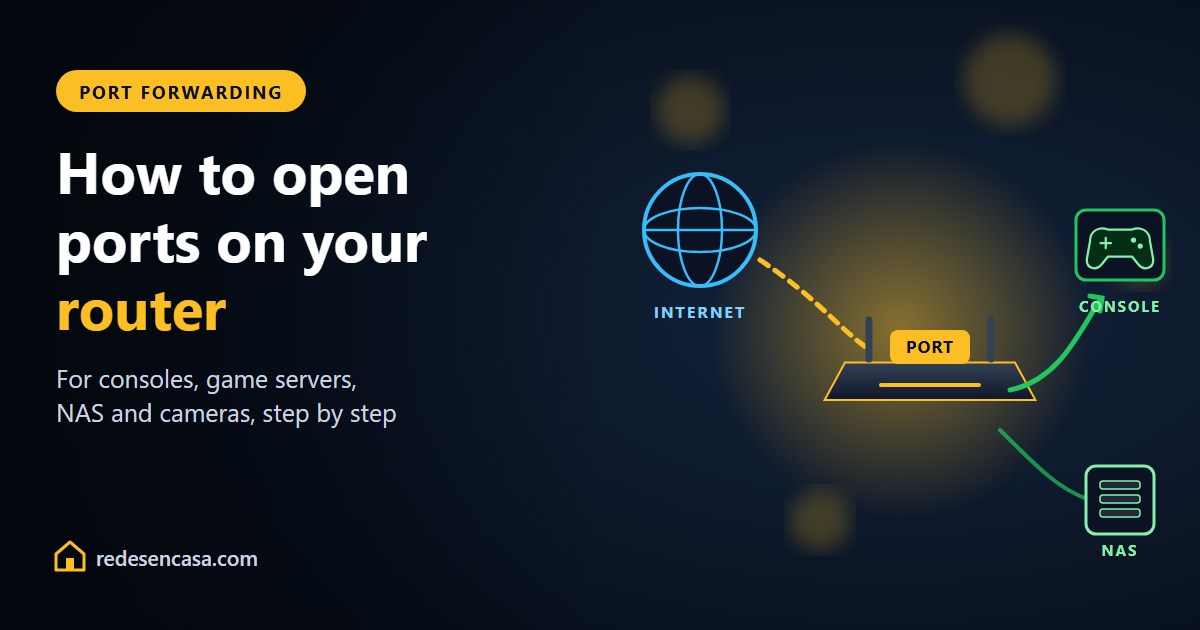
Learning how to open ports on your router lets traffic coming from the internet reach the right device in your home: your console, so it stops showing a strict NAT; your NAS or cameras, so you can reach them from outside; or a game server for your friends. It takes five minutes in the router’s settings, and this guide walks you through it.
One sensible warning before you start: open only the ports you need, and only to the device that needs them. Opening more than that is the easiest way to leave a door open to someone who should not come in.
Tabla de Contenidos

What it means to open ports (and why you need to)
Your home has a single public IP address, and the router shares it among all your devices. Everything you request from inside (a website, a video, a match) comes back without trouble. But anything that arrives from outside without anyone at home asking for it gets dropped: the router does not know which device it is for and, for safety, it throws it away.
To open ports is to create a rule that says «whatever arrives on this port, send it to this device». It is called port forwarding. Think of an apartment building: the IP is the street address and the port is the apartment number. Without the rule, the mail carrier does not know which door to knock on.
When you need to open ports (and when you do not)
You need it if…
- Your console shows a strict NAT type and UPnP does not fix it. See our strict NAT type fix.
- You want to host a game server at home, like a Minecraft server for your friends.
- You want to reach your NAS, your Plex server or an older camera with no cloud app from outside your home.
- A program or game explicitly asks for an open port to work properly.
You do not need it for…
- Browsing, streaming, video calls or most games: all of that works on its own.
- Modern WiFi cameras: they connect to the manufacturer’s cloud and you watch them in the app without touching the router.
- Devices that support UPnP: if the router has it on, they open what they need themselves.
Before you start: the 3 things you need
- Your router’s IP. On Windows, open Command Prompt, type ipconfig and look at «Default Gateway». On a Mac, go to System Settings → Network → your connection → Details → TCP/IP, and look at «Router». On a phone it appears in the WiFi network details. Common ones are 192.168.0.1, 192.168.1.1 and 10.0.0.1.
- The device’s IP. It is in the console’s, camera’s or NAS’s network settings, or in the router’s list of connected devices.
- The port and protocol (TCP, UDP or both). The game or device maker publishes them. You have the most common ones below.
How to open ports on your router, step by step
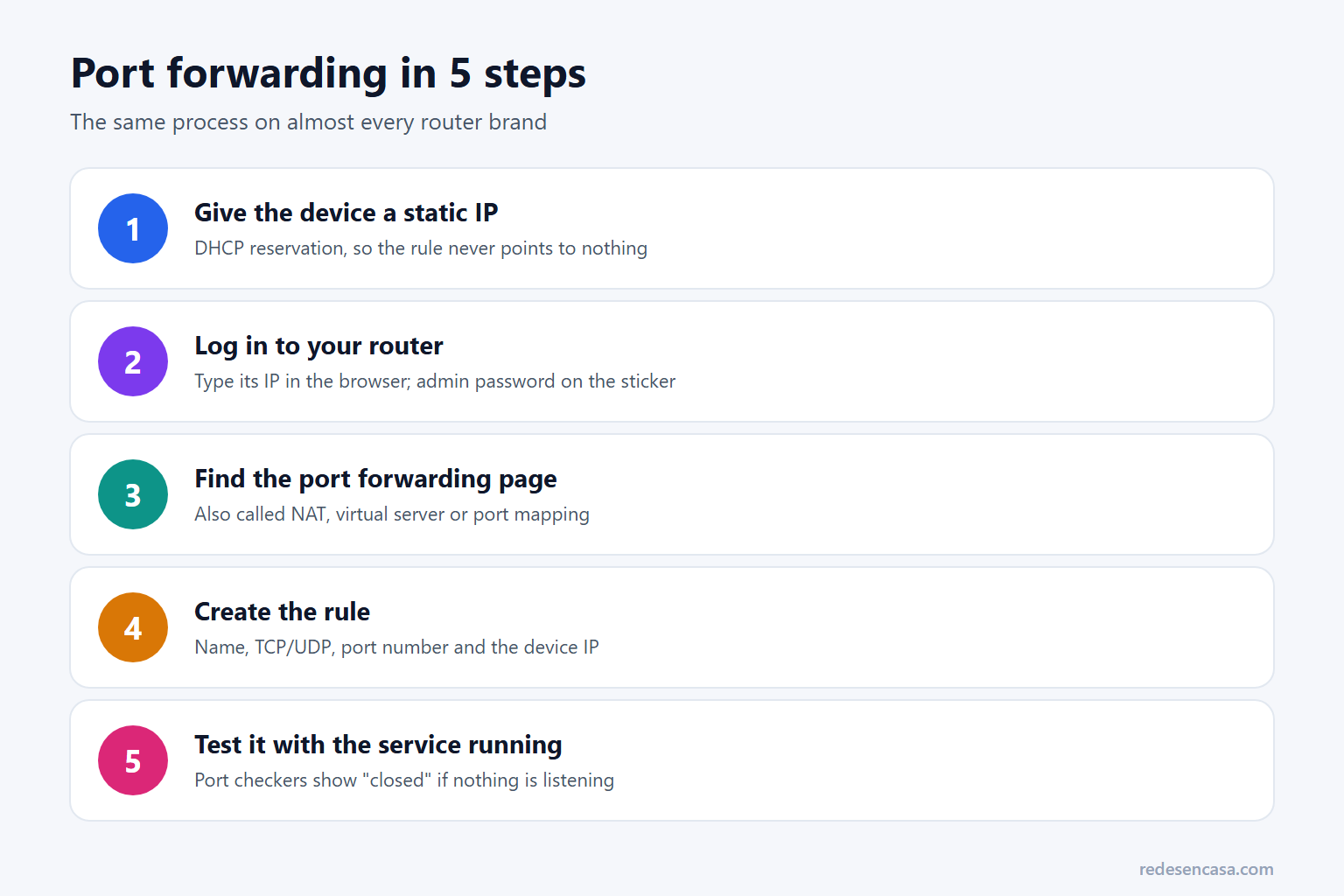
You do not need to know about networking to open ports: it is five steps, and the process is very similar on every brand.
1. Give the device a static IP
This is the step almost everyone skips, and the most common reason a rule stops working after a few days. The router hands out IPs automatically, and they can change after a restart. If the console moves from .50 to .51, the rule points at nothing. Look for «address reservation», «DHCP reservation» or «static lease», pick the device from the list and lock in its current IP.
2. Log in to your router
Type the router’s IP into a browser on a device connected to your network. The admin username and password are usually on the sticker under the router; note that this is not the WiFi password, even if both are on the same sticker. Many routers can also be managed from their app.
3. Find the port forwarding section
Every brand calls it something slightly different. These are the most common places:
| Router | Where it usually is |
|---|---|
| TP-Link | Advanced → NAT Forwarding → Virtual Servers (or Port Forwarding) |
| ASUS | WAN → Virtual Server / Port Forwarding |
| Netgear | Advanced → Advanced Setup → Port Forwarding / Port Triggering |
| ISP routers (Xfinity, Spectrum, BT, Sky, Virgin Media…) | In the provider’s app or under Advanced, Firewall or NAT settings |
Menus change between models and firmware versions. If you cannot find it, look for words like «forwarding», «NAT», «virtual server» or «port mapping».
4. Create the rule
- Name: something you will recognize later, like «PS5» or «Minecraft».
- Protocol: TCP, UDP or both, as the manufacturer indicates.
- External and internal port: almost always the same number (or range).
- Device IP: the static IP from step 1.
Save the rule. Some routers ask for a restart; if not, at least restart the device.
5. Check that it works
On a console, run the connection test again and see if the NAT type improved. For a server, ask someone outside your home to connect. You can also use an online port checker, with one catch: it only reports «open» if the program is running and listening on that port. With the server off, the port shows as closed even if the rule is correct.
The most common ports
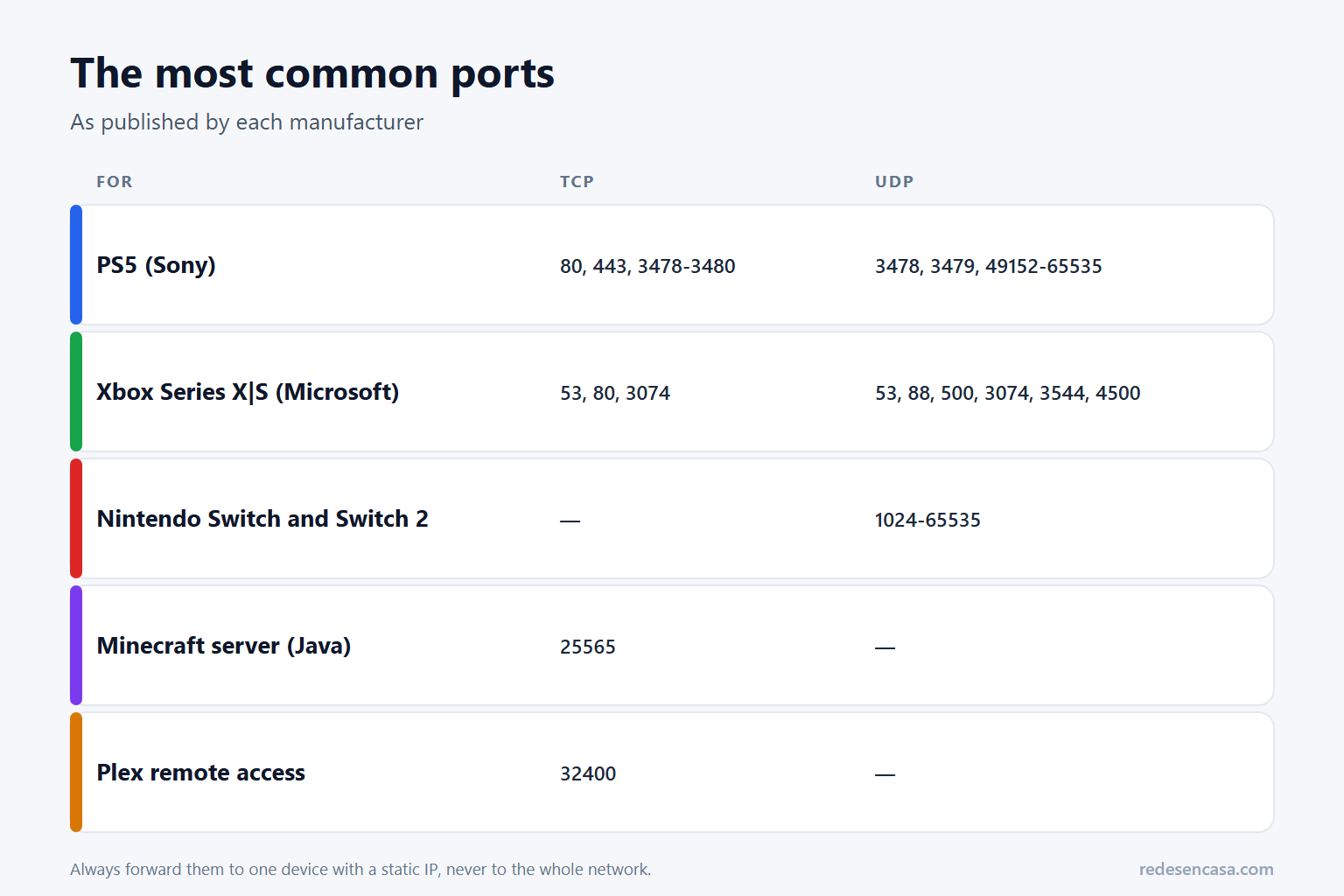
These are the ports each manufacturer publishes. When you open ports for a console, these are the numbers you will need:
| For | TCP | UDP |
|---|---|---|
| PS5 (Sony) | 80, 443, 3478-3480 | 3478, 3479, 49152-65535 |
| Xbox Series X|S (Microsoft) | 53, 80, 3074 | 53, 88, 500, 3074, 3544, 4500 |
| Nintendo Switch and Switch 2 (Nintendo) | — | 1024-65535 |
| Minecraft server (Java) | 25565 | — |
| Plex remote access | 32400 | — |
Sony and Nintendo ask for very wide ranges. That is fine as long as the rule points only to the console’s IP: a console is a closed system and the risk is low.
If you opened the port and it still does not work
- The device changed IP. Check that the IP in the rule is the one it has now. That is why step 1 matters so much.
- You have two routers (double NAT). If your own router sits behind your provider’s, the rule must exist on both, or the provider’s router must be in bridge mode. We explain it in the strict NAT guide.
- Your provider uses CGNAT. Common with 5G home internet and satellite services like Starlink. If the WAN IP on your router does not match your public IP, no rule will work: ask your provider for a public IP.
- The device’s own firewall blocks it. Very common on PCs and NAS units: the router rule works, but Windows or the NAS rejects the connection.
- Your provider’s router is locked down. Some do not let you open ports, or only some. The fix is your own router with the provider’s one in bridge mode.
Is it safe to open ports? 5 rules to get it right
- Open only what you need, and close it when you stop using it (for example, a weekend Minecraft server).
- Always to one specific device, never to the whole network. Avoid the DMZ except as a last resort for a console.
- Never expose Windows Remote Desktop (port 3389) or file sharing (445). They are among the most attacked services on the internet.
- Keep the firmware of the router and of the device you open ports to up to date.
- If you only want to reach your home network from outside, do not open ports: use your router’s built-in VPN server, which is far safer. More on securing your network in how to secure your home network.
Open ports: frequently asked questions
What does it mean to open ports on a router?
It means creating a rule in the router so that connections arriving from the internet on a specific port are sent to a device in your home, such as a console, a NAS or a camera. Without that rule, the router drops those connections because it does not know where to send them.
Is it dangerous to open ports?
Not if you do it carefully: open only the ports you need, to one device with a static IP, and keep the firmware updated. What is dangerous is opening too much, using the DMZ without need or exposing services like Windows Remote Desktop.
Why does a port checker say the port is closed when I opened it?
Port checkers only see a port as open if a program is listening on it. If the server, the game or the NAS is not running at that moment, the port shows as closed even though the rule is fine. It can also mean you have double NAT or your provider uses CGNAT.
What is the difference between port forwarding, UPnP and the DMZ?
Port forwarding is you creating a rule by hand for a specific port and device. UPnP lets devices open the ports they need by themselves, with no action from you. The DMZ opens every port to one device: it almost always works, but leaves that device fully exposed, so it is a last resort.
Can I open ports on my internet provider’s router?
In most cases, yes, from the router’s web panel or the provider’s app. Some models or plans restrict it, and if your provider uses CGNAT you first need to ask for a public IP address.
Conclusion
It is easy to open ports if you follow the order: a static IP for the device, log in to the router, find port forwarding, create the rule with the right port and protocol, and test it with the service running. Most problems come from skipping the static IP, from having two routers or from your provider’s CGNAT. And if all you want is for your console to stop showing a strict NAT, try UPnP first: often you do not need to open anything by hand.