Guest WiFi Network: What It Is, Why You Need One and How to Set It Up
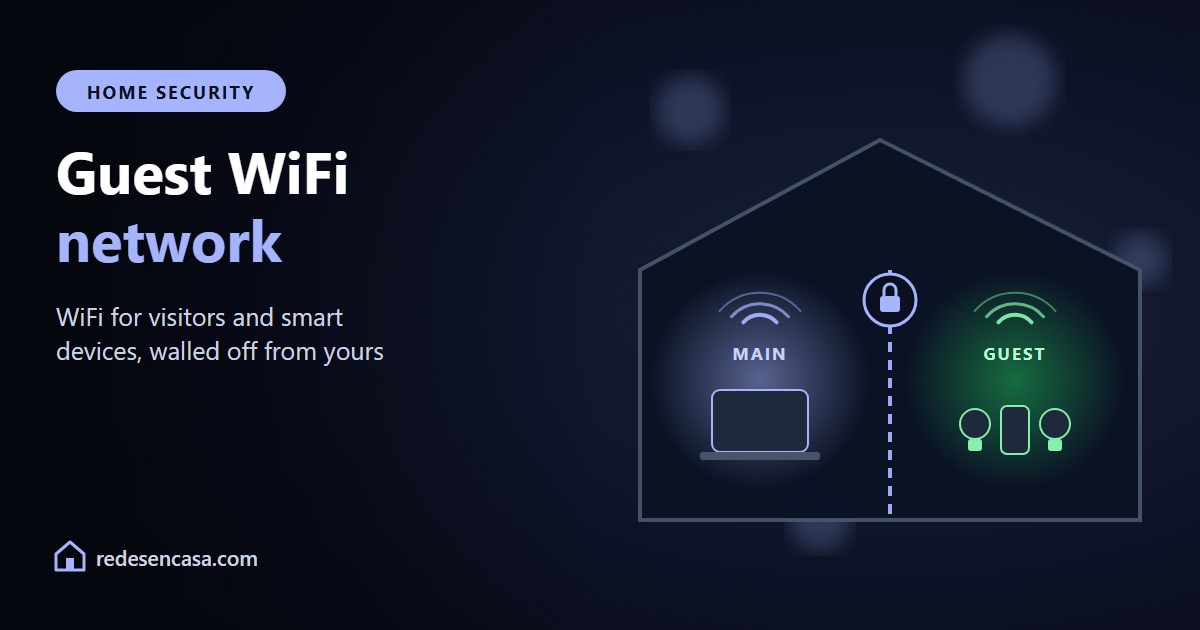
A guest WiFi network is a second network created by your own router: it gives internet to whoever joins, but does not let them see or touch your devices. It is the simplest way to let visitors get online without handing out your main password, and to isolate smart plugs, bulbs and cheap cameras, which are the easiest things to attack in a home.
Almost every router has one, including most internet providers’ routers and mesh systems, and turning it on takes five minutes. Here is what it is, which devices to put on each network, how to enable it on your router and the mistakes to avoid.
Tabla de Contenidos

What a guest WiFi network is
Your router broadcasts two networks at once: the main one, with your computers, phones and NAS, and the guest one, with its own name and password. Both use the same internet connection, but there is a wall between them: from the guest WiFi network you cannot see or reach anything on the main one.
Think of it as WiFi in the hallway: visitors sit there and browse, but they cannot walk into your office.
Why it is worth turning on (even without guests)
- Visitors: you give them a password you can change at any time without reconnecting all your own devices.
- Smart home devices: cheap plugs, bulbs, cameras and robot vacuums rarely get security updates. If one has a flaw, on the guest network it cannot reach your laptop. This is the main reason to turn it on even if nobody ever visits.
- Shared homes and holiday rentals: everyone gets online without seeing anyone else’s devices.
- Work devices: if your employer gives you a laptop you do not control, it is better kept away from your personal devices.
Which devices go on which network
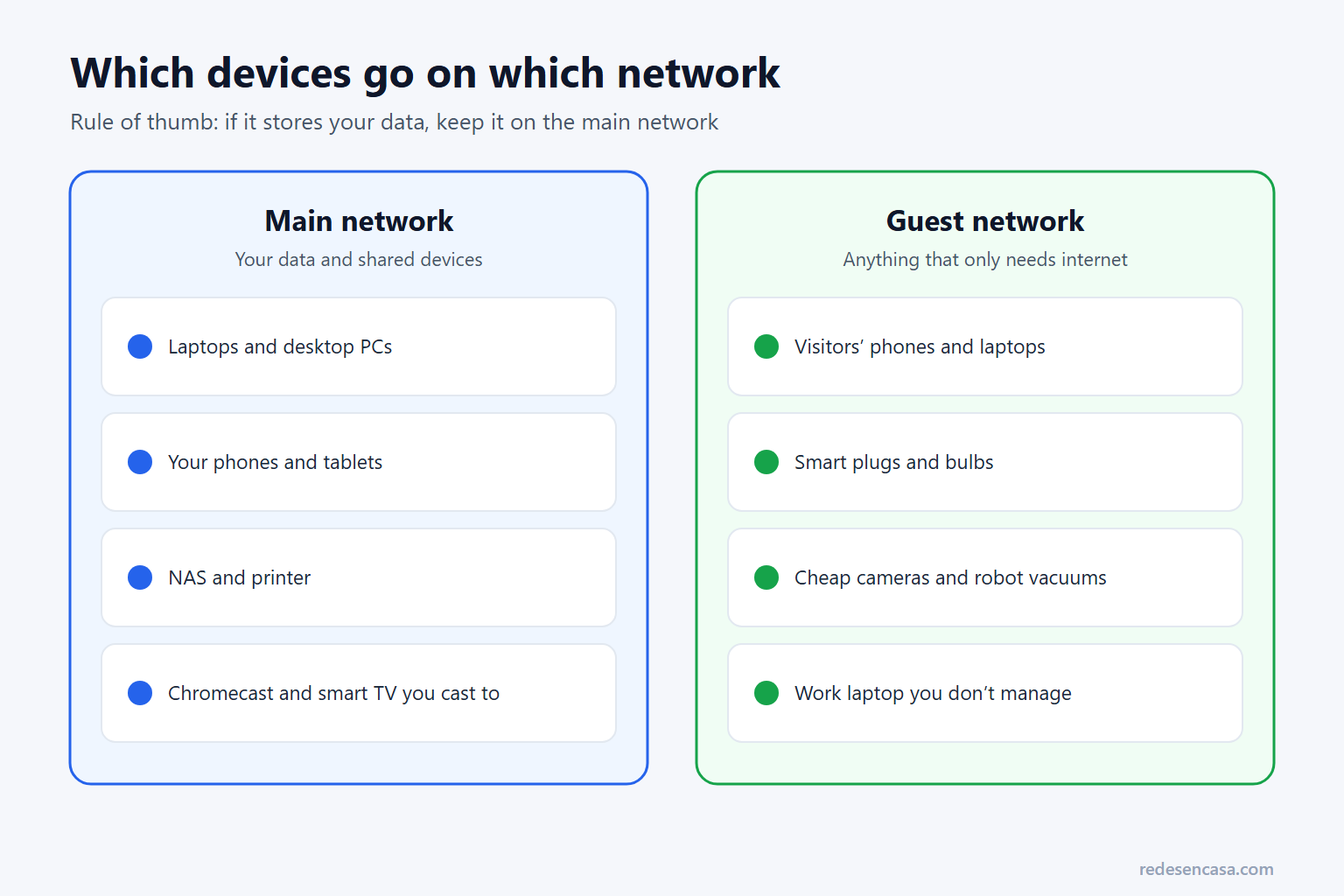
The rule is simple: on the main network, anything that stores your data or needs to see other devices (laptops, phones, NAS, printer). On the guest WiFi network, anything that only needs the internet: visitors’ phones, smart home gadgets and cameras.
One exception: anything you control from your phone over the home network, like a Chromecast or a printer, must be on the same network as your phone. Put it on the guest network and your phone will stop finding it.
How to turn on a guest network on your router
| Router | Where to enable it |
|---|---|
| TP-Link routers | Tether app or web panel → Guest Network |
| TP-Link Deco (mesh) | Deco app → More → Guest Network |
| ASUS | Web panel or ASUS Router app → Guest Network |
| Netgear | Nighthawk app or web panel → Guest Network |
| Google Nest WiFi | Google Home app → WiFi settings → Guest network |
| eero | eero app → Settings → Guest network |
| Internet provider routers | Usually in the WiFi settings of their app or web panel |
To open the web panel, type your router’s IP in a browser (usually 192.168.0.1, 192.168.1.1 or 10.0.0.1) and use the details on the router’s sticker. If your provider’s router does not have a guest network, or will not let you set it up properly, your own router fixes that. The TP-Link Archer AX55 offers an isolated guest network on both bands and is managed from your phone.
The 5 settings that make the difference
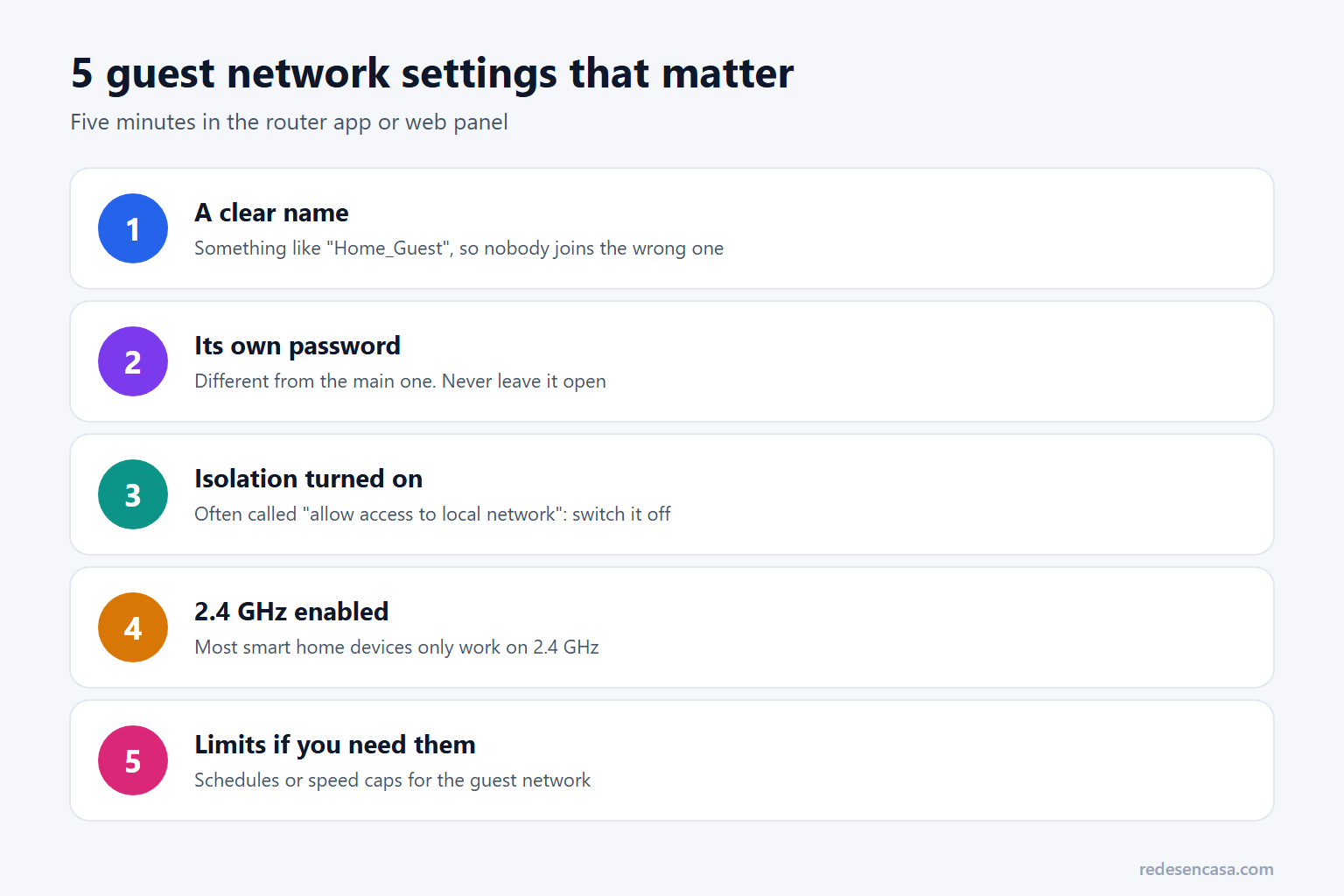
- A clear name, like «Home_Guest», so nobody joins the wrong network.
- Its own password, different from the main one. Never leave it open: an open network encrypts nothing.
- Isolation on: the option that blocks access to your local network (sometimes called «allow guests to access local network», which must be off).
- 2.4 GHz enabled: most smart home devices only work on that band.
- Limits if you need them: many routers let you schedule the guest network or cap its speed.
Common guest network mistakes
- Using the same password as the main network. Then it is pointless: anyone who knows it can join both.
- Putting the Chromecast or printer there and then not finding them from your phone.
- Thinking it protects what you do online. A guest network separates devices inside your home; it does not encrypt your traffic or protect you outside it.
- Never changing the password. Since it is the one you give everyone, change it now and then: your main devices will not even notice.
The layer a guest network does not cover
A guest WiFi network protects your home network from what is inside your home. What you do online is a different matter: your internet provider sees the sites you visit and, away from home, any public WiFi is a risk (see is public WiFi safe?). That is what a VPN is for. NordVPN encrypts your connection on your phone, laptop or directly on your router, with up to 10 devices per account and a 30-day money-back guarantee.
Guest WiFi network: frequently asked questions
Is a guest WiFi network secure?
Yes, if you give it its own password and turn on isolation. Then whoever joins has internet but cannot see or reach your computers, phones or NAS. What it does not do is encrypt what you do online: for that you need a VPN.
Is a guest network slower?
It shares the same internet connection as the main network, so if both are busy they split the speed. On its own it is not slower. Many routers let you cap the guest network’s speed so visitors do not hog the connection.
Can guests see my devices?
Not if isolation is on, which is the default on almost every router. Check the settings: the option is usually called «allow guests to access local network» and should be off.
Should I put smart home devices on the guest network?
Yes, it is the recommended place for cheap plugs, bulbs and cameras, because it keeps them isolated from your computers. The exception is devices you control from your phone over the local network, like a Chromecast, which must be on the same network as the phone.
Do I need a guest network if I never have visitors?
It is still worth it if you have smart home devices. They are the least protected devices in the home, and keeping them on the guest network stops a flaw in one of them from opening the door to your computer.
Conclusion
Turning on a guest WiFi network is one of the cheapest security upgrades there is: five minutes and zero cost. Give it a clear name and a different password, keep isolation on, and put visitors and smart home devices there. Your main network is left for what really matters. For the next steps, see how to secure your home network.
💡 Want to share your WiFi without spelling out the password? Make a free guest card with our WiFi QR code generator: guests scan it with their camera and they’re in.