Tablet Won’t Connect to WiFi: 5 Fixes for iPad, Android and Fire (2026)
When a tablet won’t connect to WiFi but your phone and laptop are online, the problem is almost always one of a handful of things: a saved setting gone bad, the wrong WiFi band, a router security setting the tablet doesn’t understand, or the router itself refusing it. The good news is that you can find out which in a few minutes.
Below you’ll find five steps in order, with the exact menus for iPad, Android tablets (Samsung and others) and Amazon Fire tablets, what each error message really means, and the router settings that lock out older tablets without warning.
Tabla de Contenidos
Why a tablet won’t connect to WiFi: the usual causes
- A corrupted saved network. The tablet keeps an old setting that no longer matches the router (after a password change, a router swap or a firmware update).
- The band. Some budget and older tablets only support 2.4 GHz, so they can’t see a 5 GHz network at all.
- Security mode. Newer routers switch to WPA3, and tablets from before about 2019 can’t join a WPA3-only network.
- The router. MAC filtering, too many connected devices or a guest network that isolates the tablet on purpose.
- Weak signal. The tablet sits at the far end of the house and its antennas are weaker than a phone’s.
Step 1: Toggle airplane mode and restart the tablet
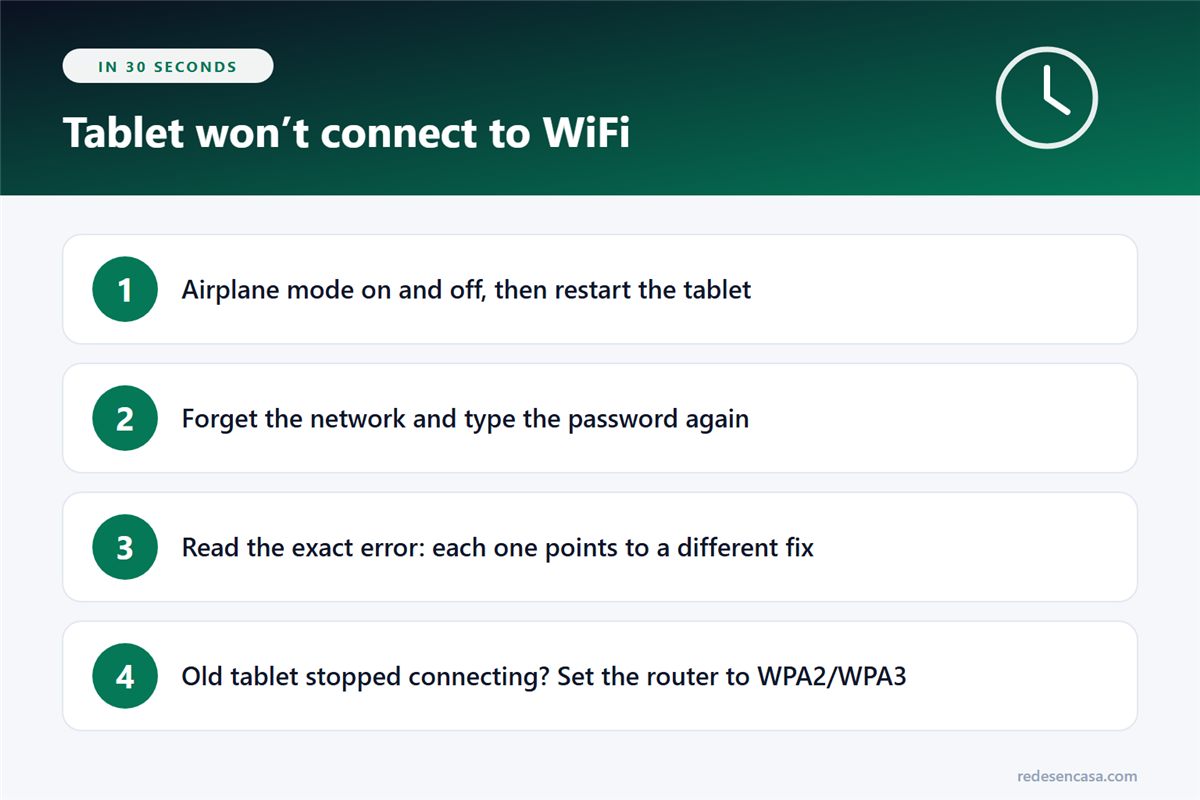
It sounds too simple, but it fixes a surprising number of cases. Turn airplane mode on, wait ten seconds and turn it off. If that doesn’t do it, restart the tablet completely (not just the screen). While it reboots, restart the router too: unplug it for 30 seconds and wait two or three minutes until its lights are stable.
Step 2: Forget the network and reconnect
If your tablet won’t connect to WiFi even with the right password, it probably has an old, broken setting saved. Forgetting the network wipes it so you can start fresh.
On an iPad
- Go to Settings → Wi-Fi.
- Tap the ⓘ icon next to your network.
- Tap Forget This Network and confirm.
- Select the network again and type the password.
On Android tablets (Samsung and others)
- Go to Settings → Connections → Wi-Fi on Samsung, or Settings → Network & internet → Internet on most other Android tablets.
- Tap the gear icon next to your network (or press and hold the network name).
- Tap Forget.
- Select the network again and type the password.
On Amazon Fire tablets
- Go to Settings → Wi-Fi & Internet (on older models, Wireless → Wi-Fi).
- Press and hold your network name.
- Tap Forget.
- Select the network again and type the password.
When you type the password, turn on «Show password». Passwords are case-sensitive, and a lowercase «l» and the number «1» are easy to mix up.
Step 3: Check which WiFi band the tablet can use
If your tablet won’t connect to WiFi and can’t even see the network, check the band: some budget tablets and many older models only support the 2.4 GHz band. If your router only broadcasts on 5 GHz, or uses one name for both bands and steers devices to 5 GHz, that kind of tablet may not see the network at all or may keep dropping.
- Open your router’s settings (often at 192.168.0.1, 192.168.1.1 or 10.0.0.1, or through your provider’s app).
- Find the wireless or WiFi section.
- If both bands share one name, split them, for example «HomeWiFi» and «HomeWiFi_5G».
- On the tablet, join the 2.4 GHz network.
2.4 GHz is slower, but it reaches farther and goes through walls better, which also helps if the tablet lives in a bedroom far from the router.
Step 4: Connected but no internet? Change the DNS
If the tablet joins the WiFi but nothing loads, or it says «Connected, no internet», the problem is often the DNS server. Switching to Google’s or Cloudflare’s DNS fixes this in many cases.
On Android tablets
Go to Settings → Connections → More connection settings → Private DNS on Samsung (Settings → Network & internet → Private DNS on most others), choose «Private DNS provider hostname», type dns.google and save.
On an iPad
Go to Settings → Wi-Fi, tap the ⓘ next to your network, then Configure DNS → Manual. Delete the existing servers, add 8.8.8.8 and 8.8.4.4, and save.
On Amazon Fire tablets
Press and hold your network, tap Modify network → Show advanced options, and change IP settings to Static. Enter 8.8.8.8 as DNS 1 and 8.8.4.4 as DNS 2. Fire tablets also ask for an IP address in static mode, so use one in your router’s range that no other device is using.
Step 5: Reset network settings
If your tablet won’t connect to WiFi after the first four steps, resetting the network settings wipes every saved network and leaves the wireless module like new. It doesn’t delete photos, apps or personal data, but you’ll have to re-enter your WiFi passwords.
- iPad: Settings → General → Transfer or Reset iPad → Reset → Reset Network Settings.
- Samsung tablets: Settings → General management → Reset → Reset network settings.
- Other Android tablets: Settings → System → Reset options → Reset Wi-Fi, mobile & Bluetooth.
- Amazon Fire: there’s no network-only reset. The only option is a factory reset (Settings → Device Options → Reset to Factory Defaults), which erases everything, so leave it for last.
What each error message means
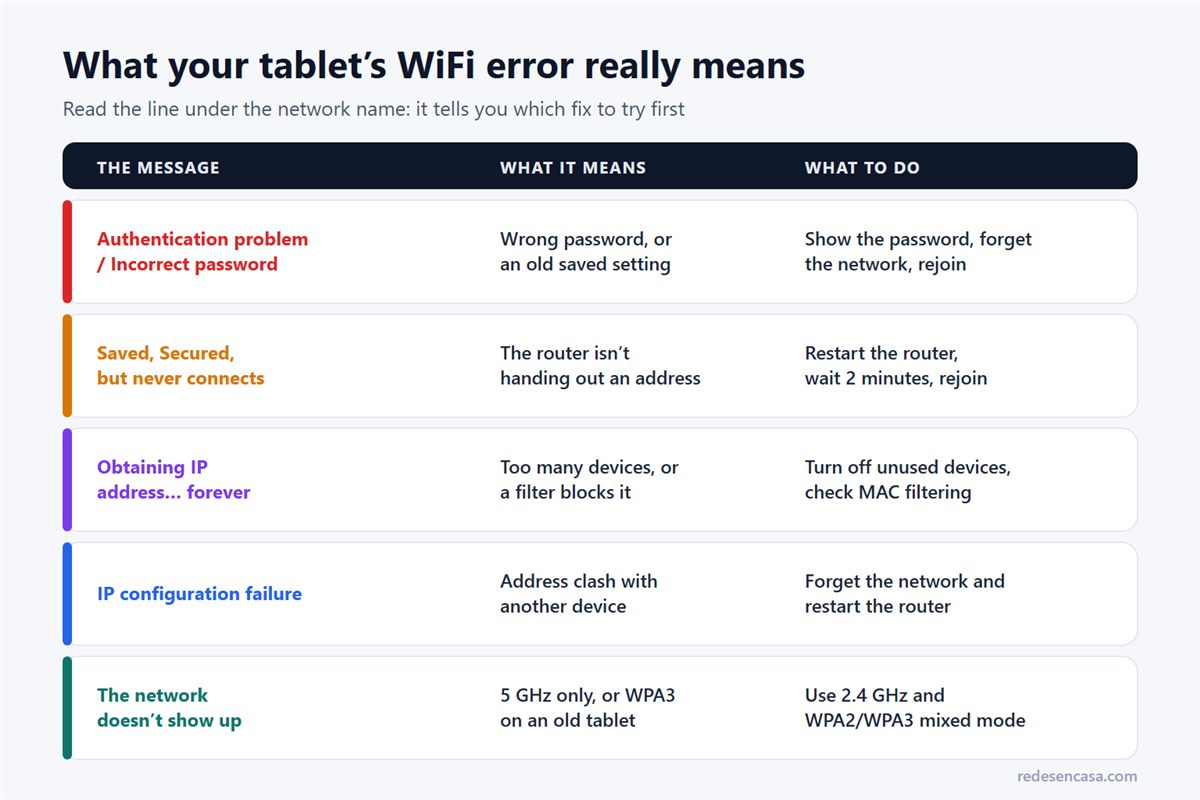
Before trying things at random, read the exact message under the network name. Each one points to a different cause and saves you half the steps.
«Authentication problem» or «Incorrect password»
It’s the most common message, and it means the router rejected the password. Before you assume it’s wrong, show the password as you type it. If it’s correct and the message keeps coming back, an old saved setting is clashing with the new one: forget the network (Step 2), restart the tablet and join again. If it still fails while every other device gets in, jump to the WPA3 section below.
«Saved, Secured» but it never connects
The tablet recognizes the network and stores the password, but stops there. That’s not a password problem: authentication worked, and what’s failing is the router handing out an address. Restart the router and wait two full minutes. If nothing changes, forget the network and add it again.
«Obtaining IP address…» that never finishes
The tablet asks the router for an address and never gets one. Usually it’s because the router has run out of addresses with too many devices connected, or because a filter is keeping the tablet out. Turn off WiFi on a couple of devices you’re not using and try again. If it connects right away, the router was running out of addresses, and it’s worth checking who is using your WiFi.
«IP configuration failure»
The tablet got an address that clashes with another device in the house. Fix it the same way: forget the network and restart the router so it hands out addresses from scratch. If it keeps happening every few days, some device with a badly set fixed IP is sitting inside the router’s automatic range.
Older tablet suddenly stopped connecting? Check WPA3
This cause has grown a lot and almost nobody checks it. Many new routers come with WPA3 or a «WPA2/WPA3» mode, and firmware updates sometimes turn on WPA3-only without warning. Tablets from before about 2019, and plenty of budget models, don’t understand WPA3.
The symptom is easy to spot: the tablet worked fine and one day stopped connecting without you touching anything, while your phone and laptop still get in. Depending on the model you’ll see an authentication error, or the network simply disappears from the list.
The fix is on the router, not the tablet. Open its wireless security settings and set the mode to WPA2/WPA3 mixed (sometimes called «WPA2/WPA3-Personal» or «transition mode»), or to WPA2-PSK (AES) if there’s no mixed option. Mixed mode lets older devices in without giving up WPA3 on newer ones. If you want to know exactly what you’re trading off, see WPA2 vs WPA3 explained.
When the problem is the router, not the tablet
If your tablet won’t connect to WiFi while everything else in the house is online, look at the other side. A 30-second test tells you which side the problem is on: turn on your phone’s hotspot and connect the tablet to it. If it connects, the tablet is fine and the router is the problem. If it fails on the hotspot too, the tablet is the problem, so go back to Step 5.
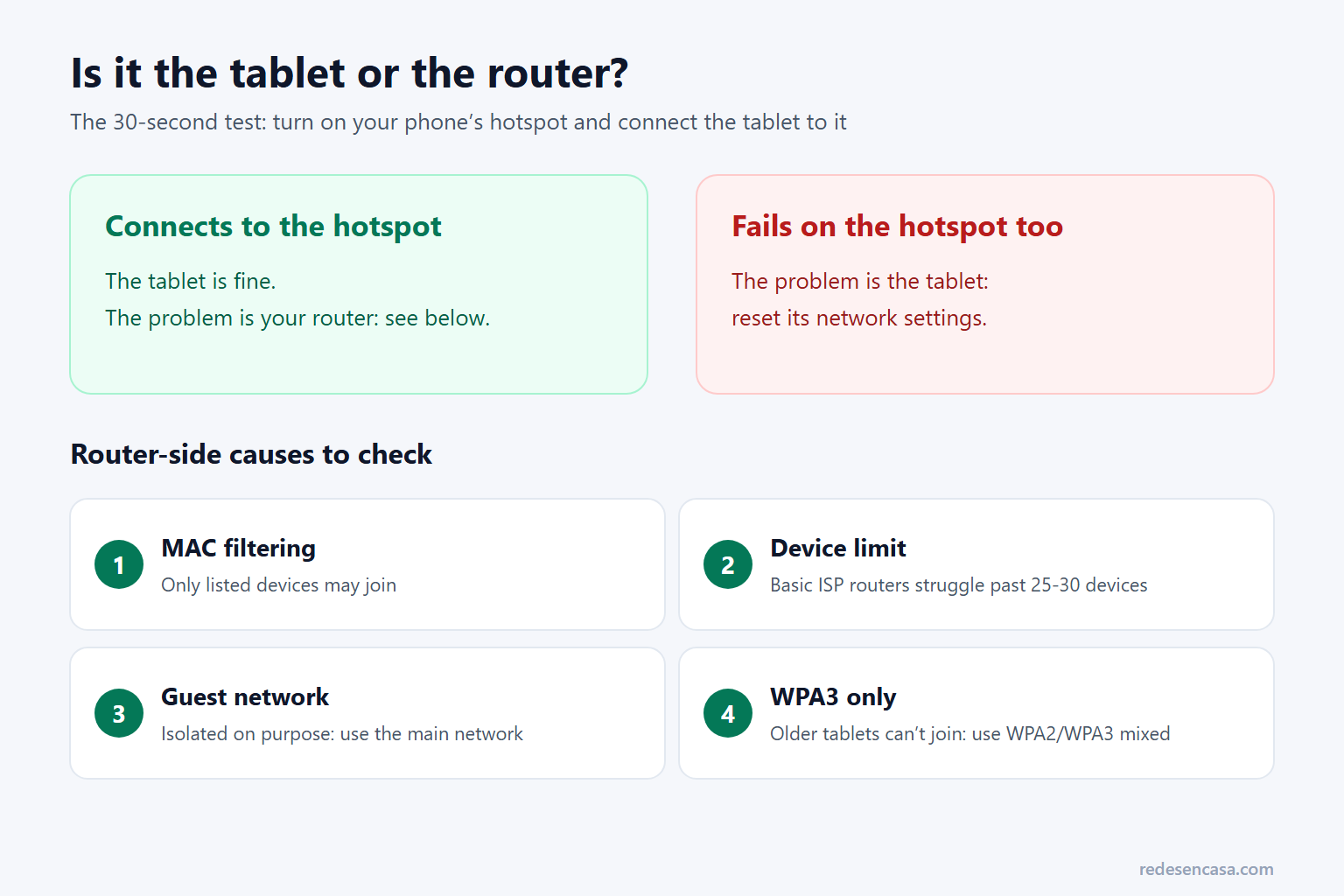
- MAC filtering. Some routers only let listed devices join. If someone turned it on, the tablet stays out even with the right password. Look for «MAC filtering» or «access control» and turn it off or add the tablet.
- Device limit. Basic routers from internet providers start to struggle past 25 or 30 connected devices, and with phones, smart plugs, bulbs and TVs you get there sooner than you think.
- Guest network isolation. If the tablet is on the guest network, it may browse but won’t see the printer or other devices: that network is isolated on purpose. Switch it to the main network.
- Wrong date and time on the tablet. It sounds odd, but if the tablet was off for a long time and boots with the wrong date, security certificates look expired and connections fail. Turn on automatic date and time in Settings.
If the signal is weak where you use the tablet
If your tablet won’t connect to WiFi in the bedroom or the backyard but works fine next to the router, it’s a coverage problem, and settings won’t fix it. Move the router to a higher, more central spot first. If that’s not enough, a WiFi extender halfway between the router and that room, or a mesh WiFi system for a large home, fixes it for every device, not just the tablet.
For a single weak room, the TP-Link RE700X is a solid WiFi 6 extender that’s easy to set up. You’ll find more options in our guide to the best WiFi extenders.
Tablet won’t connect to WiFi: quick summary
| What you see | Likely cause | Fix |
|---|---|---|
| Authentication problem | Wrong password or an old saved setting | Show the password, forget the network, rejoin |
| Saved, Secured, never connects | The router isn’t handing out an address | Restart the router and rejoin |
| Obtaining IP address… forever | Too many devices or a filter | Turn off unused devices, check MAC filtering |
| Network doesn’t appear | 5 GHz only or WPA3 on an old tablet | Use 2.4 GHz and WPA2/WPA3 mixed mode |
| Connected, no internet | DNS | Set DNS to 8.8.8.8 or dns.google |
| Works only near the router | Weak signal | Move the router or add an extender or mesh |
Tablet won’t connect to WiFi: FAQ
Why won’t my tablet connect to WiFi when the password is correct?
Usually because it has an old, broken setting saved for that network, or because the router uses a security mode the tablet doesn’t support (WPA3-only on an older tablet). Forget the network, restart the tablet and join again. If it still fails while other devices connect, set the router to WPA2/WPA3 mixed mode.
Do tablets support 5 GHz WiFi?
Most current tablets do, including iPads and recent Samsung and Fire tablets. Some budget and older models only support 2.4 GHz and won’t see a 5 GHz network at all. If yours can’t find the network, give the 2.4 GHz band its own name and join that one.
Why does my tablet say connected but no internet?
Usually a DNS problem or the router not routing that device. Restart the router, then set the DNS manually to 8.8.8.8 and 8.8.4.4 (or dns.google as Private DNS on Android). If it still fails, check that the tablet isn’t on an isolated guest network.
Does resetting network settings erase data on the tablet?
No. On iPad and Android it only deletes saved WiFi networks, Bluetooth pairings and network settings, not photos, apps or accounts. Amazon Fire tablets are the exception: they only offer a full factory reset, which does erase everything.
What does «authentication problem» mean on a tablet?
That the router rejected the password. Check it with «Show password» turned on. If it’s correct, forget the network and rejoin; if the message stays, the router may be using WPA3 only, which older tablets can’t use.
My old tablet stopped connecting out of nowhere. What happened?
Most likely your router switched to WPA3, often after an automatic firmware update. Older tablets can’t join WPA3-only networks. Set the router’s security mode to WPA2/WPA3 mixed and the tablet will connect again.
Conclusion
When a tablet won’t connect to WiFi, go in order: airplane mode and a restart, forget the network, check the band, change the DNS if it connects without internet, and reset the network settings as a last step on the tablet. Read the error message, because it tells you where to look. And if an older tablet stopped connecting out of nowhere, set the router to WPA2/WPA3 mixed mode: it’s the fix almost nobody tries first.