Windows 11 WiFi Keeps Disconnecting? How to Fix It for Good (2026)
If your Windows 11 WiFi keeps disconnecting every few minutes, or drops when the laptop wakes from sleep, while your phone and TV stay online, the router is rarely to blame. It’s usually a Windows setting: power saving that turns the adapter off, a driver that broke with an update, or a saved network profile that no longer matches your router.
Below you’ll find how to tell in a minute whether the problem is the PC or the router, why it happens, and the fixes in the order that saves the most time, with the exact Windows 11 menus.
Tabla de Contenidos
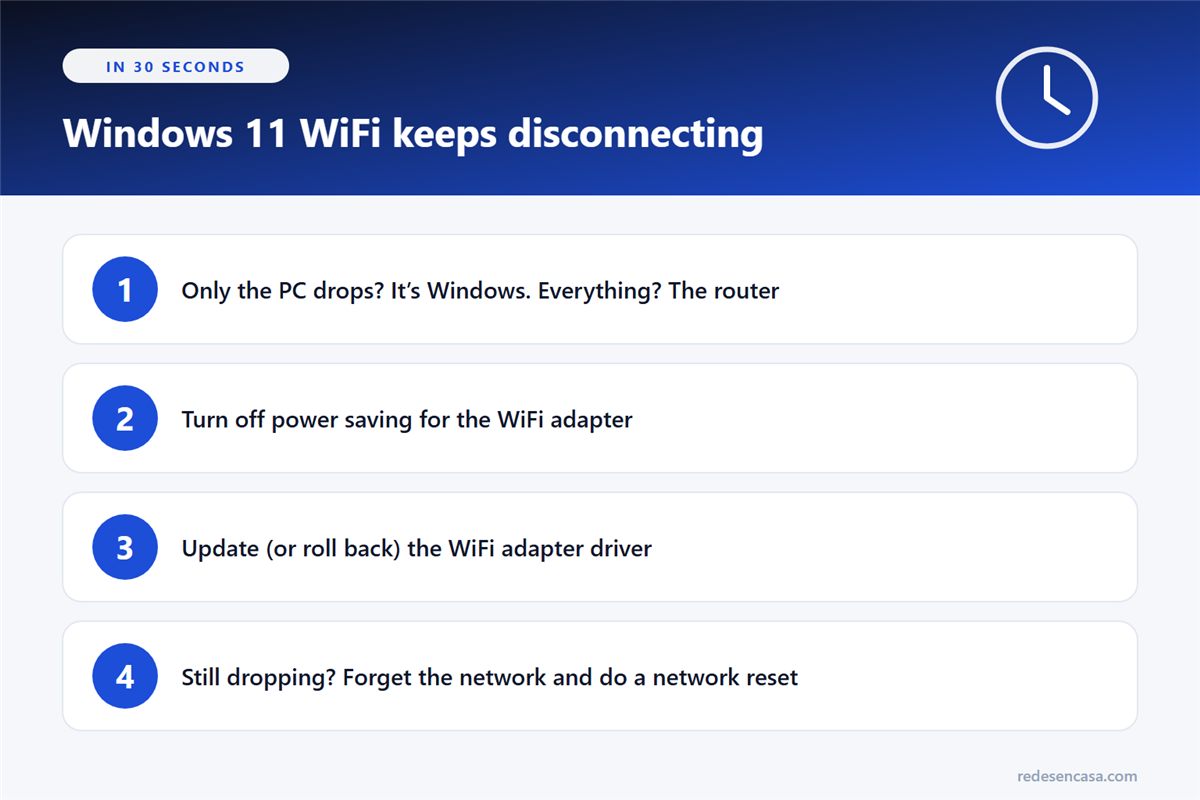
First: is it just the PC, or every device?
This question tells you where to look. Next time the computer drops, check your phone or TV:
- If everything drops at once, the problem is the router, the modem or your internet provider, not Windows. Restart the modem and router, and check your provider’s outage page.
- If only the PC disconnects, the problem is on the computer. Keep going with this guide.
- If the icon says you’re connected but nothing loads, that’s not a disconnection, it’s a different problem. We cover it in WiFi connected but no internet.
Why your Windows 11 WiFi keeps disconnecting
When the Windows 11 WiFi keeps disconnecting and the rest of the house is fine, the cause is usually one of these:
- Power saving turns the WiFi adapter off to save battery and doesn’t always turn it back on in time. It’s the most common cause on laptops.
- The adapter’s driver is outdated or broke after a Windows update.
- The saved network has old details, like a password or security type that changed on the router.
- A random hardware address makes the router see the PC as a new device, so it gets a different IP or gets blocked.
- The adapter keeps hopping between bands or access points (2.4 and 5 GHz, or router and extender), and drops for a moment on every hop.
- Windows Fast Startup leaves the adapter half-initialized after you shut down.
- The WiFi card is old or has weak antennas and can’t hold the connection far from the router.
Step 1: Turn off power saving for the WiFi adapter
If your Windows 11 WiFi keeps disconnecting on a laptop, this is the setting that fixes the most cases. Windows can turn the adapter off to save battery and, when it wakes it up, sometimes loses the connection or takes a while to get it back.
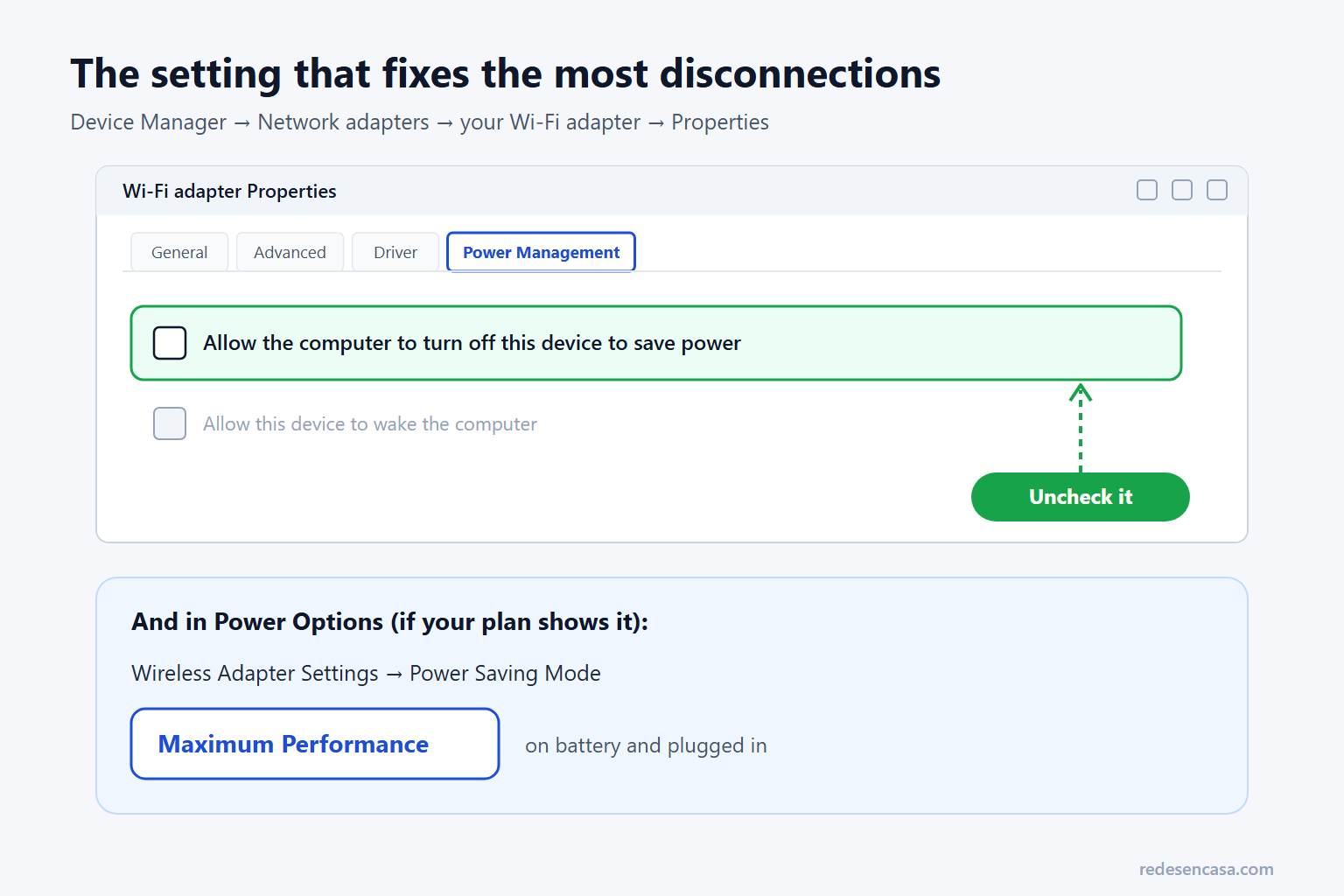
- Right-click the Start button and open Device Manager.
- Expand Network adapters and double-click your WiFi adapter (it usually has «Wi-Fi», «Wireless» or «802.11» in its name).
- On the Power Management tab, uncheck «Allow the computer to turn off this device to save power» and click OK.
On some newer laptops that tab doesn’t appear. In that case, search for «Edit power plan» in the Start menu, open «Change advanced power settings» and, under Wireless Adapter Settings → Power Saving Mode, choose «Maximum Performance» on battery and plugged in, if your PC shows that option.
Step 2: Update (or roll back) the adapter driver
If your WiFi started dropping after a specific update, the driver is the first suspect. There are two ways to go, depending on the case:
Update it
- Check Settings → Windows Update → Advanced options → Optional updates. Sometimes there’s a network driver waiting there.
- Better yet, download it from your laptop or motherboard maker’s support page for your exact model. If your adapter is Intel, the Intel Driver & Support Assistant finds and installs the right one for you.
Roll it back
If the problem started right after the driver updated, go back to the previous one: in Device Manager, open the WiFi adapter, go to the Driver tab and click «Roll Back Driver». If the button is grayed out, there’s no older version saved, and the fix is to install the one from the manufacturer.
Step 3: Forget the network and reconnect
If you changed your WiFi password or the router’s security type, Windows may keep trying with the old details, and then your Windows 11 WiFi keeps disconnecting and reconnecting in a loop.
- Go to Settings → Network & internet → Wi-Fi → Manage known networks.
- Click «Forget» next to your network.
- Reconnect from the WiFi icon with the current password, and leave «Connect automatically» checked.
Step 4: Turn off random hardware addresses
Windows 11 can use a random hardware (MAC) address so you can’t be tracked on public networks. At home it adds nothing and can cause trouble: if your router has a MAC filter or a reserved IP for your PC, every address change makes it treat the PC as a new device.
- Go to Settings → Network & internet → Wi-Fi and open your network’s properties.
- Set «Random hardware address» to Off.
- Disconnect and reconnect so it takes effect.
Step 5: Do a network reset
If your Windows 11 WiFi keeps disconnecting after all of the above, a network reset removes every network adapter and its settings and reinstalls them clean. It doesn’t touch your files, but you’ll have to re-enter your WiFi passwords, and some VPN apps may need to be reinstalled.
- Go to Settings → Network & internet → Advanced network settings → Network reset.
- Click «Reset now» and confirm. The PC restarts on its own a few minutes later.
If you’d rather do it by hand, open Terminal as administrator and run netsh winsock reset, netsh int ip reset and ipconfig /flushdns, one at a time, then restart.
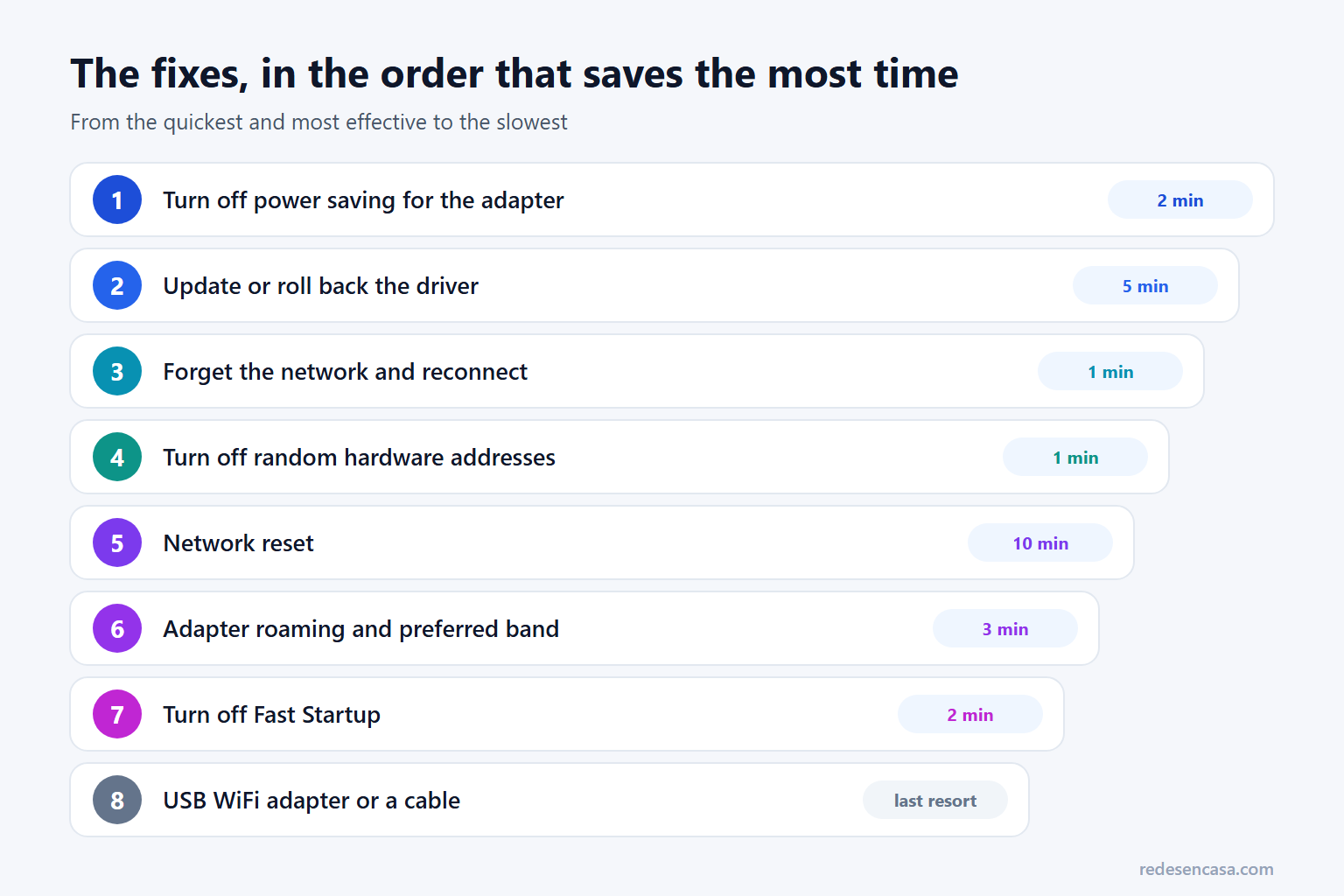
Step 6: Adjust the adapter’s roaming and preferred band
If you have an extender or a mesh system, or your router (or your provider’s gateway) uses one name for both bands, the adapter may be hopping between access points or between 2.4 and 5 GHz, and the connection drops for a few seconds on every hop.
- In Device Manager, open your WiFi adapter and go to the Advanced tab.
- On Intel adapters, find «Roaming Aggressiveness» and set it to the lowest value, so it only switches access points when the signal really drops.
- If you see «Preferred Band», set it to prefer 5 GHz when you’re close to the router.
The names vary by adapter maker (Realtek, MediaTek and Qualcomm use different ones), and some adapters don’t have these options at all. If your router allows it, giving each band its own name also stops the hopping. And if you rely on an extender to reach the PC, a mesh system usually handles roaming far better; see the best WiFi mesh systems.
Step 7: Turn off Fast Startup
If the WiFi fails mostly when you turn the PC on, and a restart fixes it, Fast Startup may be the culprit: Windows doesn’t fully shut down, and the adapter comes back half-initialized.
- Open Control Panel and go to Power Options → Choose what the power buttons do.
- Click «Change settings that are currently unavailable».
- Uncheck «Turn on fast startup» and save the changes.
Also check what sits between you and the network: some VPN apps and antivirus suites with their own firewall cause drops. Turn them off for a while to test.
If nothing works: replace the WiFi adapter
If your Windows 11 WiFi keeps disconnecting after you’ve tried everything, especially when the PC is far from the router, the WiFi card may simply be the limit. Many laptops a few years old have WiFi 5 cards with small antennas that lose the connection as soon as there are a couple of walls in the way.
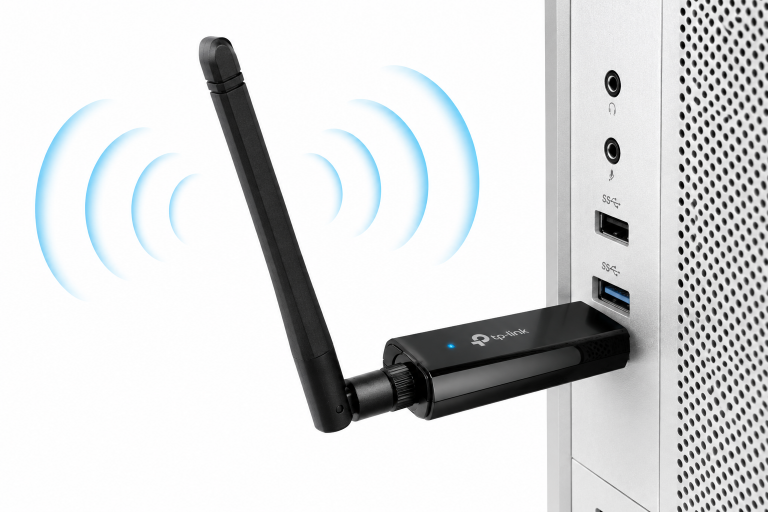
The cheapest fix is a USB WiFi adapter with antennas. The TP-Link Archer TX30U Plus is WiFi 6, plugs into a USB 3.0 port, and its two external high-gain antennas pick up the signal far better than a laptop’s internal ones. For more ways to speed up a laptop on WiFi, see laptop WiFi slow: why it happens and how to fix it.
If it’s a desktop PC near the router, an Ethernet cable ends the problem for good. And if the PC is far away and the signal is weak everywhere around it, the real fix is better coverage: an extender with an Ethernet port or a mesh node next to the PC. We compare options in the best WiFi extenders.
Quick table: symptom, cause and fix
| Symptom | Likely cause | Fix |
|---|---|---|
| Every device drops at once | Router, modem or provider | Restart them, check for an outage |
| Drops after waking from sleep | Adapter power saving | Step 1 |
| Started after an update | Broken driver | Step 2: update or roll back |
| Connects and disconnects in a loop | Saved network with old details | Step 3: forget the network |
| IP changes or the router blocks it | Random hardware address | Step 4 |
| Short drops with an extender or mesh | Adapter hopping between points or bands | Step 6: roaming and band |
| Fails at power-on, fine after a restart | Fast Startup | Step 7 |
| Drops far from the router even with everything set | Old WiFi card or weak antennas | USB WiFi adapter or a cable |
Windows 11 WiFi keeps disconnecting: FAQ
Why does my Windows 11 WiFi keep disconnecting when my phone is fine?
Because the problem is on the PC, not the router. The most common cause is power saving on the WiFi adapter, followed by a driver that broke after an update. Start by unchecking the power saving box in Device Manager.
Why does my WiFi disconnect after sleep on Windows 11?
Because Windows turns the adapter off to save power and doesn’t always bring it back properly when the PC wakes up. Uncheck «Allow the computer to turn off this device to save power» in the adapter’s properties and update its driver.
Does a network reset delete my files?
No. It only removes the network adapters and their settings, then reinstalls them. You’ll have to re-enter your WiFi passwords and, in some cases, reinstall your VPN app.
Can a Windows update make my WiFi keep disconnecting?
Yes, especially if it replaces the adapter’s driver. If the problem started right after an update, roll back the driver in Device Manager or install the version from your laptop maker’s website.
Should I turn off random hardware addresses at home?
On your home network, yes: it adds no real privacy there and can clash with the router’s MAC filter or reserved IPs. On public networks, it’s worth leaving on.
Is a USB WiFi adapter worth it?
If you’ve tried the settings and the PC still loses the connection far from the router, yes. A WiFi 6 adapter with external antennas is inexpensive and gets a much better signal than the internal card in many laptops.
Conclusion
When your Windows 11 WiFi keeps disconnecting and the rest of the house is fine, the order that saves the most time is: turn off power saving for the adapter, update or roll back the driver, forget the network and turn off the random address. If it still drops, a network reset, the roaming settings and Fast Startup cover almost every case left. And if the PC is far from the router with an old WiFi card, a USB adapter or a cable fixes it once and for all.