Smart TV Keeps Disconnecting from WiFi: Causes and Fixes by Brand (2026)
If your smart TV keeps disconnecting from WiFi while your phone and laptop work fine, you’re not imagining it, and you’re not alone. TVs sit in the worst spot for WiFi, have weaker antennas than phones and are slow to reconnect after a hiccup, so a small network problem that nobody else notices freezes your show.
The good news: in most homes it’s fixable in under half an hour, without buying anything. Below you’ll find a one-minute check, the basic fixes in the right order, the first thing to try on each brand (Samsung, LG, Google TV, Vizio, Roku TV and Fire TV), a hidden cause almost nobody checks, and the most stable fix if nothing else works.
Tabla de Contenidos
Smart TV keeps disconnecting from WiFi? Check this first
Is it the whole TV or just one app?
If Netflix buffers but YouTube plays fine, the TV is probably connected and the problem is the app or its servers. Close the app completely, clear its cache or reinstall it before touching your network. If every app fails at once and the TV shows a network error, keep reading: it’s the connection.
Are other devices dropping too?
Grab your phone and stand next to the TV. If the phone also loses WiFi or slows down there, the problem is coverage in that spot or the router itself. If the phone works perfectly right next to the TV, the weak link is the TV’s own WiFi, and the fixes in sections 3, 6 and 7 are for you.
Is the TV far from the router or on an extender?
A TV two rooms away, inside a cabinet or connected through a WiFi extender is the classic recipe for drops. Keep that in mind for sections 4 and 8.
Why your TV drops WiFi when your phone doesn’t
It feels unfair, but there are good reasons why a smart TV keeps disconnecting from WiFi when everything else is fine:
- Location. TVs are mounted on walls, pushed into corners or placed behind furniture, often far from the router. Your phone moves around with you; the TV doesn’t.
- Antennas. Many TVs, especially budget ones, have small antennas behind a metal panel. Their WiFi is simply weaker than a phone’s.
- Streaming needs stability, not just «having WiFi». A 4K stream needs about 15 Mbps of steady speed for Netflix, all the time. Short dips that a web page would never notice make the video buffer or drop.
- Slow reconnection. When the network blinks for a second, a phone reconnects instantly. Many TVs take much longer, and some get stuck until you restart the app or the TV.
Basic fixes when your smart TV keeps disconnecting from WiFi
1. Restart the TV and the router properly
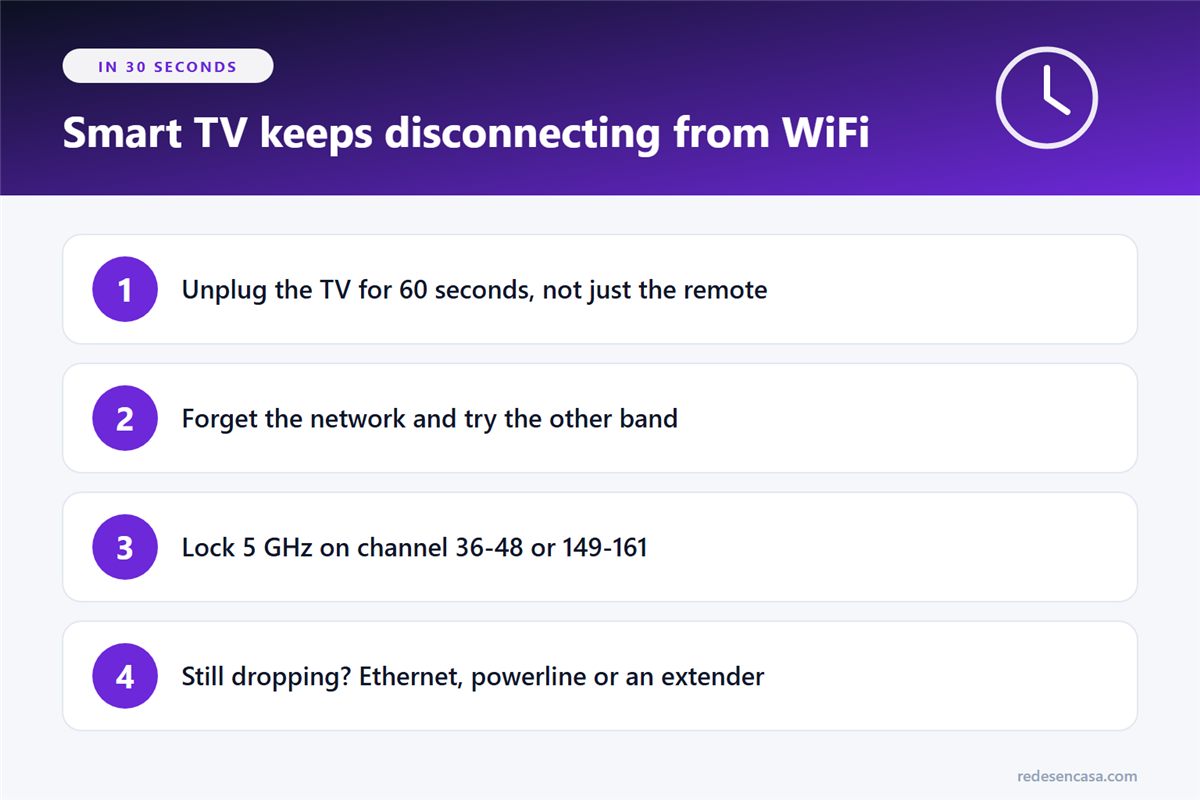
Turning the TV off with the remote doesn’t restart it: it just goes into standby and keeps its network state. Unplug the TV from the wall for a full 60 seconds. Unplug the router too, wait 30 seconds, plug the router back in, wait until its lights are stable (two or three minutes) and only then plug the TV back in.
2. Forget the network and connect again
In the TV’s network settings, select your WiFi network, choose Forget (or delete it) and connect again by typing the password. It clears stale settings that a normal restart keeps.
3. Try the other band: 2.4 GHz or 5 GHz
If your router shows two networks (or you can split them), test both. 5 GHz is faster and less crowded, which is what a TV near the router wants. 2.4 GHz is slower but reaches farther and goes through walls better, so it can be more stable for a TV far from the router. If your router uses one name for both bands, the TV may be bouncing between them; giving the 5 GHz network its own name often fixes it.
4. Update the TV
TV makers fix WiFi bugs in firmware updates. Look for a software or system update in the settings, and turn on automatic updates.
If the TV is too far from the router
Most smart TVs show signal strength in their network menu. If your smart TV keeps disconnecting from WiFi and you see one or two bars, or a «weak» label, distance and walls are the problem, and settings won’t fix it.
- Move the router to a higher, more central spot, out of cabinets and away from the TV’s metal wall mount.
- Get rid of obstacles in the direct line: brick or concrete walls, mirrors, aquariums and big appliances eat WiFi signal.
- Don’t hide the TV’s back against a wall full of cables and devices: that’s where its antennas are.
If moving things around doesn’t give you three or four bars, it’s time for one of the stable fixes in section 9.
Interference and busy hours
Does the TV drop more in the evening? That’s when every home in the building is streaming, gaming and on video calls. In apartments, dozens of neighboring networks fight for the same 2.4 GHz channels. Microwaves, cordless phones and baby monitors also interfere with 2.4 GHz.
Switching the TV to 5 GHz, or setting your router’s 2.4 GHz network to channel 1, 6 or 11 (whichever is least busy), usually helps. And if you suspect someone else is using your connection, check how to tell if someone is using your WiFi.
When your network is overloaded
If the drops happen when someone else is downloading a game, backing up photos or streaming on another TV, the problem isn’t the signal but the bandwidth. A few signs: speed tests are fine when the house is quiet and terrible at busy times, and the TV buffers instead of losing the network completely.
- Pause big downloads and cloud backups while you watch.
- If your router has QoS or a «media» or «streaming» priority, give it to the TV.
- If you share a slow plan with many devices, lowering the streaming quality to 1080p stops the buffering.
The first fix to try on each TV brand
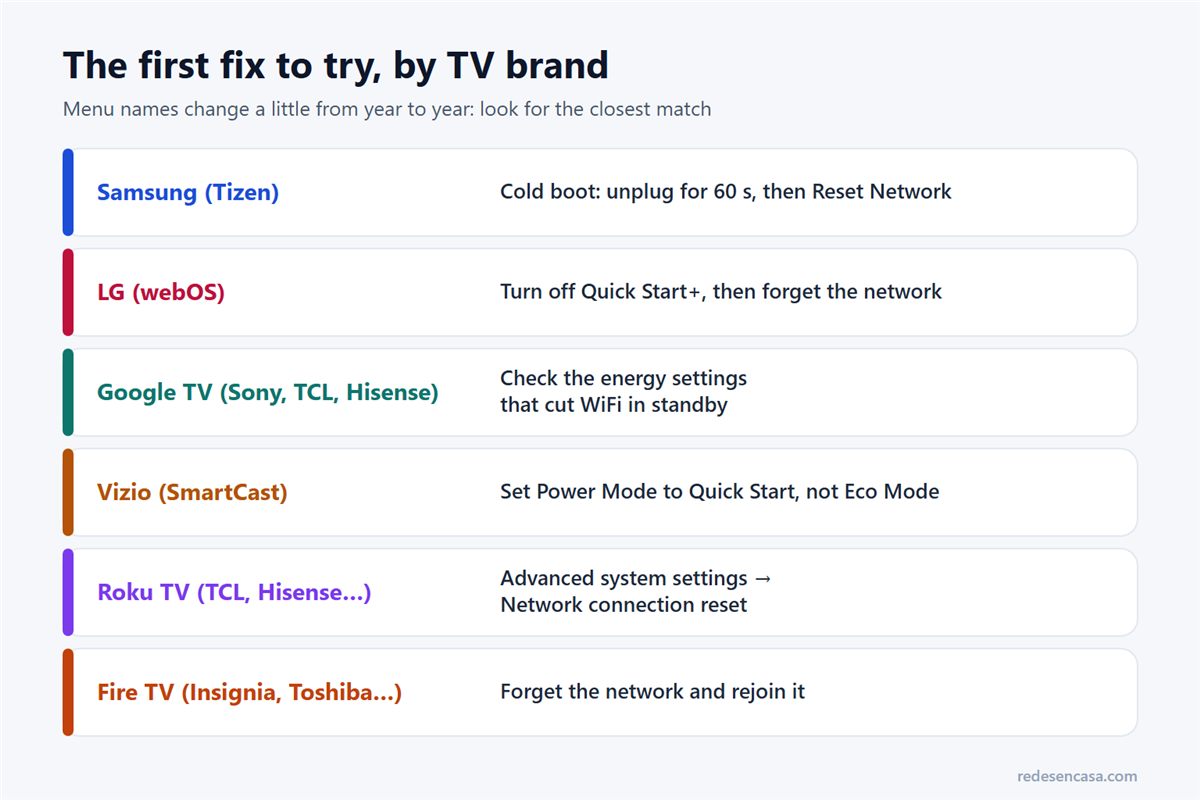
Each brand handles WiFi in its own way, so the reasons a smart TV keeps disconnecting from WiFi, and the menu paths to fix it, change from one brand to another. These are the specific settings worth checking. Menu names change a little from year to year: if yours doesn’t match exactly, look for the closest option.
Samsung (Tizen)
On Samsung TVs, a normal restart barely helps, because the remote only puts the TV in standby. Do a cold boot: unplug it for a full 60 seconds. If it keeps dropping, use Reset Network, which only clears the connection settings, not your apps or accounts. On most recent models it’s under Settings → All Settings → Connection → Network (on older ones, under General → Network). Some Samsung models also struggle with network names that have spaces, accents or symbols, and renaming the WiFi to something simple fixes cases that looked impossible.
LG (webOS)
The usual suspect on LG TVs is Quick Start+. It keeps the TV in a low-power state that the WiFi module doesn’t always wake up from properly, which causes exactly the «disconnects and reconnects on its own» pattern. Turn it off (on recent models, Settings → All Settings → General → Devices → TV Management; on older ones, directly under General) and see if it improves over a couple of days. To forget the network, go to the network or connection settings, open Wi-Fi Connection, select your network and delete it before adding it again.
Google TV and Android TV (Sony, TCL, Hisense)
On these TVs the most common problem isn’t WiFi itself but energy saving: in the System → Power & energy settings there’s usually an option that cuts the network when the TV is in standby. When you turn it on, the connection takes a while to come back and it looks like the WiFi is failing. If only one app fails, clear that app’s data from the Apps settings instead of touching the network. To forget the network: Settings → Network & Internet → your WiFi → Forget.
Vizio (SmartCast)
Vizio TVs have a Power Mode setting with two options: Eco Mode, which saves energy by shutting down the network when the TV is off, and Quick Start, which keeps it connected. On Eco Mode, apps reconnect slowly every time you turn the TV on. Switch it to Quick Start (usually under Menu → System → Power Mode) and test the connection from the Network menu.
Roku TV (TCL, Hisense and others)
Roku TVs have a dedicated Network connection reset under Settings → System → Advanced system settings. Use it, set up the WiFi again, and then run Settings → Network → Check connection to see the signal strength. A system restart (Settings → System → Power → System restart) is also worth trying before anything else.
Fire TV (Insignia, Toshiba, Amazon Omni)
On Fire TV models, go to Settings → Network, highlight your network, press the menu button to forget it and join again. If it keeps dropping, a restart from Settings → My Fire TV → Restart clears most glitches.
Every brand: give the TV a fixed IP address
A trick that works on any TV: reserve an IP address for it in your router. Many drops happen because the router hands out a new address every few hours and the TV doesn’t always renew it properly. Look for «DHCP reservation», «address reservation» or «static IP» in your router’s settings and tie an address to the TV.
The hidden cause: DFS channels on 5 GHz
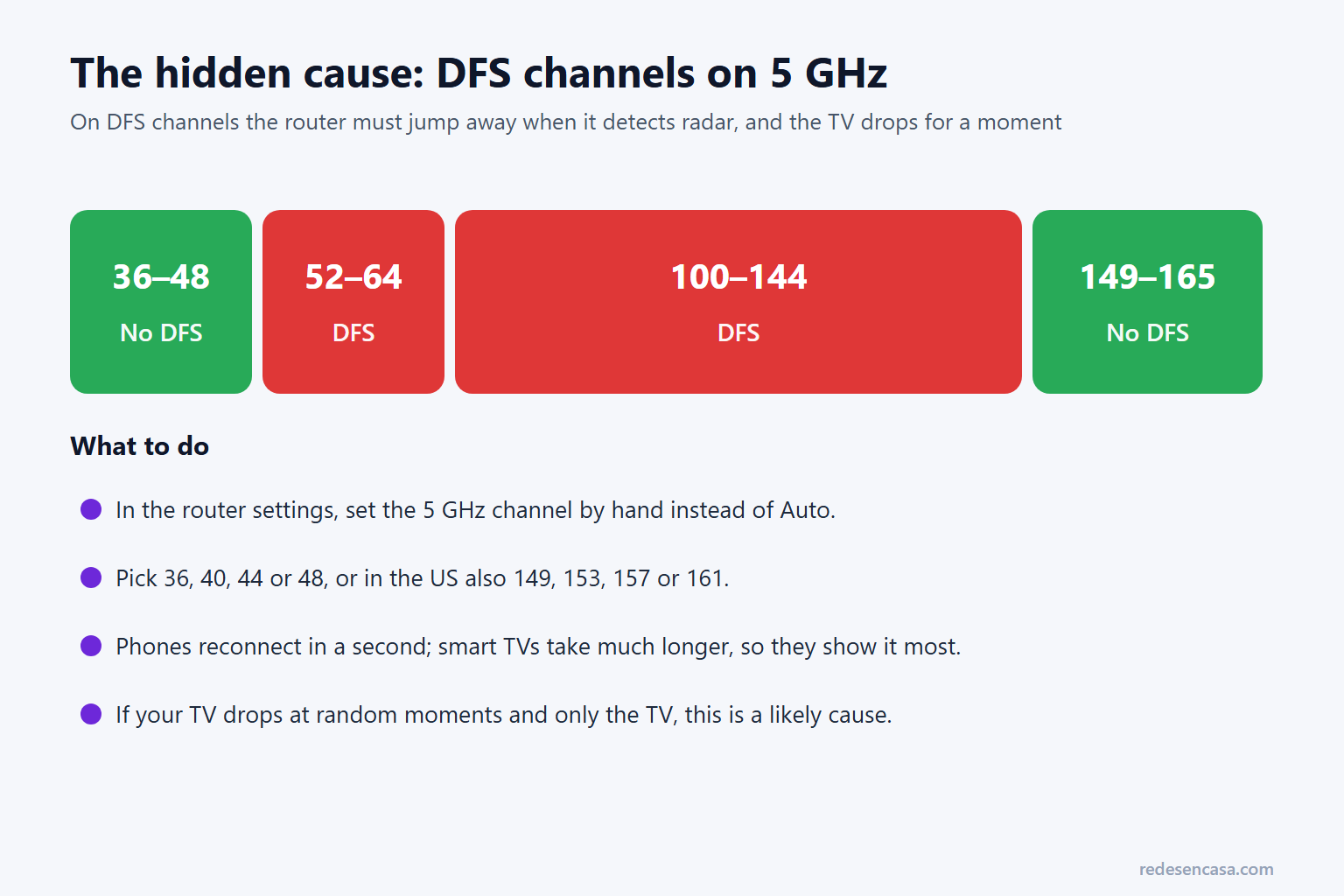
This explains a lot of cases and almost nobody checks it. Part of the 5 GHz band (channels 52 to 64 and 100 to 144) is shared with weather and military radar. When the router detects radar, the rules force it to leave the channel immediately and jump to another one. That jump knocks every device off for a moment.
Phones and laptops reconnect in a second and you never notice, but this is exactly why a smart TV keeps disconnecting from WiFi at random: TVs are slow to reconnect, freeze the video and sometimes need you to restart the app. If your drops are sudden, with no clear pattern and only on the TV, this could be it.
The fix is to set the router’s 5 GHz channel by hand instead of Auto, on a channel without DFS: 36, 40, 44 or 48, or in the US also 149, 153, 157 or 161. You’ll find the option in the router’s wireless settings, sometimes under «advanced».
If the problem is your WiFi extender or mesh
If the TV connects through an extender, the extender itself can be the reason your smart TV keeps disconnecting from WiFi. Signs: the TV loses the internet but still shows the WiFi as connected, or the drops started when you added the extender.
- Place the extender halfway, where it still gets a strong signal from the router, not next to the TV where the signal is already weak.
- Check that the TV is on the right network. Some extenders create their own network name and the TV may be connected to the router’s weaker signal instead.
- If your extender says connected but there’s no internet, see what to do when a WiFi extender is connected but has no internet.
For a large home, a mesh WiFi system handles TVs much better than a single extender, because the nodes talk to each other and keep the TV on the best signal.
The most stable fix: get a cable to the TV
If your smart TV keeps disconnecting from WiFi after all of the above, stop fighting the TV’s WiFi and give it a wired connection. You don’t need to run a cable across the house; there are three ways:
- Ethernet straight to the router, if the TV is in the same room or one wall away. It’s the cheapest and most reliable option.
- A WiFi extender with an Ethernet port, next to the TV. The extender picks up the WiFi with much better antennas than the TV, and the TV plugs into it with a short cable. It removes the TV’s weak WiFi from the equation.
- A powerline kit, which carries the connection through your electrical wiring: one adapter next to the router and another next to the TV. In a typical home it delivers 200 to 400 Mbps of real speed, more than enough for 4K.
For the extender option, a dual-band model with a Gigabit Ethernet port is what you want. The TP-Link RE700X fits this case well: place it where the WiFi is still strong, near the TV, and connect the TV to its Ethernet port. If you’d rather go through the outlets, the TP-Link TL-PA7017 is a simple, reliable powerline kit. More options in our guide to the best WiFi extenders.
Smart TV keeps disconnecting from WiFi: quick summary
| What you notice | Likely cause | What to do |
|---|---|---|
| Only one app fails | The app or its servers | Close it, clear its cache or reinstall it |
| Drops after the TV has been off | Energy saving or quick start settings | Change Quick Start+, Eco Mode or the standby network setting |
| Random drops, only on the TV | DFS channel switches on 5 GHz | Set channel 36-48 or 149-161 by hand |
| One or two bars of signal | Distance and walls | Move the router, use 2.4 GHz or add a cable |
| Drops in the evening or during downloads | Interference or an overloaded network | Switch to 5 GHz, pause downloads, use QoS |
| Connected but no internet | The extender or the IP address | Move the extender, reserve an IP for the TV |
Smart TV keeps disconnecting from WiFi: FAQ
Why does my smart TV keep disconnecting from WiFi when my phone works fine?
Because the TV usually sits farther from the router, has weaker antennas and reconnects much more slowly after a short network hiccup. Your phone recovers in a second; the TV freezes the video. Restart both properly, try the other band and, if the signal is weak, bring a cable or an extender with an Ethernet port closer to the TV.
Is 2.4 GHz or 5 GHz better for a smart TV?
5 GHz if the TV is close to the router: it’s faster and less crowded. 2.4 GHz if it’s far away or behind several walls, because it reaches farther. If your router uses one name for both, give 5 GHz its own name so the TV doesn’t bounce between them.
Why does my Samsung TV keep disconnecting from WiFi?
The most common reasons are that the remote only puts it in standby (do a cold boot by unplugging it for 60 seconds), stale network settings (use Reset Network) and network names with symbols or accents. If the drops are random, also check the router’s 5 GHz channel.
Why does my LG TV disconnect and reconnect by itself?
Usually because of Quick Start+, which keeps the TV in a low-power state the WiFi doesn’t always wake up from properly. Turn it off, forget the network and connect again.
Can the router channel make the TV lose WiFi?
Yes. On DFS channels (52 to 64 and 100 to 144 on 5 GHz) the router must jump to another channel when it detects radar, and the TV drops for a moment. Setting the channel by hand to 36-48 or, in the US, 149-161 avoids it.
Is Ethernet the most stable way to connect a smart TV?
Yes. A cable removes distance, walls, interference and the TV’s weak WiFi from the equation. If you can’t run one to the router, an extender with an Ethernet port next to the TV or a powerline kit gets you the same stability.
Conclusion
When a smart TV keeps disconnecting from WiFi, the cause is almost always one of these: a TV too far from the router, a setting that cuts the network in standby, a 5 GHz channel with DFS, or a WiFi module that just isn’t up to the job. Do the cold restart, try the other band, apply your brand’s fix and set the 5 GHz channel by hand. If it still drops, a short cable to an extender or a powerline adapter fixes it for good.