Router Login: Free Finder for Your Router IP, Username and Password (2026)
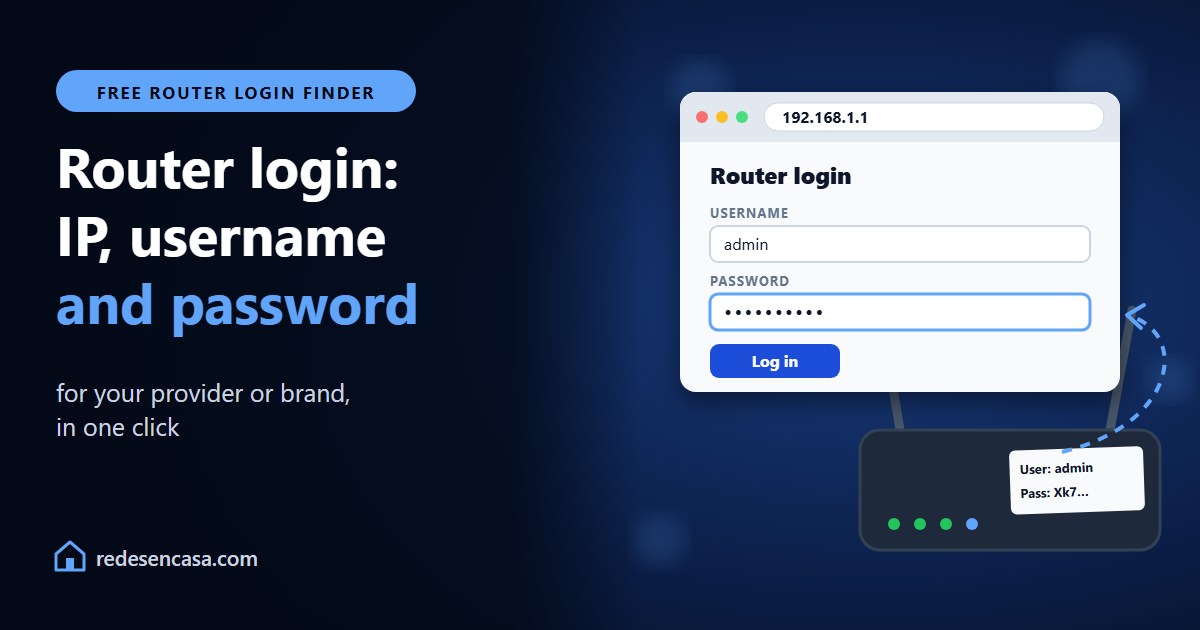
Router login takes two things: the login address, which is almost always 192.168.1.1, 192.168.0.1 or 192.168.1.254, and the admin username and password, which are usually printed on the router’s label. Pick your internet provider or router brand in the finder and we’ll show you both right away.
It covers the big US providers and the best-selling router brands. If yours isn’t listed, below the finder you’ll see how to find the login address of any router in a minute.
Router login finder
Pick your internet provider or router brand to get its login address, username and password
It isn’t on our list yet. Below you’ll find how to get the login address of any router.
Router not listed or the page won’t load? Find its address in 1 minute
Your router’s address is your network’s «default gateway». Check it on a device connected to that WiFi or by cable:
- Windows: press Windows + R, type
cmd, thenipconfigin the black window. It’s the «Default Gateway» number. - Mac: System Settings › Wi-Fi › «Details…» next to your network › TCP/IP › «Router».
- iPhone and iPad: Settings › Wi-Fi › tap the «i» next to your network and scroll to «Router».
- Android: Settings › Wi-Fi › tap the gear next to your network. Depending on the phone it’s listed as «Gateway» or «Router», sometimes under «Advanced» or «Network details».
If the address won’t load: make sure you’re connected to that router (not to mobile data or to an extender with its own panel), turn off your VPN and type it in the address bar, not the search box. If the browser warns the connection isn’t secure, that’s normal for a home router: continue.
If you forgot the password you set: the last resort is a factory reset (hold the Reset button for about 10 seconds with a paper clip). It goes back to the password on the label, but it wipes all your settings: WiFi, port forwarding and the rest.
🔒 If your router still uses a default password like admin/admin, change it: anyone on your WiFi could log in to it.
Tabla de Contenidos

Router login step by step
- Connect to your router by WiFi or with an Ethernet cable. It won’t work from mobile data or another network.
- Open a browser (Chrome, Safari, Edge…) and type the address in the address bar, not in the Google search box. For example:
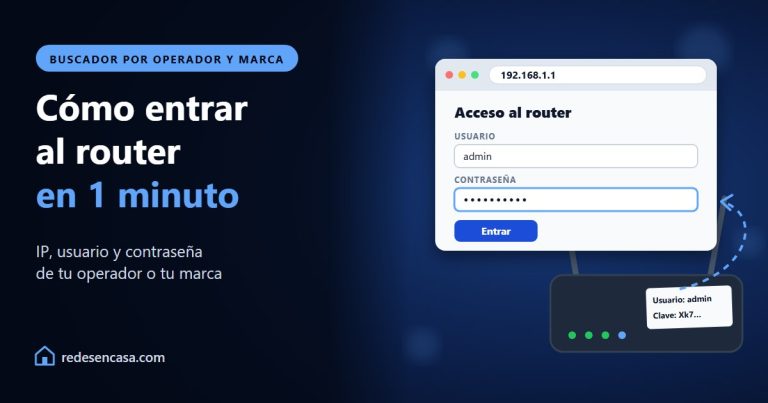
192.168.1.1. - Enter the admin username and password. On provider gateways they’re on the label on the bottom or back, and they’re almost never your WiFi password.
- You’re in. The WiFi name and password are usually under «WiFi», «Wireless» or «WLAN».
Router login from a phone works the same way: join your home WiFi and type the address in the browser. Most providers also have an app (Xfinity, My Spectrum, Smart Home Manager, My Verizon, T-Life) that lets you change the WiFi password without opening the router’s settings.
The most common router login addresses
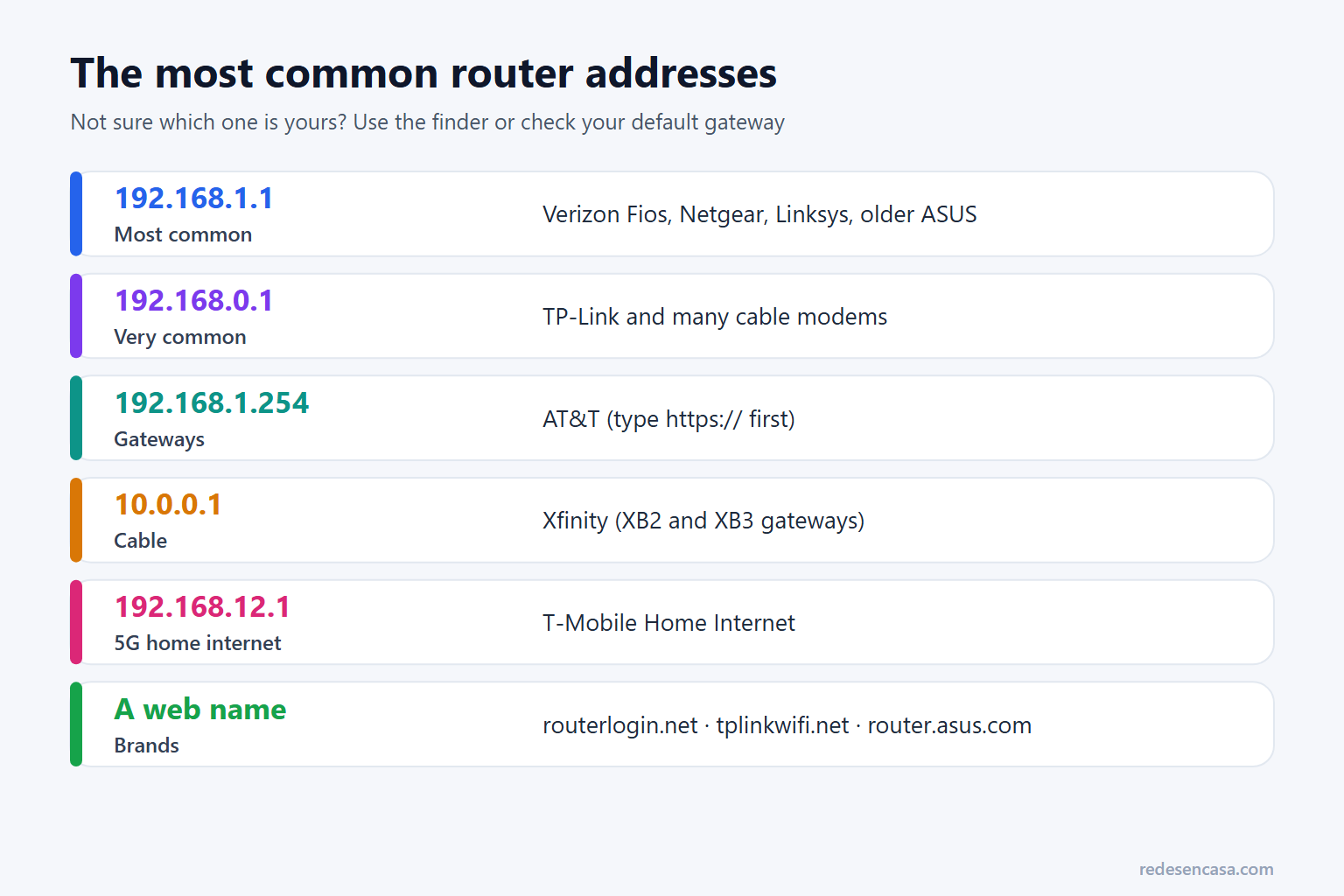
Each provider and brand uses its own. If the finder doesn’t list yours, these are the ones you’ll see most:
| Address | Who uses it |
|---|---|
| 192.168.1.1 | Verizon Fios, Netgear, Linksys and many older ASUS routers |
| 192.168.0.1 | Many TP-Link routers and cable modems |
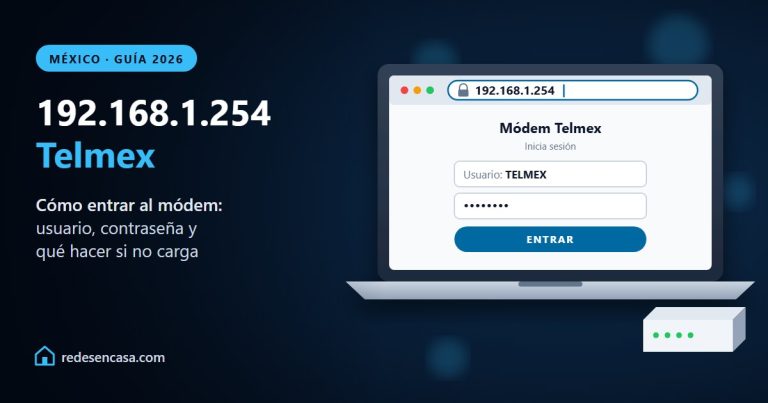
| 192.168.1.254 | AT&T (type https:// in front) |
| 10.0.0.1 | Xfinity XB2 and XB3 gateways |
| 192.168.12.1 | T-Mobile Home Internet gateways that have a web panel |
| 192.168.50.1 | Recent ASUS routers |
| 192.168.31.1 | Xiaomi |
| 192.168.178.1 | FRITZ!Box |
Some brands also accept an easy-to-remember name: routerlogin.net (Netgear), tplinkwifi.net (TP-Link), router.asus.com (ASUS), myrouter.local (Linksys), myfiosgateway.com (Verizon Fios) and miwifi.com (Xiaomi).
How to find your router’s IP address
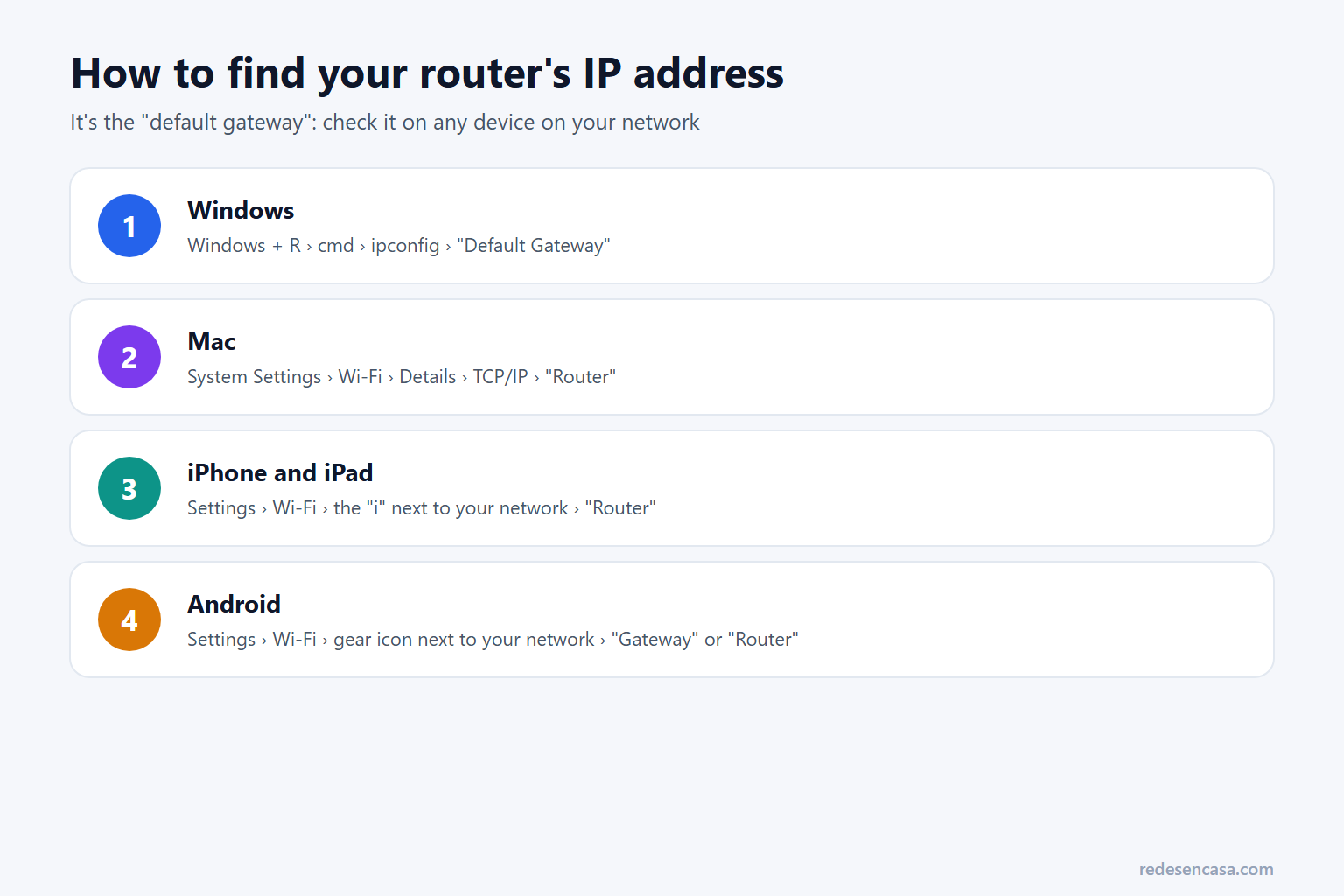
If your router isn’t in the finder or the address won’t load, check the real one. It’s called the «default gateway», and you can see it on any device on your network:
- Windows: press Windows + R, type
cmd, thenipconfigin the black window. It’s the «Default Gateway» number. - Mac: System Settings › Wi-Fi › «Details…» next to your network › TCP/IP › «Router».
- iPhone and iPad: Settings › Wi-Fi › tap the «i» next to your network and scroll to «Router».
- Android: Settings › Wi-Fi › tap the gear next to your network. Depending on the phone it’s listed as «Gateway» or «Router», sometimes under «Advanced» or «Network details».
That’s the number to type in your browser for router login, even if your router isn’t from any provider or brand on the list.
Username and password: where to find them
- Provider gateway: check the label. Look for «Username» and «Password», «Admin password» or, on AT&T, «Device Access Code». The WiFi password is usually right next to it: don’t mix them up.
- A router you bought (TP-Link, ASUS, Netgear, Linksys…): the password you created the first time you set it up. On older models the default was
admin/adminoradmin/password. - Routers with no web panel (eero, Google Nest WiFi, TP-Link Deco): they’re managed only in their app, with your account.
If your router still uses a default password like admin/admin, change it: anyone on your WiFi could log in and change your settings. We cover it in how to change your router password and, for the rest of your setup, in how to secure your home network.
Can’t log in to your router? Fixes
- The page won’t load: make sure you’re connected to that router, not to mobile data or an extender, turn off your VPN and try the other addresses in the finder or your default gateway.
- «Your connection is not private»: that’s normal, because a router doesn’t have a certificate like a website. Click «Advanced» and «Proceed».
- Wrong password: it’s case-sensitive, so copy it exactly from the label. If you changed it and don’t remember it, a reset is the only way back.
- Locked out after several tries: many routers block you for a few minutes. Wait and try again.
- Your changes undo themselves: some providers, like Xfinity, manage the gateway remotely. Make the change in their app.
- You have two routers: if you put your own router behind the provider’s gateway, each one has its own address. The one broadcasting your WiFi is usually yours.
A factory reset (hold the Reset button for about 10 seconds with a paper clip) brings back the password on the label, but it wipes all your settings: the WiFi name and password, port forwarding and the rest. Use it only as a last resort.
What you can do once you’re in
- Change your WiFi password and the admin password: how to change your router password.
- See who’s connected: the device list tells you if a neighbor is using your network. More in someone is using my WiFi.
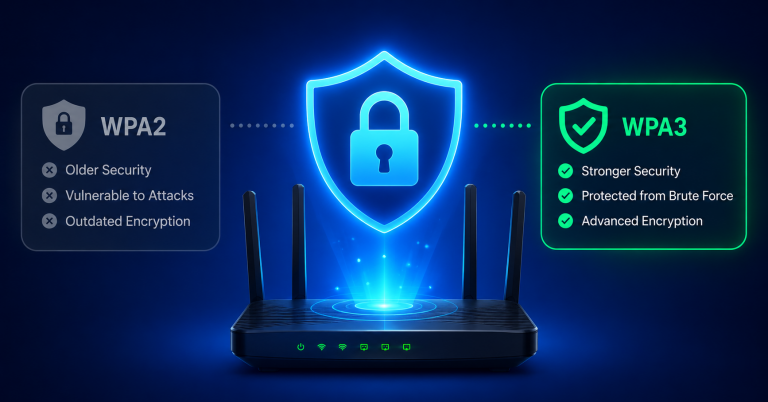
- Switch to WPA2 or WPA3 in your WiFi security settings: WPA2 vs WPA3 explained.
- Share your WiFi with guests with a printable card from our WiFi QR code generator.
Router login FAQ
What is the username and password for 192.168.1.1?
It depends on the router. On provider gateways it’s on the label; on Verizon Fios, for example, it’s the admin password printed on the router. On routers you bought, it’s the one you created during setup. Use the finder above to see yours.
Why can’t I access 192.168.1.1?
Usually because your router uses a different address (192.168.0.1, 192.168.1.254, 10.0.0.1…) or because you aren’t connected to it. Check the default gateway on your computer or phone and type that number in the browser’s address bar.
Can I log in to my router from my phone?
Yes. Join your home WiFi, open the browser and type the router’s address. Most providers also have an app to change your WiFi password without opening the router’s settings.
Can I access my router when I’m away from home?
Not the web panel, unless you turn on remote management, which is best left off for security. Away from home, use your provider’s or router maker’s app, which works with your account.
Is it safe to change router settings?
Yes, if you stick to the WiFi name and password, the channel or the guest network. Avoid the internet (WAN) settings, because you could lose your connection. If something goes wrong, a reset puts everything back to factory settings.
What happens if I reset my router?
The WiFi name and password go back to the ones on the label, and everything you changed is erased: your WiFi settings, port forwarding and guest network. Provider gateways usually get back online on their own, but some need to be set up again.
Conclusion
For router login, connect to your router, type its address in a browser and sign in with the username and password on the label or the ones you created. The finder gives you the details for your provider or brand and, if yours isn’t there, the default gateway on your computer or phone tells you the exact address. And if it still has a default password, change it while you’re in.