WiFi Connected But No Internet? How to Fix It on Any Device (2026)
WiFi connected but no internet is one of the most maddening problems: your phone or laptop insists it’s on your network, yet nothing loads, the WiFi icon is full and everything looks fine. The good news: it’s almost always fixable in a few minutes once you know where to look.
Below you’ll find the one question that saves you half the work, the modem and router lights to check, and the exact steps for Windows, Android, iPhone and game consoles.
Tabla de Contenidos

What «WiFi connected but no internet» actually means
Your connection has two parts. The first goes from your device to the router: that’s your home network, the one the WiFi icon shows. The second goes from the router to the internet, through your provider’s modem, fiber box or gateway. When your WiFi is connected but there’s no internet, the first part works and the second doesn’t, or your device didn’t get the details it needs to get out (an IP address or DNS servers).
Each system shows it in its own way:
- Windows: «No internet, secured» under the network name, or a globe with a no-entry sign on the icon.
- Android: «Connected without internet» or «Internet may not be available».
- iPhone and iPad: «No Internet Connection» under the network name.
- Consoles and smart TVs: a failed connection test even though the network shows as connected.
First: is it every device or just one?
It’s the most useful question you can ask, because it tells you where the problem is. Grab another device, for example your phone with cellular data turned off, and see if it can browse on the same WiFi:
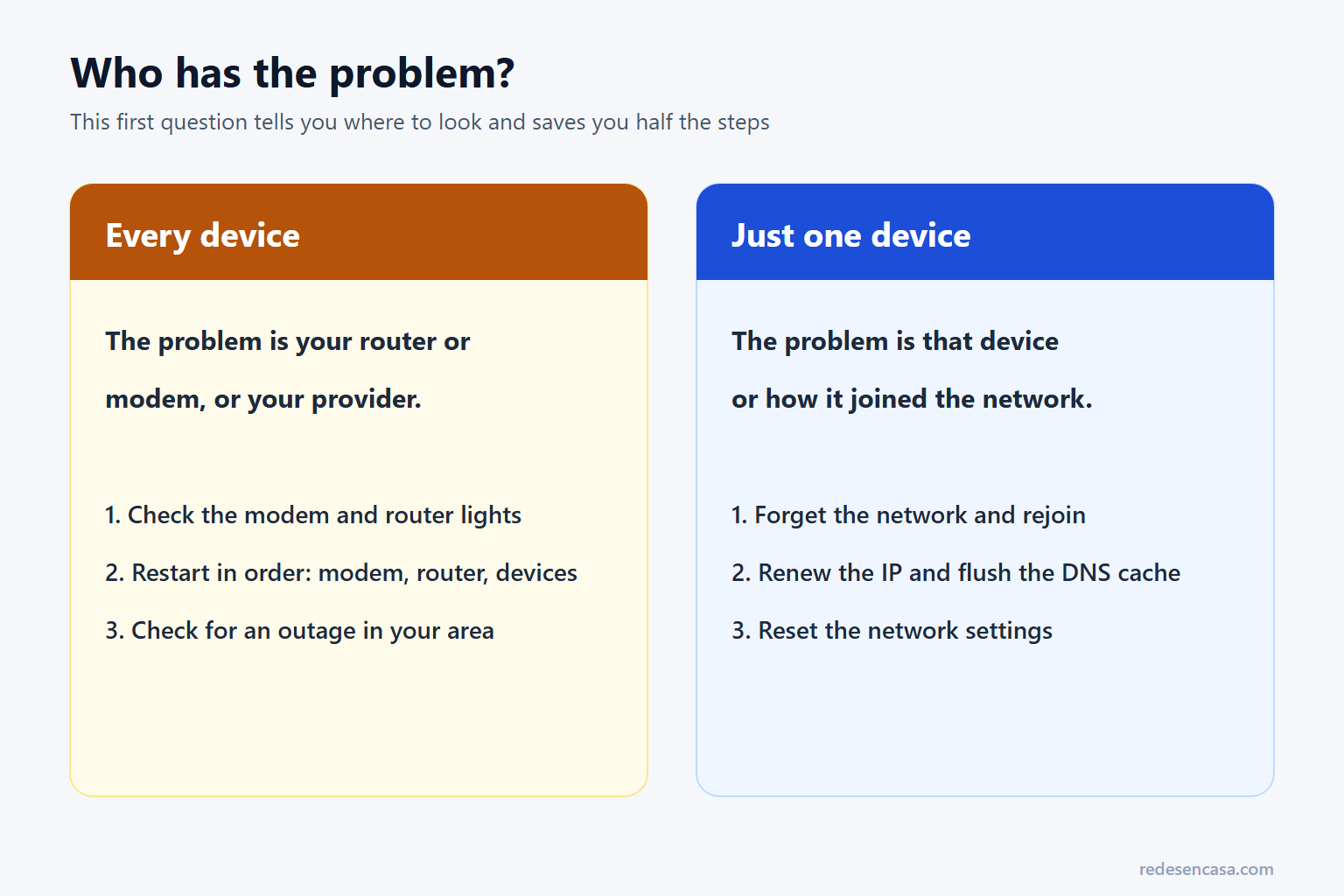
- If nothing can browse: the problem is your modem, router or provider. Go to the next section.
- If only one device fails: the network is fine and the problem is that device or how it joined. Skip to the steps for Windows, Android, iPhone or consoles.
WiFi connected but no internet on every device
Check the lights on the modem and router
The lights tell you in seconds whether you have a connection to your provider. Depending on your service you may have a cable modem (Xfinity, Spectrum, Cox), a fiber box called an ONT (AT&T Fiber, Verizon Fios, Google Fiber) plus a router, or a single gateway that does everything.
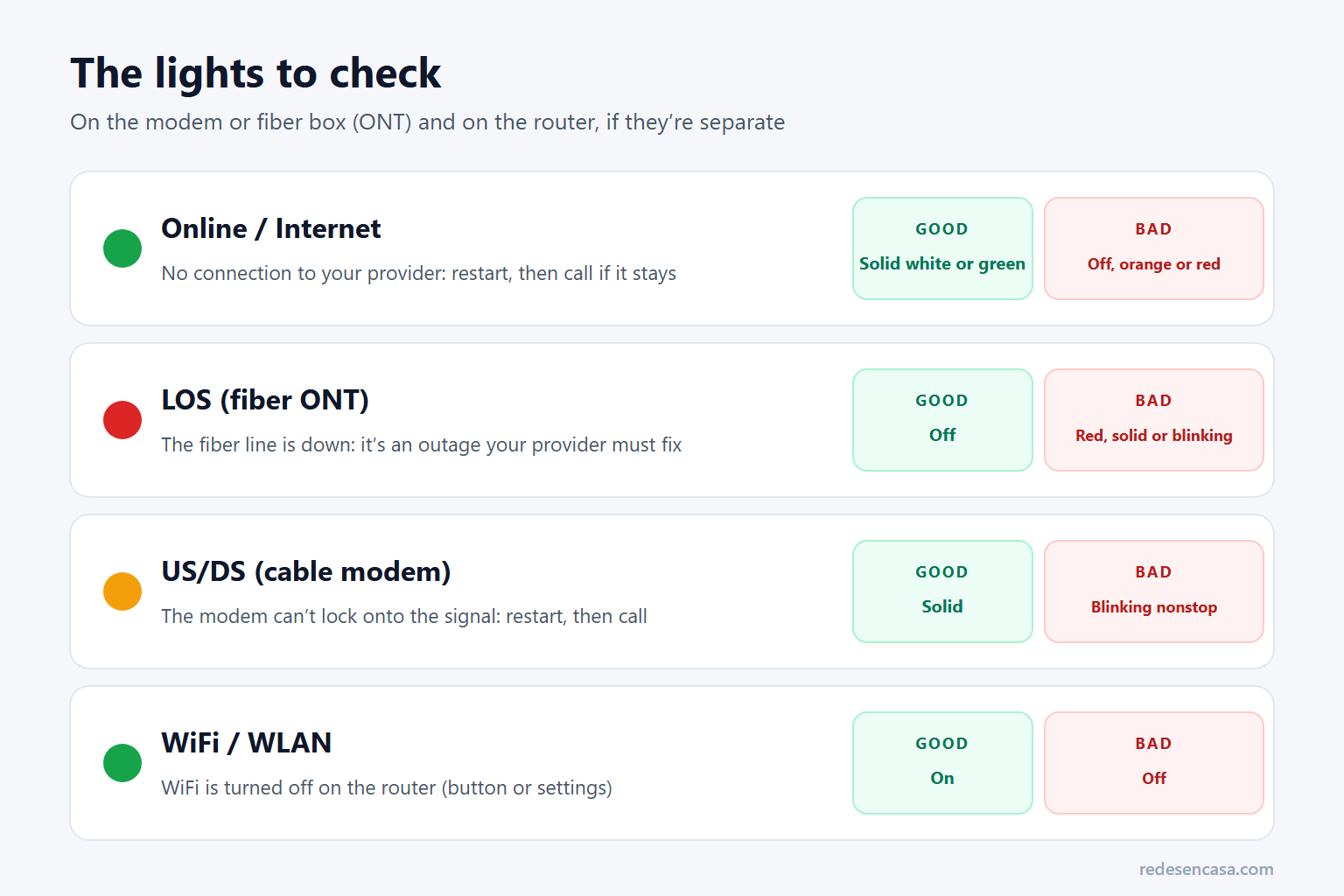
- Online or Internet light off, orange or red: no connection to your provider.
- LOS light red on a fiber box: the fiber line is down. That’s not something you can fix; call your provider.
- US/DS lights blinking nonstop on a cable modem: the modem can’t lock onto the signal. Restart it; if it keeps blinking, it’s your provider’s line.
Restart everything in the right order
Unplug the modem (or ONT) and the router. Plug in the modem first and wait until its online light is solid, usually one to two minutes. Then plug in the router and wait another two minutes, and only then reconnect your devices. The order matters: if the router boots before the modem has a signal, it can get stuck with no connection.
Check for an outage in your area
If your WiFi is still connected but there’s no internet on every device after the restart, open your provider’s app or website on cellular data and check for an outage. Most providers show outages in their apps, and sites like Downdetector show whether other people nearby are reporting problems. If there’s no outage and the online light is still off, call your provider: it’s the line or the modem, not your home network.
Other causes on the router side
- Too many devices. Basic provider routers start to struggle past 25 or 30 connected devices. Check who is using your WiFi.
- Parental controls or MAC filtering. If someone turned them on, some devices join the WiFi but can’t get online.
- An extender in the middle. If the device is connected to an extender, the extender may be the problem: see WiFi extender connected but no internet.
- An old router that keeps freezing. If you have to restart it every few days, it may be reaching the end of its life.
WiFi connected but no internet on Windows
- Forget the network and rejoin: in the WiFi list, right-click your network → Forget, then connect again with the password.
- Run the network troubleshooter: search for «network troubleshooter» in the Start menu. It fixes quite a few cases on its own.
- Renew the IP and flush DNS: open Command Prompt as administrator and run
ipconfig /release,ipconfig /renew,ipconfig /flushdns,netsh winsock resetandnetsh int ip reset, one at a time. Restart the computer afterwards. - Check your IP address: run
ipconfig. If it starts with 169.254, the computer didn’t get an address from the router. Restart the router and try again. - Turn off any VPN or proxy: a misconfigured proxy causes exactly this symptom.
- Network reset: as a last step, go to Settings → Network & internet → Advanced network settings → Network reset. It removes saved networks and reinstalls the network adapters.
If the computer is also slow or keeps dropping on WiFi, see how to fix a slow laptop on WiFi.
WiFi connected but no internet on Android
- Toggle airplane mode on and off and try again.
- Forget the network: Settings → Connections → Wi-Fi on Samsung (Settings → Network & internet → Internet on most others), tap the gear next to your network → Forget, and rejoin.
- Check Private DNS: Settings → Connections → More connection settings → Private DNS on Samsung (Settings → Network & internet → Private DNS on others). If a hostname is set that doesn’t work, the phone stays connected without internet: set it to Automatic.
- Try the phone’s real MAC address: in your network’s settings, change «MAC address type» (or «Privacy») to «Phone MAC» or «Use device MAC». Some routers with filters don’t get along with randomized MACs.
- Reset network settings: on Samsung, Settings → General management → Reset → Reset network settings; on other phones, Settings → System → Reset options → Reset Wi-Fi, mobile & Bluetooth.
WiFi connected but no internet on iPhone or iPad
- Forget the network: Settings → Wi-Fi → ⓘ next to your network → Forget This Network, and rejoin.
- Check Private Wi-Fi Address: on the same screen, try turning it off. Some routers with MAC filtering lock out the iPhone when its address changes.
- Set DNS to automatic: ⓘ → Configure DNS → Automatic.
- Turn off any VPN or configuration profiles you’ve installed.
- Reset network settings: Settings → General → Transfer or Reset iPhone → Reset → Reset Network Settings.
If the iPhone won’t connect at all, see iPhone not connecting to WiFi.
If your console or smart TV has no internet
Run the device’s own connection test, forget the network and rejoin, and check that IP and DNS settings are on automatic. If you ever set an IP address or DNS by hand, switch everything back to automatic: it’s the most common reason for WiFi connected but no internet on consoles. We have specific guides for the Xbox, smart TVs and tablets.
When DNS is the problem
There’s a very recognizable variant: some apps work and others don’t, or messaging apps work but the browser won’t open anything. That’s usually a DNS problem, the service that turns website names into addresses. If your provider’s DNS servers are failing, you can set others (for example 1.1.1.1 or 8.8.8.8) on the device or on the router.
At a hotel, airport or coffee shop: the captive portal
On public WiFi it’s normal to see the network connected with no internet until you accept the terms or enter a code on a welcome page. If that page doesn’t open by itself, visit any website that starts with http:// (no s), and briefly turn off your VPN or Private DNS, which can block it. And before using it for anything important, read whether public WiFi is safe.
Quick summary: causes and fixes
| What you see | Likely cause | What to do |
|---|---|---|
| No device can browse | Modem, router or provider | Check the lights, restart in order, check for outages |
| Red LOS light on a fiber box | Fiber line down | Call your provider |
| Only one device fails | IP, DNS or a bad saved network | Forget the network, renew the IP, reset network settings |
| IP address starting with 169.254 | The router isn’t handing out addresses | Restart the router; check how many devices are connected |
| Some apps work, others don’t | DNS | Set DNS to 1.1.1.1 or 8.8.8.8 |
| Hotel or coffee shop WiFi | Captive portal not accepted | Open an http:// website and accept the terms |
If you rent your provider’s router and it freezes every few days, putting your own WiFi 6 router behind the provider’s modem usually ends the problem. A reliable, affordable option is the TP-Link Archer AX55.
WiFi connected but no internet: FAQ
Why is my WiFi connected but there’s no internet?
Because your device is connected to the router, but the router has no connection to your provider, or the device didn’t get a proper IP address or DNS. Check whether every device has the problem: if so, it’s the modem, router or provider; if it’s just one, it’s that device.
What should I do if every device in the house has no internet?
Check the modem and router lights, restart in order (modem first, then router, then devices) and check your provider’s app for an outage. A red LOS light on a fiber box means the line is down and your provider has to fix it.
What does «No internet, secured» mean on Windows?
That the computer is connected to your password-protected WiFi («secured») but can’t reach the internet. If other devices work, renew the IP and flush the DNS from Command Prompt, or run a network reset.
Why does my phone say «Connected without internet»?
Usually because of a broken saved network, a misconfigured Private DNS or a router problem. Forget the network, set Private DNS to Automatic and, if that doesn’t fix it, reset the network settings.
Can DNS leave me without internet?
Yes. If your provider’s DNS fails, the WiFi stays connected but websites won’t load, or only some apps work. Switching to 1.1.1.1 or 8.8.8.8 fixes it.
Why does hotel WiFi say connected but no internet?
Because you haven’t accepted the terms on the welcome page yet. Open a website that starts with http:// to make it appear, and briefly turn off your VPN if you use one.
Conclusion
When your WiFi is connected but there’s no internet, always start with the same question: is it every device or just one? If it’s every device, check the lights, restart in order and check for an outage. If it’s just one, forget the network, renew the IP and DNS and, as a last step, reset the network settings. That fixes the vast majority of cases.