Chromecast Not Connecting to WiFi: Why It Happens and How to Fix It (2026)
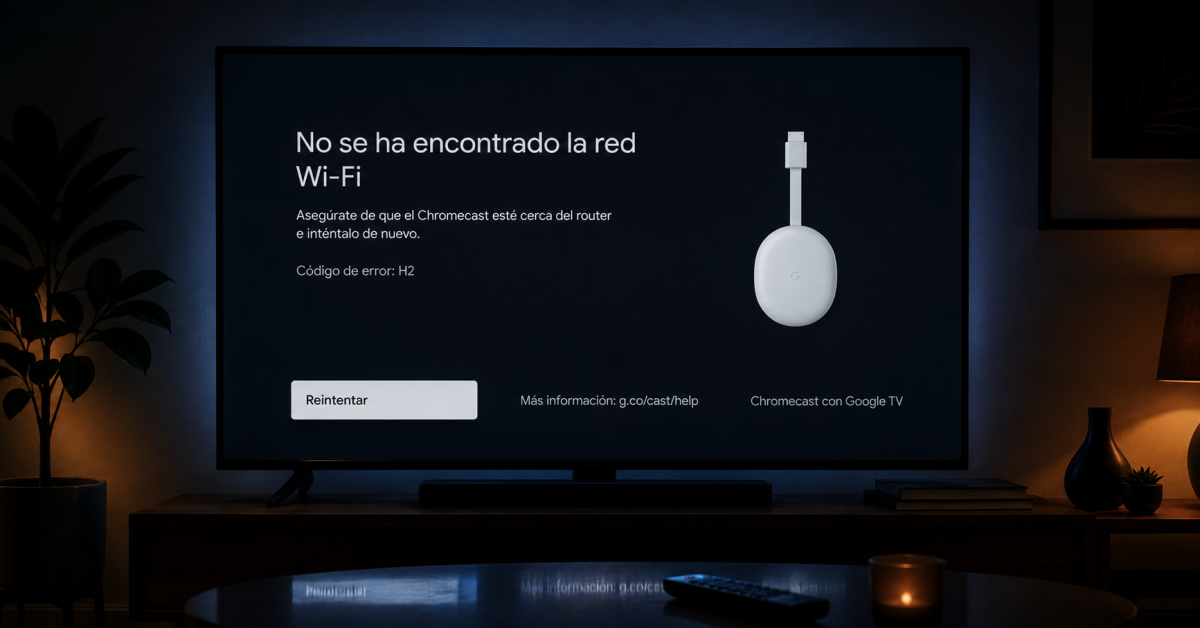
If your Chromecast is not connecting to WiFi, the fix is usually simpler than you’d think — a restart, a band change, or a reconnect through the Google Home app solves most cases in under five minutes. This guide walks you through every reason your Chromecast is not connecting to WiFi in 2026 and the exact fix for each, from quick restarts to a factory reset.
Works for Chromecast with Google TV (4K and HD), Chromecast 3rd gen, and older models.
Table of Contents
Why is Chromecast not connecting to WiFi?
When Chromecast is not connecting to WiFi, the root cause is almost always one of these:
- 📡 Band mismatch — older Chromecast models only support 2.4 GHz.
- 🔑 Wrong or outdated password — router password changed since last setup.
- 🔁 Stale connection — cached network error fixed by a restart.
- 📶 Weak signal — Chromecast is plugged into a TV behind furniture or far from the router.
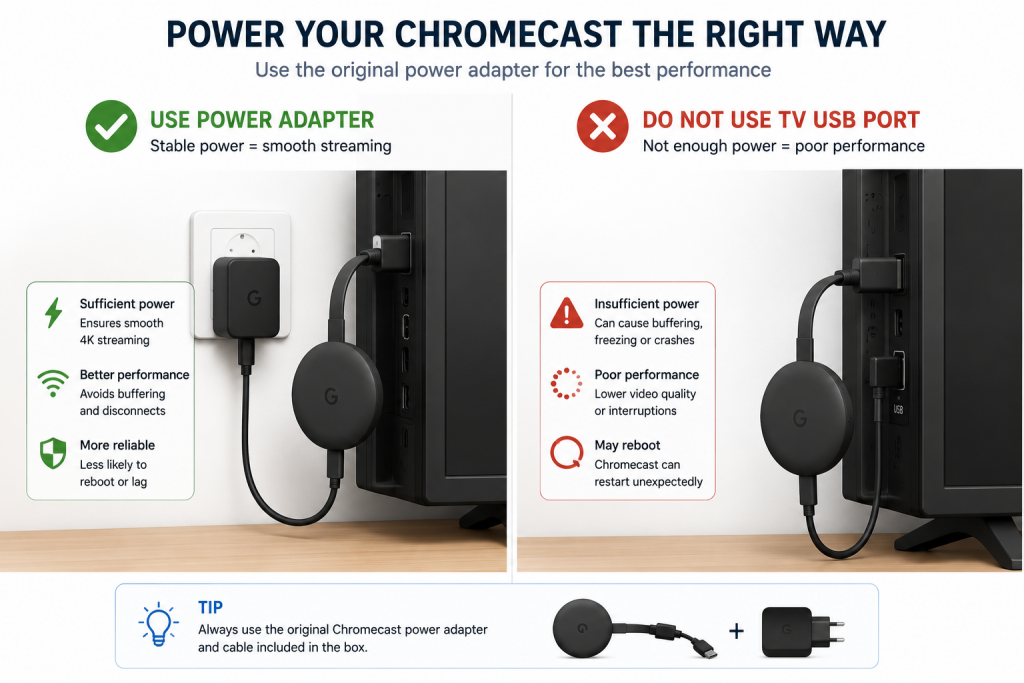
- 📺 TV USB power issue — powering the Chromecast from the TV’s USB port can cause instability.
1) Restart the Chromecast and the router
The fastest fix for Chromecast not connecting to WiFi is a full restart of both devices.
Chromecast restart:
- Unplug the Chromecast’s power cable (from the wall adapter, not the TV’s USB port).
- Wait 30 seconds, then plug it back in.
- Or from the Google Home app: tap your Chromecast → Settings (gear icon) → More (three dots) → Reboot.
Router restart: unplug from power for 30 seconds, then plug back in and wait 60 seconds before trying to reconnect the Chromecast.
2) Switch to 2.4 GHz — Chromecast compatibility check
This is one of the most common reasons Chromecast is not connecting to WiFi. Here’s the band support by model:
| Model | 2.4 GHz | 5 GHz |
|---|---|---|
| Chromecast 1st gen | ✅ Yes | ❌ No |
| Chromecast 2nd / 3rd gen | ✅ Yes | ✅ Yes |
| Chromecast with Google TV (HD) | ✅ Yes | ✅ Yes |
| Chromecast with Google TV (4K) | ✅ Yes | ✅ Yes |
If you have a 1st gen Chromecast and a 5 GHz-only network, it will never connect. Enable 2.4 GHz on your router. For all other models, try switching between bands in the Google Home app if one doesn’t connect.
3) Reconnect using Google Home app
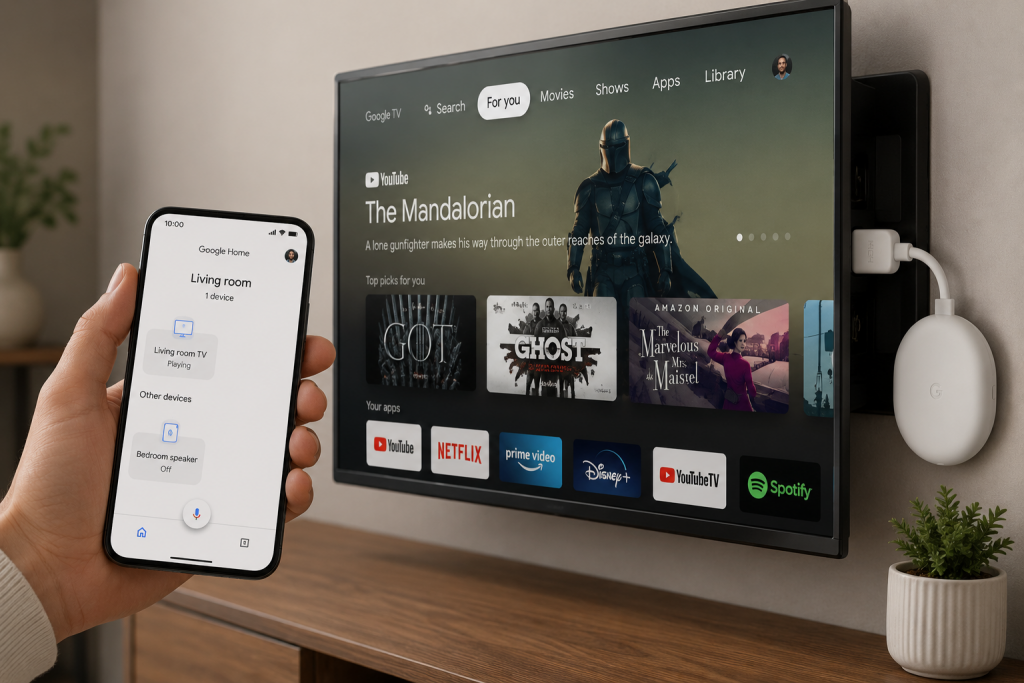
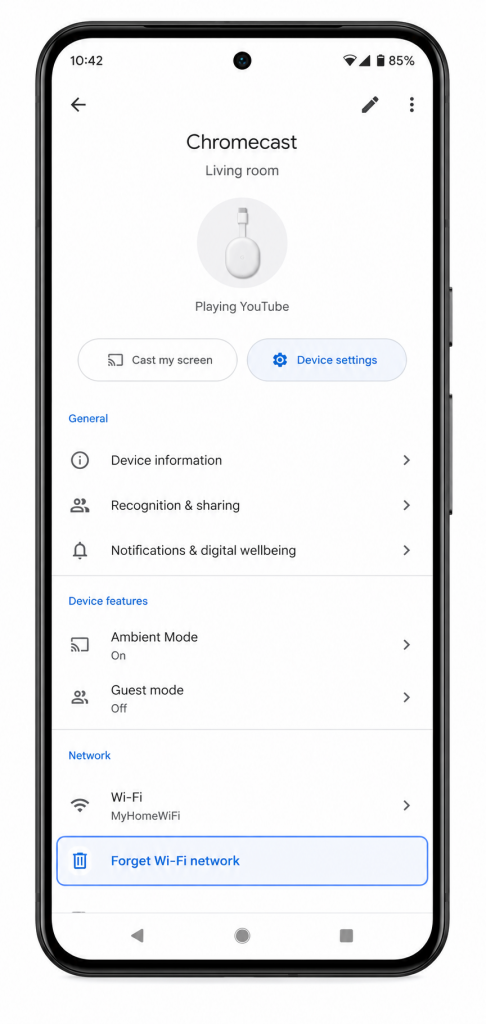
The Google Home app is the only way to change the WiFi network on a Chromecast. If your Chromecast is not connecting to WiFi after a password change or network change, follow these steps:
- Open the Google Home app on your phone.
- Tap your Chromecast device.
- Tap the gear icon → WiFi.
- Tap Forget network, then set it up again selecting the correct WiFi network and password.
4) Forget the network and reconnect
If the Chromecast has a corrupted saved network profile, forgetting it and reconnecting resolves the issue. Use the Google Home app steps in section 3 to forget the current network, then reconnect fresh with the correct password.
5) Change the router WiFi channel
In dense areas, channel congestion on 2.4 GHz can prevent the Chromecast from connecting to WiFi or cause frequent drops. Log in to your router’s admin panel (usually 192.168.1.1) and manually change the 2.4 GHz channel to 1, 6, or 11 — these are the non-overlapping channels that cause the least interference.
6) Factory reset the Chromecast
If all else fails and Chromecast is still not connecting to WiFi, a factory reset wipes everything and returns it to out-of-box state. You’ll set it up fresh in the Google Home app.
- Chromecast with Google TV: Settings → System → Factory Reset.
- Older Chromecast (2nd/3rd gen): hold the button on the side of the Chromecast for 25 seconds while it’s plugged in. The LED will flash and then turn white — setup mode starts.
7) Signal coverage: Chromecast too far from the router
The Chromecast plugged into the back of a TV behind a media unit or in a room far from the router often struggles with weak WiFi. If your Chromecast is not connecting to WiFi reliably, a WiFi extender placed in the same room as the TV significantly improves signal stability.
📌 Related guides:
- WiFi Keeps Cutting Out at Home: Causes and Fixes (2026)
- Best WiFi Mesh System 2026: Top Picks Compared
- Slow WiFi at Home: Real Causes and Fixes (2026)
Avoid future disconnections: Chromecast best practices
After applying the Chromecast not connecting to WiFi fix, these details keep it streaming without surprises:
- Power it from the wall, not the TV USB port — TV USB ports cut power when the TV turns off, forcing the Chromecast to reboot and reconnect every time. The original wall adapter avoids this entirely.
- Use the HDMI extender cable included in the box — it moves the Chromecast away from the TV chassis, whose metal back weakens the WiFi signal noticeably.
- Prefer 5 GHz if the router is nearby — 4K streaming needs a sustained 20+ Mbps, which is much easier to hold on the 5 GHz band.
- Keep phone and Chromecast on the same network — if your router has separate SSIDs per band, casting fails when the phone is on one band and the Chromecast on the other with client isolation enabled.
Why does my Chromecast say it can’t connect to WiFi?
The most common reasons Chromecast is not connecting to WiFi are: the device is trying to connect to 5 GHz but is a 1st gen model that only supports 2.4 GHz, the WiFi password was changed, or the router needs a restart. Try restarting both devices and reconnecting via the Google Home app.
Does Chromecast work on 5 GHz WiFi?
Only 2nd gen and newer Chromecast models support 5 GHz. If you have a 1st gen Chromecast and your Chromecast is not connecting to WiFi, make sure your router broadcasts a 2.4 GHz network. All newer models work on both bands.
Chromecast connects to WiFi but won’t stream — what’s wrong?
If Chromecast connects to WiFi but has no internet, the issue is usually DNS or the router’s internet connection. Try restarting the router, checking your ISP connection, and changing DNS to 8.8.8.8 on the router. Also check that your phone and Chromecast are on the same WiFi network when casting.
How do I reset Chromecast WiFi settings without the remote?
You don’t need a remote. For older Chromecast models: hold the physical button on the device for 25 seconds until the LED flashes. For Chromecast with Google TV: use the Google Home app → your device → Settings → Factory Reset. This clears the WiFi settings when Chromecast is not connecting to WiFi.
Can I use Chromecast without the Google Home app?
You need the Google Home app for initial setup and to change WiFi networks. Once set up, you can cast from any compatible app without using Google Home. But if Chromecast is not connecting to WiFi after a network change, you must use the Google Home app to update the WiFi settings.
Why does my Chromecast disconnect every time I turn off the TV?
Because it is powered from the TV USB port. When the TV turns off, the port cuts power, the Chromecast shuts down and has to boot and reconnect to WiFi the next time. Plug the Chromecast into a wall outlet using its original power adapter and it will stay connected permanently, ready to cast instantly.
How much internet speed does Chromecast need?
For HD streaming (1080p), a stable 5-10 Mbps at the Chromecast location is enough. For 4K on Chromecast with Google TV, you need a sustained 20-25 Mbps. Note this is the real speed reaching that spot over WiFi, not your fiber contract speed — measure it with a phone speed test standing next to the TV.
Conclusion
When Chromecast is not connecting to WiFi, start with a restart of both the device and router, verify you’re on the correct WiFi band (2.4 GHz for 1st gen), and reconnect via the Google Home app. If coverage is weak behind the TV, a WiFi extender in the same room is the most effective long-term fix. Factory reset is the last resort and solves most persistent cases.