Nintendo Switch Keeps Disconnecting from WiFi: Complete Fix Guide (2026)
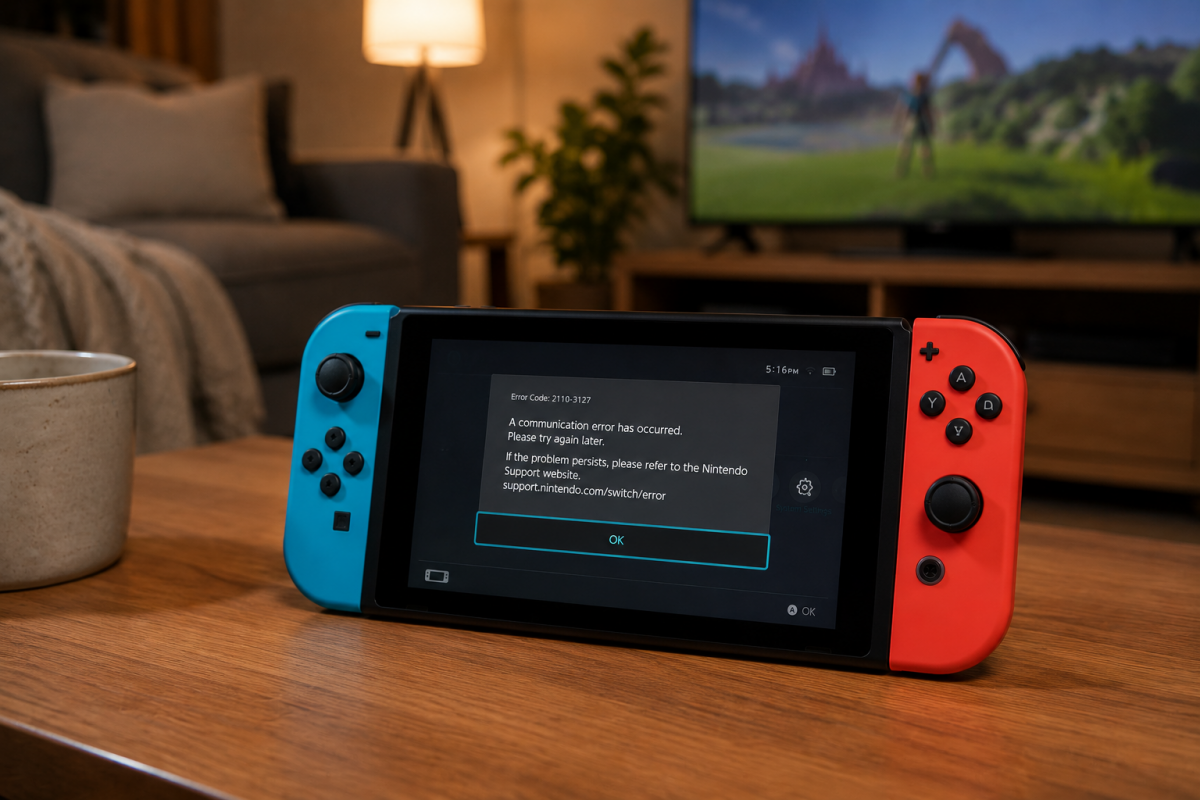
If your Nintendo Switch keeps disconnecting from WiFi in the middle of a game or randomly drops the connection, you’re not alone — it’s one of the most common issues with the console. The good news is that in 90% of cases it has a simple fix without calling your ISP. This complete guide explains why your Nintendo Switch keeps disconnecting from WiFi and how to fix it step by step in 2026.
Try these fixes in order before buying anything or contacting support — most cases are solved in under 10 minutes.
Table of Contents
Why does the Nintendo Switch keep disconnecting from WiFi?
Your Nintendo Switch keeps disconnecting from WiFi for several different reasons. The most common ones are:
- 📶 Weak signal — too far from the router or walls blocking the signal.
- 📡 Wrong band — Switch connected to 5 GHz with poor coverage.
- 🔁 Dynamic IP — IP address changes and causes connection drops.
- 🌐 Slow DNS — ISP’s DNS servers cause connection timeouts.
- 😴 Sleep mode — WiFi drops when the screen turns off.
- 🔒 NAT Type C or D — blocks or drops online multiplayer connections.
Nintendo Switch 2 keeps disconnecting from WiFi? What’s different
Everything in this guide also applies to the Nintendo Switch 2, but the new console changes four things that matter when your Switch 2 keeps disconnecting from WiFi:
- WiFi 6 (802.11ax) on 2.4 and 5 GHz. With a WiFi 6 router it copes better with a busy network; with an older router it still works, just without that advantage. It doesn’t use the 6 GHz band.
- A LAN port built into the dock. Unlike the original Switch, you don’t need a USB adapter: just run an Ethernet cable from the router to the dock. The wired connection only works while the console is docked (TV mode); in handheld mode it always uses WiFi.
- WPA3 support, but no old encryption. If your network shows up greyed out in the list, the router is using a security type the console doesn’t accept (WEP or TKIP). Switch it to WPA2 (AES) or WPA2/WPA3 in the router settings — see WPA2 vs WPA3 explained.
- Game-Key Cards don’t contain the game. The first time, the data has to be downloaded, and if the connection drops the download stops. Do it with the console docked and, ideally, on a cable.
If your Switch 2 only disconnects in handheld mode, it’s almost always coverage — docked on a cable it won’t happen. The most reliable fix is a cable to the dock; if the router is far away, a powerline kit carries the connection through your electrical wiring.
1) Weak signal or distance from the router
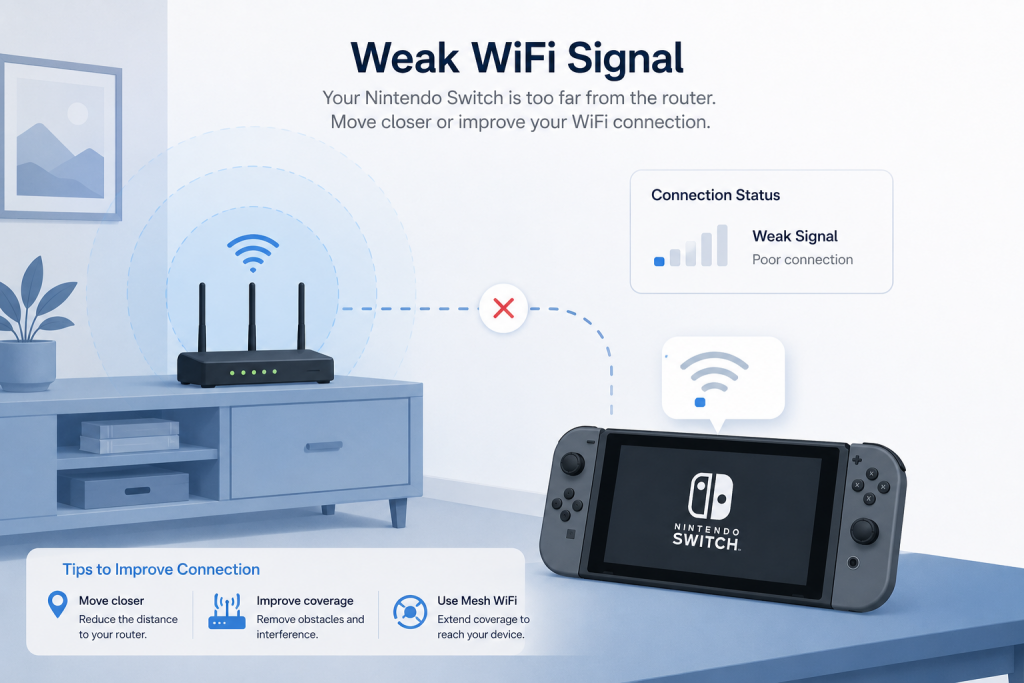
The most common reason your Nintendo Switch keeps disconnecting from WiFi is simple: the console is too far from the router or there are walls blocking the signal.
How to check it: go to System Settings → Internet → Internet Settings, select your network and tap Test Connection. If signal strength is below 50% or download speed is under 10 Mbps, coverage is the issue.
Quick fix:
- Move the Switch closer to the router when playing in handheld mode.
- If playing in TV mode, place the dock near the router or use a WiFi extender.
- If signal is very weak, section 7 shows you how to connect the Switch by cable.
2) 2.4 GHz vs 5 GHz: which band to use on the Switch
The Nintendo Switch supports both 2.4 GHz and 5 GHz. Many users connect to 5 GHz because it appears first in the list — but if the router is in another room, 5 GHz loses signal much faster through walls than 2.4 GHz. This is a very common reason why the Nintendo Switch keeps disconnecting from WiFi.
| Band | Range | Speed | When to use on the Switch |
|---|---|---|---|
| 2.4 GHz | ✅ Better (goes through walls) | Lower | Router far away, another floor, thick walls |
| 5 GHz | ❌ Weaker | Higher | Router in the same room or very close |
Fix: if the Switch keeps disconnecting on 5 GHz, connect the console to the 2.4 GHz network instead (usually the same name with «_2.4» or «2G» suffix, or without any suffix).
3) Dynamic IP and network conflicts
When the router assigns a dynamic IP to the Switch, the IP can change each time it reconnects and cause a conflict with another device on the network. This makes the Nintendo Switch keep disconnecting from WiFi seemingly at random.
Fix: assign a static IP to the Switch
- Go to System Settings → Internet → Internet Settings.
- Select your WiFi network and tap Change Settings.
- Under IP Address Settings, change from «Automatic» to Manual.
- Enter an IP outside your router’s DHCP range (e.g. 192.168.1.200), subnet mask 255.255.255.0, gateway = your router’s IP (e.g. 192.168.1.1).
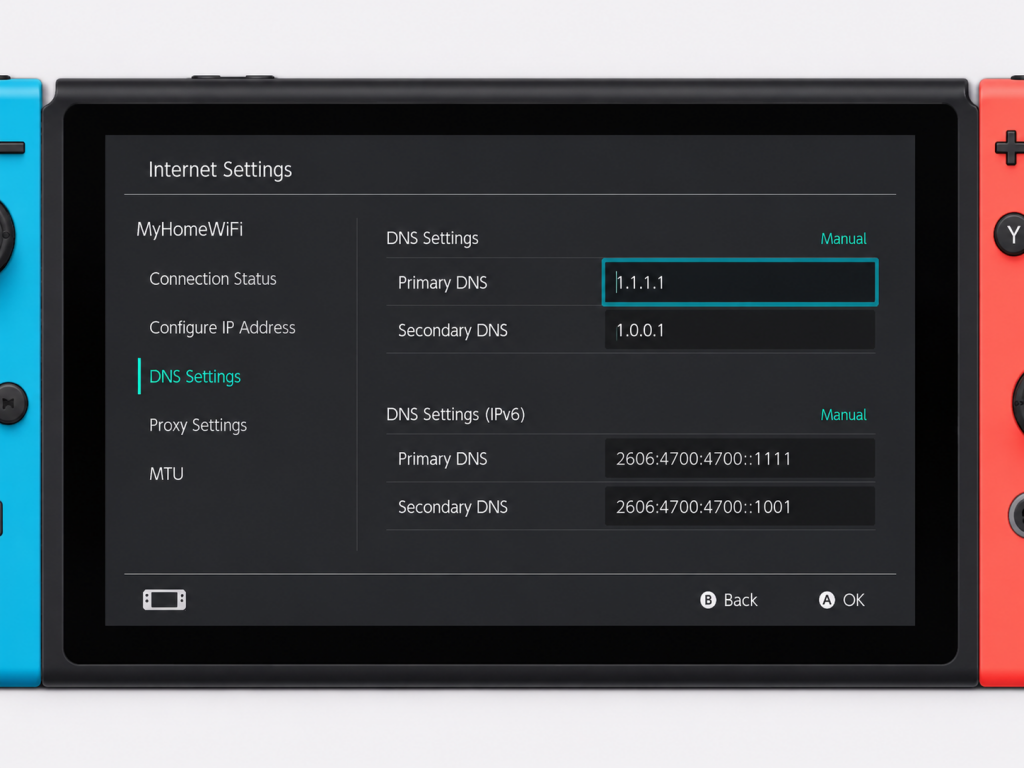
4) Slow or incorrect DNS settings
Your ISP’s DNS servers can be slow or unstable, making the Nintendo Switch unable to resolve Nintendo’s servers — so it disconnects from online services even though WiFi shows as «connected». This is another frequent cause of a Nintendo Switch that keeps disconnecting from WiFi.
Fix: switch to Google DNS
- Go to System Settings → Internet → Internet Settings → your network → Change Settings.
- Under DNS Settings, change to Manual.
- Primary DNS: 8.8.8.8 (Google) — Secondary DNS: 8.8.4.4.
- Save and run the connection test.
5) Sleep mode cutting the WiFi connection
One of the less obvious reasons the Nintendo Switch keeps disconnecting from WiFi is sleep mode: when the console turns off the screen in handheld mode, it can also drop the WiFi connection.
Fix:
- Go to System Settings → Sleep Mode.
- Enable «Maintain Internet Connection in Sleep Mode».
- This keeps the WiFi active even when the screen is off — useful for background downloads or if online games drop when the screen turns off.
6) NAT Type and router ports
NAT Type indicates how open the Switch’s connection is for online gaming. If your Nintendo Switch keeps disconnecting from WiFi during multiplayer but the local connection works fine, NAT Type is likely the cause.
- ✅ NAT Type A or B: optimal for online gaming.
- ⚠️ NAT Type C: restrictive, may block some matchmaking.
- ❌ NAT Type D: very restrictive, frequent online connection drops.
Fix: open the required ports on your router for Nintendo Switch (UDP 1–65535 / TCP 6667, 12400, 28910, 29900, 29901, 29920). The exact steps depend on your router model. If your ISP uses CGNAT, contact them to request a public IP address.
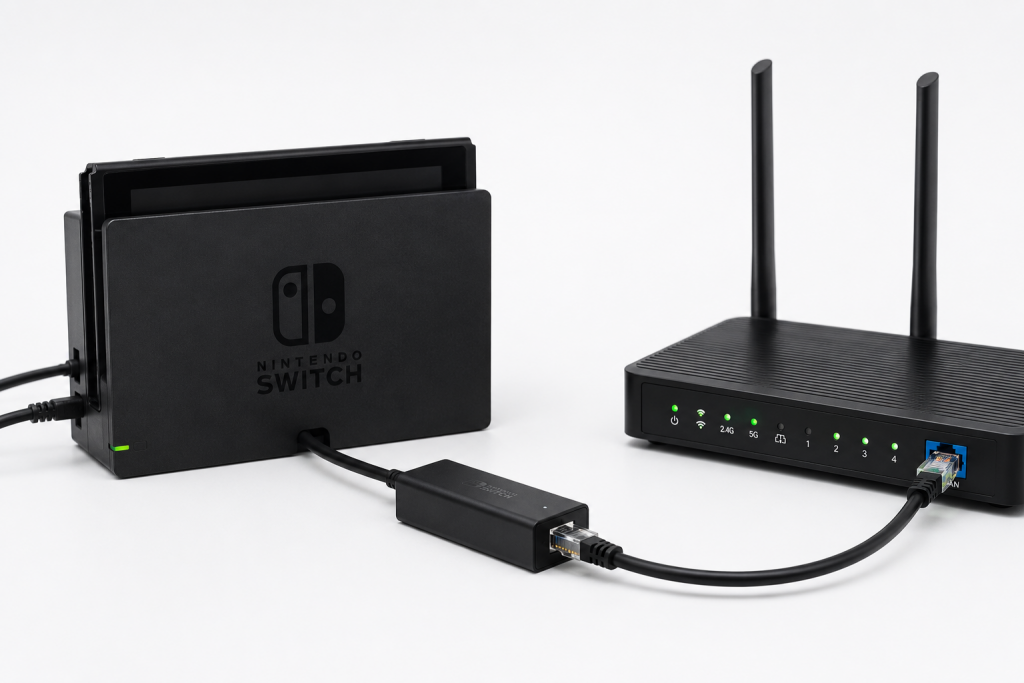
7) The definitive fix: connect the Switch via Ethernet cable
If you’ve tried everything above and your Nintendo Switch still keeps disconnecting from WiFi, the most reliable solution is to connect it via Ethernet cable. The Switch in TV mode (with the dock) has 3 USB-A ports — plug in a USB-A to Ethernet adapter and you have a direct wired connection.
With Ethernet, the Switch:
- ✅ Stops disconnecting completely.
- ✅ Gets much lower latency for smoother online gaming.
- ✅ Doesn’t depend on WiFi signal quality at all.
⚠️ TV mode only (dock required). In handheld or tabletop mode without the dock, WiFi is the only option.
If the router is in a different room from your TV, you can extend the network without running a long cable using a powerline adapter (PLC) or a WiFi extender with an Ethernet port — then connect that to the dock with a short cable.
8) Recommended products if WiFi doesn’t reach your Switch
Option 1: USB to Ethernet Adapter for the Switch dock
The most direct fix to stop your Nintendo Switch from keeping disconnecting from WiFi. Plug it into one of the USB ports on the dock and you have wired Ethernet.
Option 2: Powerline adapter kit (no cables through walls)
If the router is in another room, a powerline kit (PLC) sends your network through the electrical wiring. Plug one adapter into the router and the other near the TV — then connect the dock via short Ethernet cable.
Option 3: WiFi extender with Ethernet port
If the router is nearby but walls are blocking the signal, a WiFi extender with an Ethernet port lets you boost the signal and connect the Switch dock via a short wired cable.
📌 Related guides:
- Best WiFi Extenders 2026
- WiFi vs Ethernet at Home: When to Use a Cable (2026)
- Ethernet Backhaul for Mesh WiFi
Why does my Nintendo Switch keep disconnecting from WiFi during games?
The most common reasons your Nintendo Switch keeps disconnecting from WiFi during gameplay are: weak or unstable signal, being connected to 5 GHz from too far away, a changing dynamic IP, slow DNS servers, or NAT Type C/D blocking the multiplayer connection.
How do I stop my Nintendo Switch from disconnecting from WiFi?
To stop your Nintendo Switch from keeping disconnecting from WiFi: connect to the 2.4 GHz band if the router is far away, assign a static IP, change DNS to 8.8.8.8, and enable ‘Maintain Internet Connection in Sleep Mode’. If the problem continues, use an Ethernet cable through the dock.
Can I connect the Nintendo Switch with an Ethernet cable?
Yes — in TV mode (with the dock) you can connect the Switch via Ethernet using a USB-A to Ethernet adapter in one of the dock’s USB ports. It’s the most reliable fix to stop the Nintendo Switch from disconnecting from WiFi, since it removes the WiFi dependency entirely.
What NAT Type does the Nintendo Switch need for online play?
The Nintendo Switch needs NAT Type A or B for smooth online gaming. If you have NAT Type C or D, the Nintendo Switch keeps disconnecting from WiFi or can’t join lobbies. Fix: open the required ports on your router or contact your ISP if you’re behind CGNAT.
What DNS should I set on the Nintendo Switch?
If your Nintendo Switch keeps disconnecting from WiFi due to DNS issues, switch to Google DNS: primary 8.8.8.8 and secondary 8.8.4.4. Set it in System Settings → Internet → Internet Settings → your network → Change Settings → DNS Settings → Manual.
Does the Nintendo Switch disconnect from WiFi in sleep mode?
It can, if ‘Maintain Internet Connection in Sleep Mode’ is not enabled. Go to System Settings → Sleep Mode and turn it on. This keeps your Nintendo Switch connected to WiFi even when the screen is off, preventing background download interruptions or online game drops.
Does the Nintendo Switch support 5 GHz WiFi?
Yes. All Nintendo Switch models — original, OLED and Lite — support 5 GHz WiFi (802.11ac). If you play near the router, connect to the 5 GHz band for lower latency and fewer disconnections. If you play far from the router or behind several walls, 2.4 GHz reaches further but is more prone to interference.
Why does my Switch disconnect only in handheld mode but not docked?
In docked mode the console sits in a fixed position, usually closer to the router, and can use a LAN adapter. In handheld mode you move around the house, crossing weak-signal zones, and your body and furniture block the signal. If it only disconnects handheld, the cause is almost always coverage — play closer to the router or extend the signal to that room.
Why does my Switch 2 keep disconnecting from WiFi?
For the same reasons as the original Switch: weak signal, the wrong band, sleep mode or DNS. There’s one Switch 2-specific cause: if your network appears greyed out, the router uses an old security type (WEP or TKIP) the console doesn’t support. Set it to WPA2 (AES) or WPA2/WPA3.
Does the Switch 2 have an Ethernet port?
Yes, on the dock. Just connect an Ethernet cable from the router to the dock — no USB adapter needed. The wired connection only works while the console is in the dock.
Conclusion
If your Nintendo Switch keeps disconnecting from WiFi, always start with the basics: check signal strength, switch to 2.4 GHz if the router is far, assign a static IP, and change DNS to 8.8.8.8. That fixes the majority of cases. If coverage is the problem, a WiFi extender with an Ethernet port or a powerline adapter let you get a wired connection to the dock — and with cable, the Switch never disconnects again.