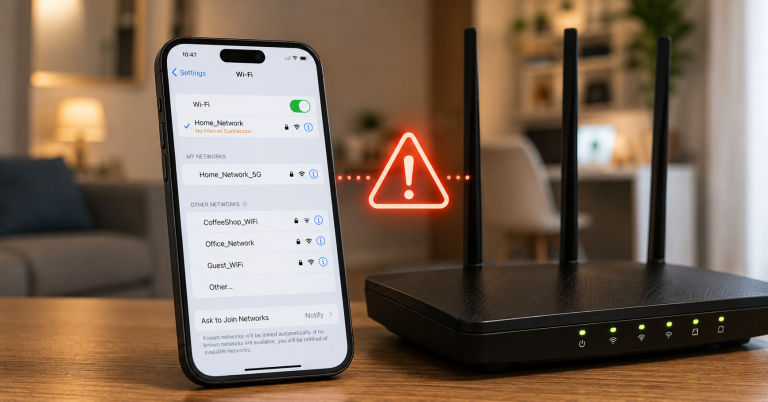
Laptop WiFi Slow: Why It Happens and How to Fix It (2026)
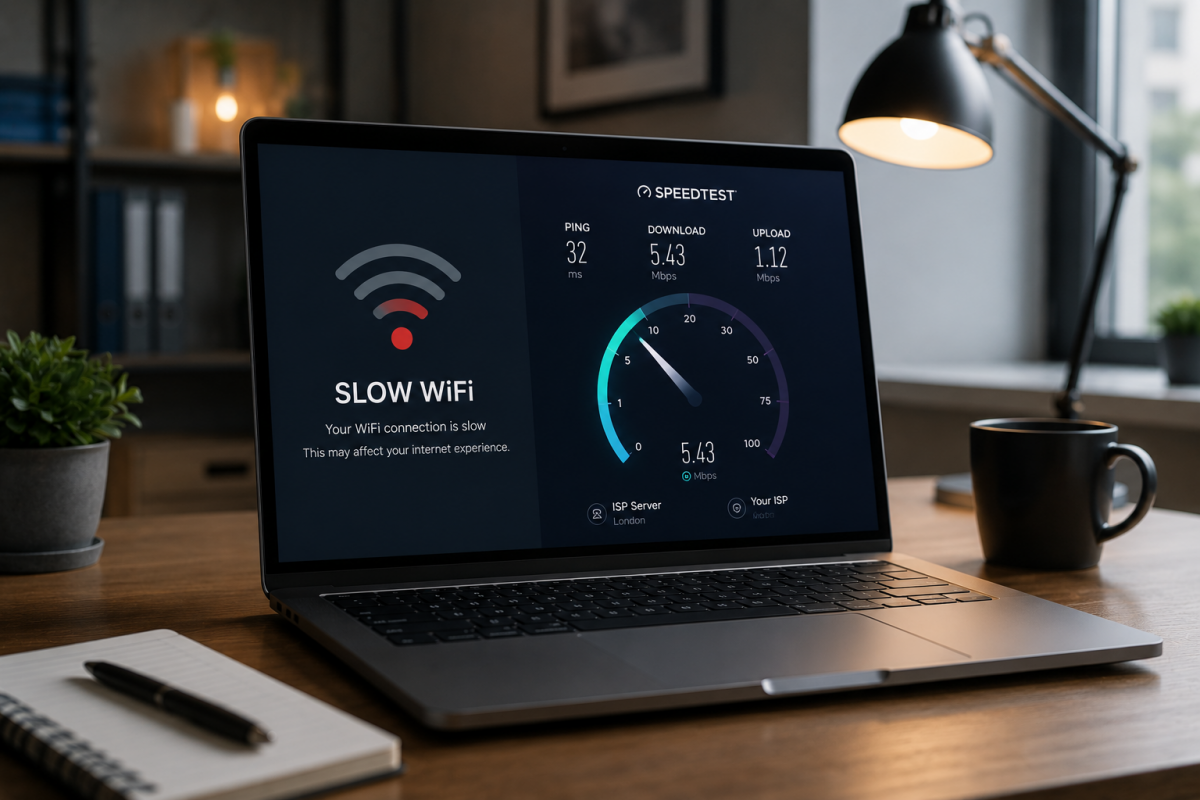
A laptop WiFi slow fix is easier than most people think — in the majority of cases, the culprit is an outdated driver, a power-saving setting throttling the adapter, or a congested WiFi channel. This guide walks you through every cause and fix for laptop WiFi slow speeds in 2026, from quick software tweaks to hardware upgrades when nothing else works.
Works for Windows 10, Windows 11, and most laptop brands (Dell, HP, Lenovo, Asus, Acer).
Table of Contents
Why is my laptop WiFi slow? Main causes
When your laptop WiFi is slow, the problem is usually one of these:
- 🔧 Outdated or corrupted WiFi driver — the most common cause on Windows.
- 🔋 Power-saving mode — Windows throttles the WiFi adapter to save battery.
- 📡 Congested WiFi channel — too many networks on the same channel as yours.
- 📶 Wrong band — connected to 2.4 GHz when 5 GHz is available and faster.
- 💻 Weak internal adapter — older laptops have slow built-in WiFi cards.
- 📍 Distance or obstacles — walls, floors, or distance to the router.

1) Update or reinstall the WiFi driver
The single most effective laptop WiFi slow fix on Windows is updating the WiFi adapter driver. An outdated or corrupted driver silently limits your WiFi speed even on a fast network.
How to update the WiFi driver:
- Right-click the Start button → Device Manager.
- Expand Network Adapters and find your WiFi adapter (e.g. «Intel Wi-Fi 6 AX201»).
- Right-click it → Update driver → Search automatically for drivers.
- If no update is found, go to the laptop manufacturer’s website (Dell Support, HP Support, Lenovo Support) and download the latest WiFi driver for your model.
If the driver is already up to date but WiFi is still slow: uninstall the driver completely (right-click → Uninstall device → check «Delete driver software»), restart the laptop, and let Windows reinstall it fresh.
2) Disable WiFi power-saving mode
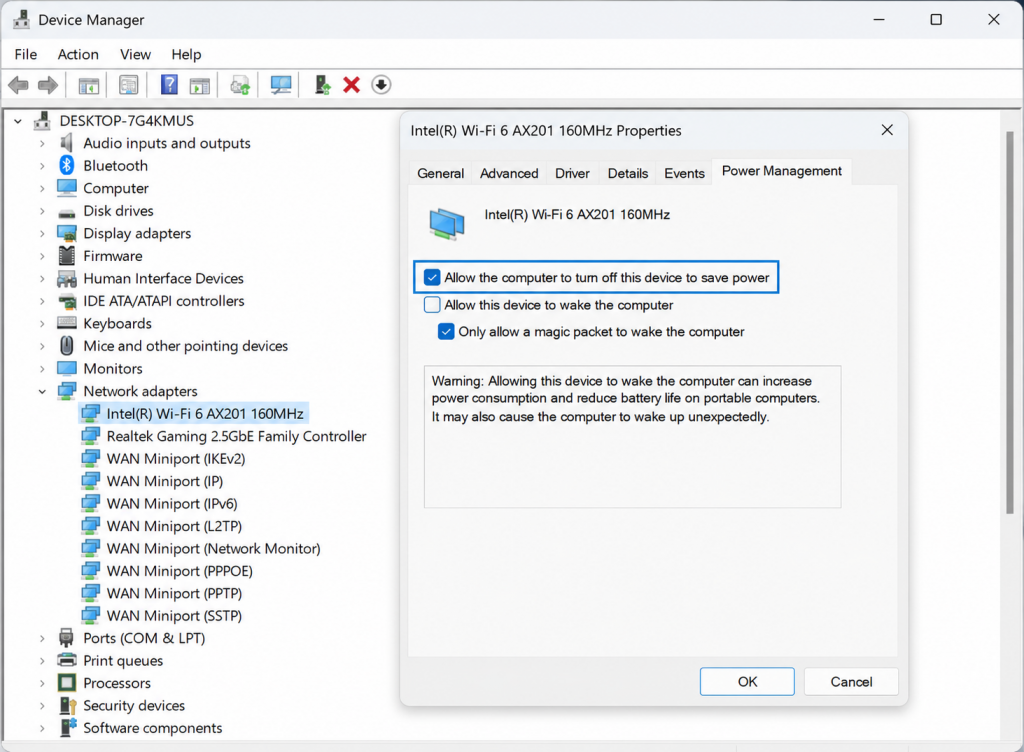
Windows has a power-saving setting that reduces the WiFi adapter’s performance when plugged in on certain power plans — and aggressively throttles it on battery. This is the sneakiest cause of laptop WiFi slow speeds that appear fine on a speed test but feel sluggish in practice.
Fix:
- Open Device Manager → Network Adapters → your WiFi adapter → right-click → Properties.
- Go to the Power Management tab.
- Uncheck «Allow the computer to turn off this device to save power».
- Also go to Advanced tab → find «Power Saving Mode» or «Power Management» → set it to Maximum Performance.
3) Fix a congested WiFi channel
In apartments or dense areas, multiple routers compete on the same WiFi channel — causing interference that makes your laptop WiFi slow even with a strong signal. This is especially common on 2.4 GHz.
How to find the least congested channel:
- Download WiFi Analyzer (free on Microsoft Store) to see which channels nearby networks use.
- Log into your router’s admin panel (usually 192.168.1.1 or 192.168.0.1).
- Under Wireless settings, change the channel manually to one with less traffic (channels 1, 6, or 11 on 2.4 GHz).
4) Switch to 5 GHz if you’re close to the router
If your laptop is in the same room as the router and WiFi is still slow, check which band you’re connected to. The 2.4 GHz band has much lower maximum speeds than 5 GHz. A fast laptop WiFi slow fix in this scenario is simply connecting to the 5 GHz network.
| Band | Max speed | Range | Best for |
|---|---|---|---|
| 2.4 GHz | Up to ~150 Mbps real | Better range | Devices far from the router |
| 5 GHz | Up to ~600 Mbps real | Shorter range | Laptops close to the router |
| 6 GHz (WiFi 6E) | Up to ~1200 Mbps real | Shortest | Same room, latest hardware only |
5) Windows network adapter settings to check
Several hidden Windows settings can make your laptop WiFi slow without any obvious sign. Check these in Device Manager → Network Adapters → your WiFi adapter → Properties → Advanced tab:
- Roaming Aggressiveness: set to Medium. Too high = constant band-switching, too low = sticks to a weak signal.
- Transmit Power: set to Highest.
- 802.11n/ac/ax Mode: ensure it’s set to the highest standard your adapter supports (e.g. «IEEE 802.11ax» for WiFi 6).
- Preferred Band: if available, set to «Prefer 5 GHz band».
6) USB WiFi adapter: the affordable upgrade
If you’ve tried all the software fixes and your laptop WiFi is still slow, the problem might be the internal WiFi card itself. Older laptops often have WiFi 4 or WiFi 5 adapters with limited antenna performance. A USB WiFi adapter is a cheap and effective hardware upgrade — plug in and instantly get faster speeds.
The TP-Link Archer TX20U Plus is a solid choice: dual-band WiFi 6 AX1800 with two high-gain antennas, for Windows 10/11 (it does not support macOS), at a budget price.
7) When to just use Ethernet
The most reliable laptop WiFi slow fix when you need consistent speeds for work, video calls, or gaming is to connect via Ethernet. If your laptop has a built-in LAN port, use it. If not (many modern thin laptops don’t), a USB-C to Ethernet or USB-A to Ethernet adapter costs under $15 and gives you full gigabit speed.
When WiFi isn’t good enough: remote video calls where drops are embarrassing, large file transfers or downloads, online gaming where latency matters, working from home on a VPN (which adds overhead to WiFi).
Recommended products for slow laptop WiFi
TP-Link Archer TX20U Plus — WiFi 6 USB Adapter AX1800
Best value laptop WiFi slow fix upgrade. Dual-band WiFi 6, two high-gain antennas, quick setup on Windows. Instantly replaces a weak built-in adapter.
USB-C to Ethernet Adapter — wired connection for thin laptops
If your laptop has USB-C but no Ethernet port, this adapter gives you a direct gigabit wired connection. Plug-and-play, no drivers needed.
📌 Related guides:
- Slow WiFi at Home: Real Causes and Fixes (2026)
- WiFi vs Ethernet: When to Use a Cable (2026)
- High Ping in Online Games: How to Reduce Lag (2026)
Keep your laptop WiFi fast: maintenance habits that work
After fixing a laptop WiFi slow problem, these habits stop it from coming back:
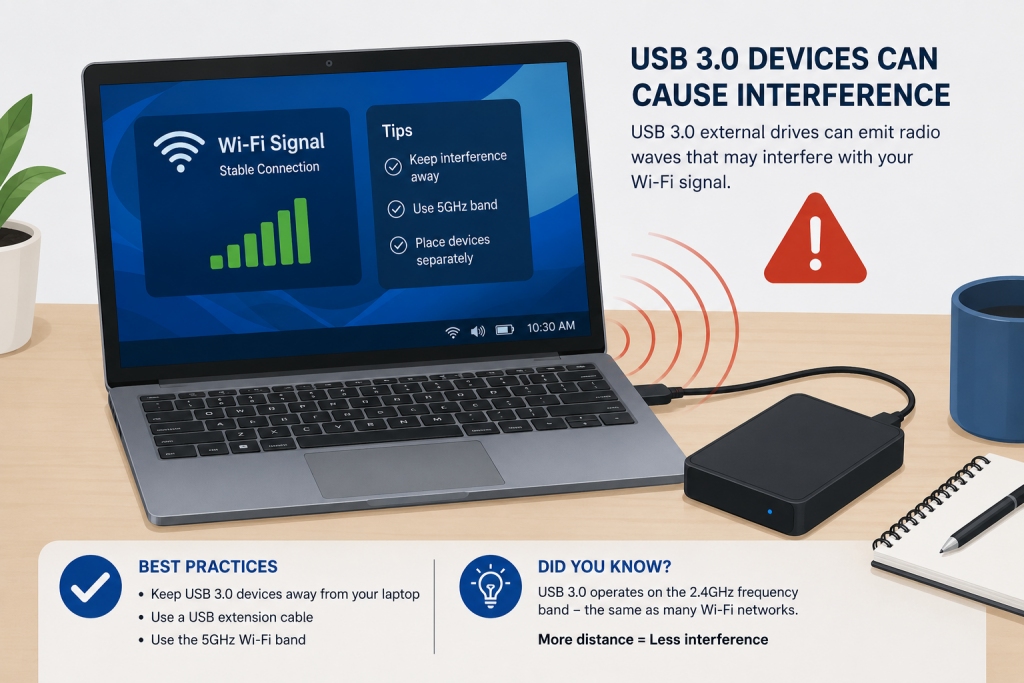
- Watch out for USB 3.0 devices — USB 3.0 ports and hubs emit radio noise in the 2.4 GHz range. An external drive plugged in next to the WiFi antenna can literally halve your speed. Use 5 GHz or move the device to the other side.
- Update the WiFi driver twice a year — download it from the laptop manufacturer or the chipset maker (Intel, Realtek, MediaTek), not just Windows Update.
- Check the power plan — on battery, Windows throttles the WiFi card. For video calls plugged in, use the High Performance plan.
- Clear bandwidth hogs — OneDrive, Google Drive and Windows Update love syncing at the worst moment. Pause them during meetings.
Why is my laptop WiFi slow but my phone is fast?
If your phone is fast but your laptop WiFi is slow, the issue is the laptop, not the router. Most common causes: outdated WiFi driver, power-saving mode throttling the adapter, wrong WiFi band (2.4 GHz instead of 5 GHz), or a weak internal WiFi card. Try the driver update and power-saving fixes first.
Does reinstalling the WiFi driver really fix slow speeds?
Yes — an outdated or corrupted WiFi driver is the most common cause of laptop WiFi slow performance on Windows. Updating or doing a clean reinstall of the driver through Device Manager or the manufacturer’s website often restores full speed immediately.
Will a USB WiFi adapter make my laptop faster?
Yes, if your internal WiFi card is old (WiFi 4 or early WiFi 5). A modern USB WiFi adapter with a high-gain antenna (like the TP-Link Archer TX20U Plus) can significantly improve your laptop WiFi slow situation — especially on dual-band routers. It’s an affordable fix without opening the laptop.
What is the fastest way to fix slow WiFi on a Windows laptop?
The fastest laptop WiFi slow fix steps: 1) Update the WiFi driver, 2) Set power management to Maximum Performance in Device Manager, 3) Switch to 5 GHz band if close to the router, 4) Change WiFi channel on the router to avoid congestion. Most cases are fixed in 10 minutes.
Can WiFi be too slow for working from home?
If your laptop WiFi is slow on video calls or VPN connections, yes — WiFi adds latency and drops that hurt productivity. The reliable fix is Ethernet: use a USB-C or USB-A to Ethernet adapter for a stable wired connection that eliminates dropped calls and slow file transfers.
Can a USB 3.0 hub or external drive slow down laptop WiFi?
Yes — this is one of the least known causes. USB 3.0 generates radio-frequency interference exactly in the 2.4 GHz band. If an external drive or hub sits next to the laptop WiFi antenna, speeds can drop dramatically. Solution: connect to the 5 GHz band (immune to this interference) or move the USB device away from the laptop body.
How do I check which WiFi standard my laptop supports?
Open Command Prompt and run netsh wlan show drivers. Look at the Radio types supported line: 802.11n is WiFi 4, 802.11ac is WiFi 5 and 802.11ax is WiFi 6. If your laptop only supports WiFi 4, a USB WiFi 5/6 adapter is the cheapest meaningful upgrade you can make.
Conclusion
The best laptop WiFi slow fix starts with software: update the driver, disable power saving, and switch to 5 GHz if you’re close to the router. If those don’t work, a USB WiFi adapter is a cheap hardware upgrade that often solves the problem in seconds. For video calls, heavy downloads, or working from home, Ethernet is always the most reliable answer — a simple USB adapter gives you gigabit speeds on any laptop.