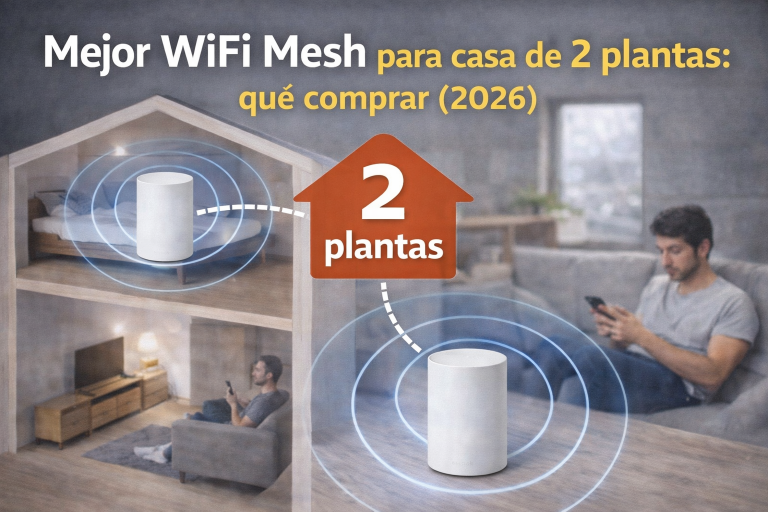
Ethernet Backhaul WiFi Mesh: Complete Setup Guide
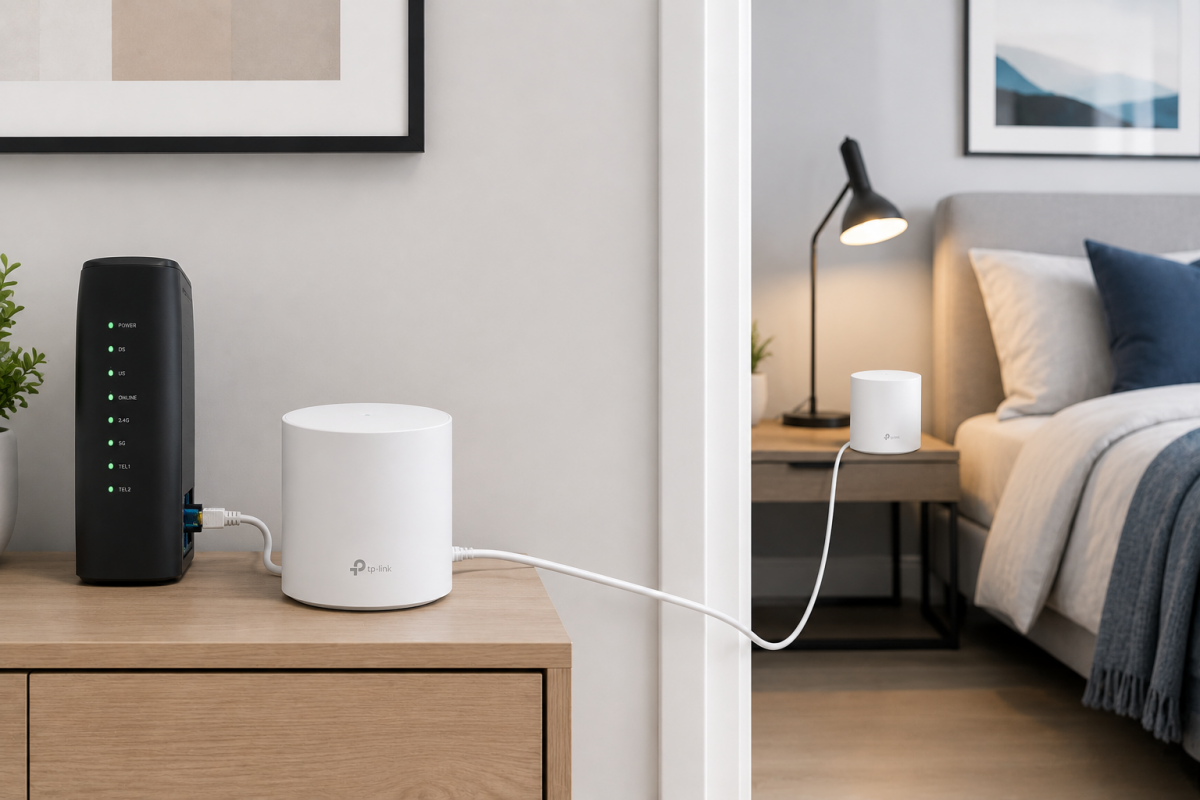
Ethernet backhaul WiFi mesh is the difference between a Mesh system that works well and one that works great. If you have coverage throughout your home but WiFi is slow in certain areas, drops out, or performance is inconsistent, the problem usually lies in the backhaul: the internal connection between nodes.
When the ethernet backhaul WiFi mesh runs over cable, nodes communicate with each other without competing with your devices, and the result is a more stable network, with lower latency and higher real-world speeds throughout the entire house. This definitive guide has everything you need to know to set it up correctly.
Table of Contents
1) What is backhaul (simply explained)
In a Mesh system there are:
- Main node (the «Mesh router»): connected to your ISP’s router/ONT.
- Satellite nodes: placed around the house.
- An internal connection so satellites carry traffic back to the main node: that is the backhaul.
Types:
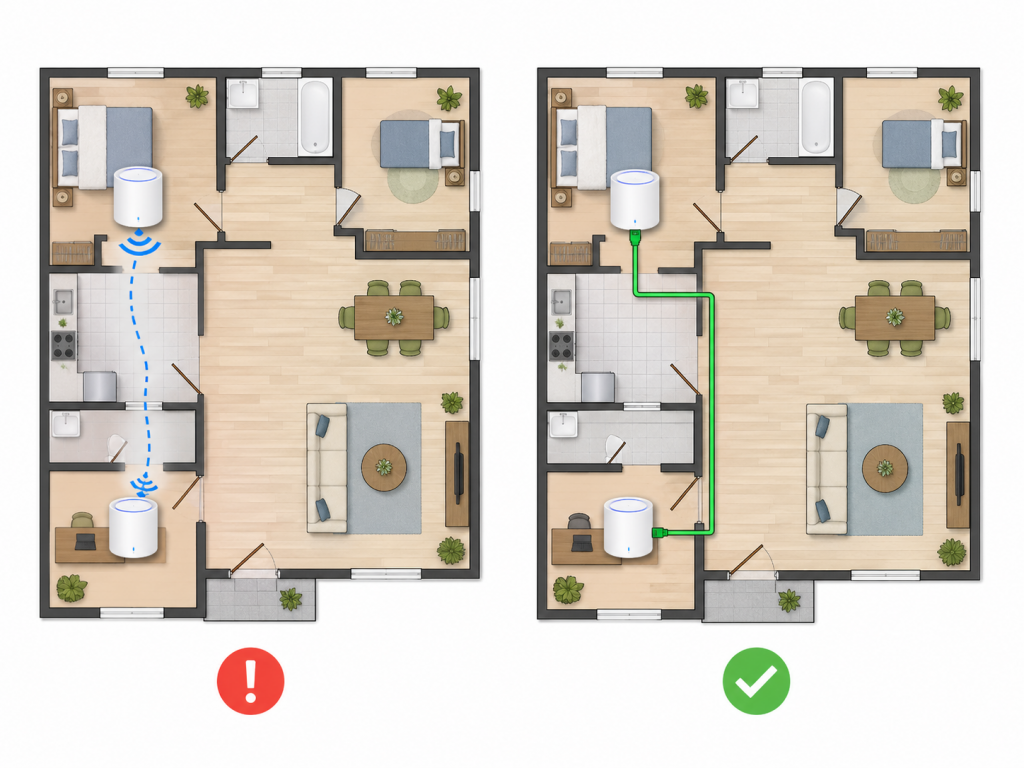
- Wireless backhaul: the «path» between nodes goes over WiFi.
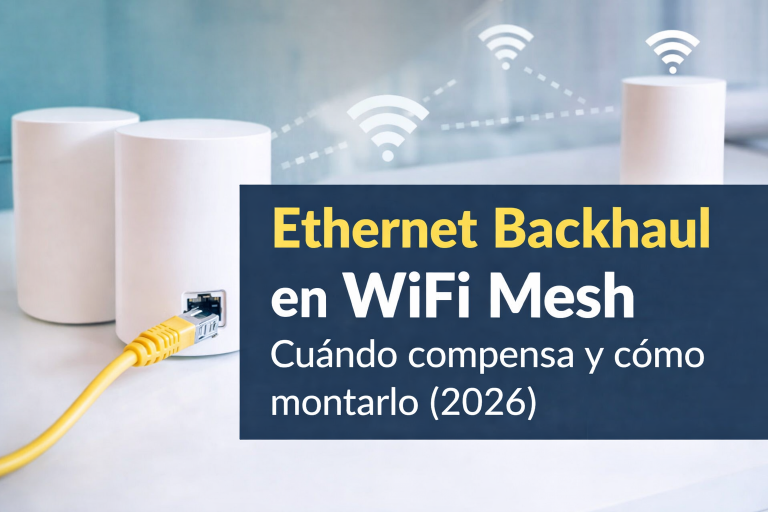
- Ethernet backhaul (wired): the «path» between nodes goes over a network cable.
Key idea of ethernet backhaul WiFi mesh: if the backhaul goes over WiFi, it competes with your devices. If it goes over cable, WiFi is freed up entirely for your devices.
2) Ethernet backhaul WiFi mesh vs wireless backhaul: real differences
Wireless WiFi backhaul
✅ Easy (no cables)
✅ Perfect if your home is simple and nodes have good line of sight
❌ More variable: interference, walls, neighbors
❌ Usually drops speed at distant nodes
❌ Less stable latency
Ethernet backhaul (wired)
✅ Much more stable
✅ Better real-world speed in distant areas
✅ Better ping (gaming/video calls)
✅ Fewer micro-dropouts
❌ Requires running cable (though sometimes only 1–2 runs)
Wireless backhaul explained: shared vs dedicated band, and multi-gigabit backhaul
Not all wireless backhaul is the same. In a mesh WiFi network, the backhaul can travel over the air in two very different ways:
- Shared (dual-band mesh): the nodes talk to each other on the same 5 GHz band your devices use. Every hop between nodes eats a big chunk of the speed, and with three nodes in a chain you will notice it.
- Dedicated (tri-band mesh): the system reserves one band just for node-to-node traffic (a second 5 GHz band, or 6 GHz on WiFi 6E and WiFi 7 models). Your devices never compete with that traffic, so far-away nodes perform much better.
On the wired side, the newer option is multi-gigabit backhaul: some recent mesh systems have 2.5 Gbps ports, and if you link the nodes through those ports with Cat 6 cable, the connection between them goes beyond 1 Gbps. It is only worth it with a fiber plan above 1 Gbps or if you move large files inside your home; for 300-600 Mbps plans, regular gigabit backhaul is more than enough.
In short: with a tri-band mesh, dedicated WiFi backhaul works well without cables. With a dual-band mesh, Ethernet backhaul is the upgrade that makes the biggest difference.
3) When Ethernet is worth it (quick rule)
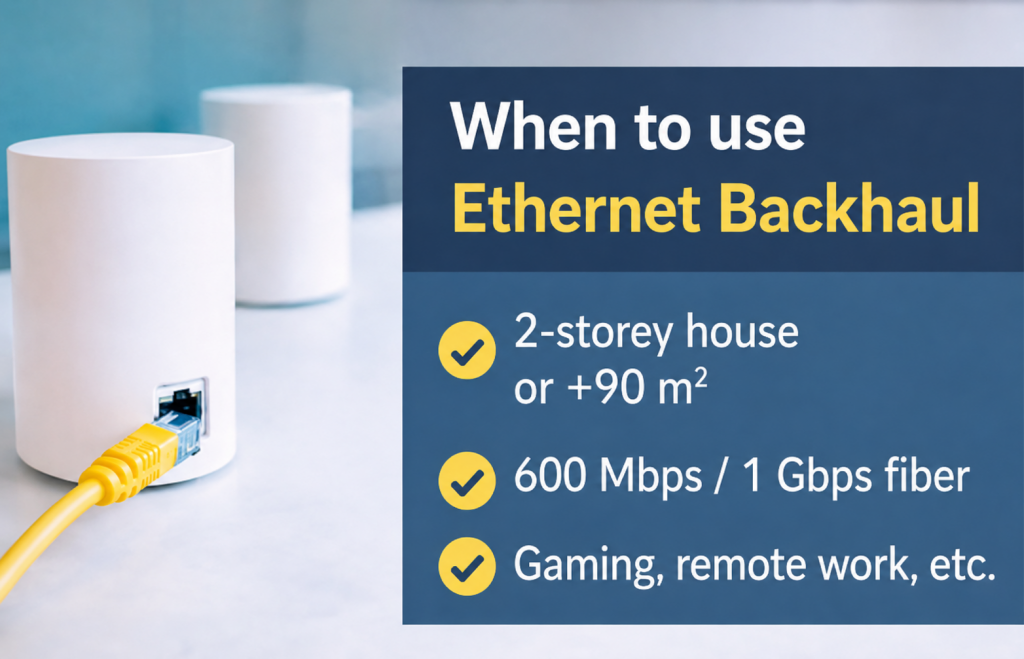
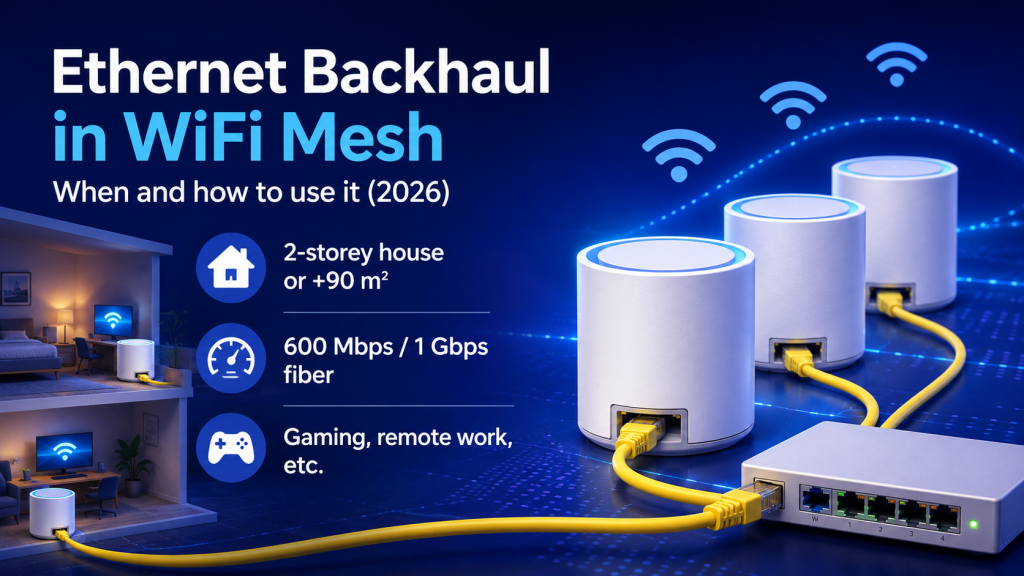
Ethernet backhaul WiFi mesh is almost certainly worth it if you match 1 or more of these cases:
✅ 2-story home
✅ More than 900–1,100 sq ft
✅ Hard walls (concrete/slab) or many rooms
✅ 600 Mbps / 1 Gbps fiber and you are not getting it in bedrooms
✅ Working from home / video calls / 4K streaming
✅ Gaming or need stable ping
✅ Your Mesh is dual-band (2.4 + 5 GHz) and you notice speed drops
May not be a priority if:
- small apartment (500–700 sq ft), 2 nodes and everything works fine
- basic use (phone/YouTube) and you do not mind losing some performance
- you have a good tri-band and solid signal between nodes (even so, cable usually improves things)
4) What you need to set it up (minimum hardware)
Essential
- A Mesh system that supports Ethernet backhaul (most do).
- Ethernet cable (Cat5e or Cat6).
Recommended
- Gigabit switch (5 or 8 ports) if you are short on ports on your router or need to distribute cables.
Quick tip
- Cat5e already supports 1 Gbps, but Cat6 typically gives more headroom and fewer issues.
5) 3 typical ways to set up Ethernet backhaul
Option A) Star topology (the best)
Router / switch → cable → each node
✅ Best stability and performance
✅ Easy to troubleshoot
➖ Requires more cables or a switch
Option B) Daisy chain
Router → Node 1 → Node 2 → Node 3
✅ Sometimes the only option available
➖ If one segment fails, all nodes behind it are affected
➖ Depends on available ports
Option C) Using existing wiring (RJ45 outlets / patch panel)
If your home already has RJ45 wall outlets or a communications panel: ideal.
✅ Looks clean and professional
➖ Sometimes you need to identify outlets / check crimping
6) How to set up ethernet backhaul WiFi mesh step by step
Step 1: Place nodes correctly (before plugging in cables)
- Main node: near your router/ONT, open placement, not enclosed.
- Satellites: on the path toward the weak zone (not right inside the weak zone).
- Avoid closed furniture and placement behind a TV.
Step 2: Connect the Ethernet cable
General rule:
- From router or switch → to a LAN port on the satellite node.
- If your Mesh is in AP mode, it usually works automatically.
- If it is in router mode, it usually works too, but check the app.
Step 3: Restart in order (trick that avoids failures)
- Turn off router/ONT
- Turn off all Mesh nodes
- Turn on router/ONT and wait 2–3 min
- Turn on the main node
- Turn on satellites, one by one
Step 4: Confirm in the app that backhaul is «Wired / Ethernet»
It usually appears as:
- Backhaul: Ethernet / Wired
- Or a cable icon
7) How to check if it is really using Ethernet (easy test)
- Connect via WiFi near the satellite node.
- Run a speed test + check the ping.
- Unplug the cable from the satellite for 10–15 seconds.
- Repeat the test.
If with the cable connected:
- speed goes up
- ping drops or stabilizes
Then the wired backhaul is working and it is worth it.
8) Common problems and solutions
«With cable it is slower»
Typical causes:
- Bad / pinched / poorly crimped cable
- 10/100 switch (not Gigabit)
- Port negotiating at 100 Mbps
Solution:
- Try a different cable
- Make sure the switch is Gigabit
- Check port LEDs / try a different LAN port
«It drops or the Mesh goes crazy»
Causes:
- Duplicate network: double DHCP / double router
- Wrong mode: router vs AP mixed without proper control
Quick fix:
- If you already have an ISP router: set Mesh to AP mode (cleanest setup in most cases).
- Leave DHCP only on the main router.
«I cannot run cables»
Alternatives:
- If you have coaxial TV cable, MoCA exists (if your installation supports it).
- If not, a tri-band Mesh with good node placement is the next best option.
- Powerline (PLC) can help, but is more variable than real Ethernet.
9) Recommended products for ethernet backhaul WiFi mesh
Case A) I already have a compatible Mesh (just want to cable and improve)
What I recommend:
- Cat6 Ethernet cable (1–3 m) (for testing)
- Cat6 cable (10–30 m) (for running through the house)
- Gigabit switch 5/8 ports (if you are short on ports)
Case B) Apartment 600–900 sq ft (2 nodes) and want stability
What to look for:
- WiFi 6 (AX)
- Ethernet backhaul
- 2 nodes
- Decent app
Case C) 2 floors / 900–1,500 sq ft (3 nodes) «upstairs is weak»
What to look for:
- 3 nodes
- If you are not going to cable all nodes: tri-band helps a lot
- If you can cable 1 node: perfect
Case D) Gaming / serious remote work (stable ping)
What to look for:
- Ethernet backhaul
- LAN ports per node
- QoS or device prioritization
Case E) Large home / many walls (maximum coverage)
What to look for:
- 3 nodes or more depending on square footage
- Tri-band / 6E / Wi-Fi 7 if budget allows
- Cable 1–2 nodes if possible
10) Final checklist
If you have followed this guide, your ethernet backhaul WiFi mesh should be working correctly. Go through this list before considering the setup complete:
✅ Nodes placed in open areas
✅ Cat5e/Cat6 cable tested
✅ Gigabit switch if needed
✅ Restarted in order (router → main node → satellites)
✅ App shows backhaul as «Ethernet» (or the test confirms improvement)
✅ Mesh in correct mode (AP if you have an ISP router)
11) Frequently asked questions
Does Ethernet backhaul improve things even if you have tri-band?
Yes. Tri-band improves wireless backhaul, but cable almost always wins on stability.
Do I need to cable all the nodes?
No. Cabling 1 key node (the one serving the problematic area) can already change everything.
Cat5e or Cat6?
Cat5e works fine for 1 Gbps. Cat6 is the «safer» choice and usually causes fewer issues.
What if I plug the cable into the wrong port?
Some models have a specific WAN/LAN port. If it does not work, switch ports and check the mode (AP/router).
Can I use Powerline (PLC) as backhaul?
Sometimes yes (PLC + Mesh), but it is more variable. If you can, direct Ethernet is always better.
What is wireless backhaul?
It is the link between the nodes of a mesh WiFi system when it runs over the air instead of a cable. On dual-band mesh it shares the 5 GHz band with your devices and loses speed at every hop; on tri-band mesh it uses a band dedicated to it and performs much better.
What is multi-gigabit backhaul?
It is a wired backhaul that runs faster than 1 Gbps, using 2.5 Gbps (or faster) Ethernet ports on the mesh nodes and Cat 6 cable. It only makes a difference with fiber plans above 1 Gbps or heavy local file transfers.